Customer Success Forum
cancel
Showing results for 
Search instead for 
Did you mean: 
The Zoom Community will be placed in read-only mode January 9th, 2026 through January 22nd, 2026 to deliver you a new and improved community experience!

The community will still be accessible, however, the creation of any new discussions or replies will be temporarily unavailable. We appreciate your patience during this time.

Welcome to the Customer Success Forum!

Welcome to the Customer Success Forum! This is a collaborative place for Zoom users to share customer success stories, learn about upcoming events, and exchange use cases for helpful ways to use Zoom features.

Recent Activity

Not just delivering happiness, but love and care through Zoom

I have been working in Customer Success for a long time, and it has always been my passion to help people. On the other hand, music is another passion of mine, in fact, it is my first love. I never thought there would be a time that I’d experience bo... Show more

I have been working in Customer Success for a long time, and it has always been my passion to help people. On the other hand, music is another passion of mine, in fact, it is my first love. I never thought there would be a time that I’d experience both which had a great impact on my career here at Zoom and my love for music.

I recently met with this client who offers therapy services specially for children cancer patients – That, itself, is simply enough to melt my heart. Before the pandemic, they reach out to patients in hospitals, clinics and homes in person to sing songs to the children and/or to play musical instruments. This is just part of the healing process, as you know, music can help destress and calm the patients. Apart from playing music, they give medicinal consultations and simple conversations to help ease the patients’ anxiety. Imagine how their services could have been affected when the pandemic hit. Imagine how the children could have missed these curative help that they are getting - Thankfully, Zoom was there that allowed them to continually fulfill their mission. Zoom has helped bridge the gap and for them to virtually deliver their soothing live music, assistance and other services.

Meeting with this client from time to time to provide updates and new features that they can utilize and leverage in making sure they are able to fulfill their heart-warming jobs for the children. Zoom has definitely evolved great in just a couple of years, transforming from a video conferencing tool into a huge communications platform.

Some key features of Zoom include:

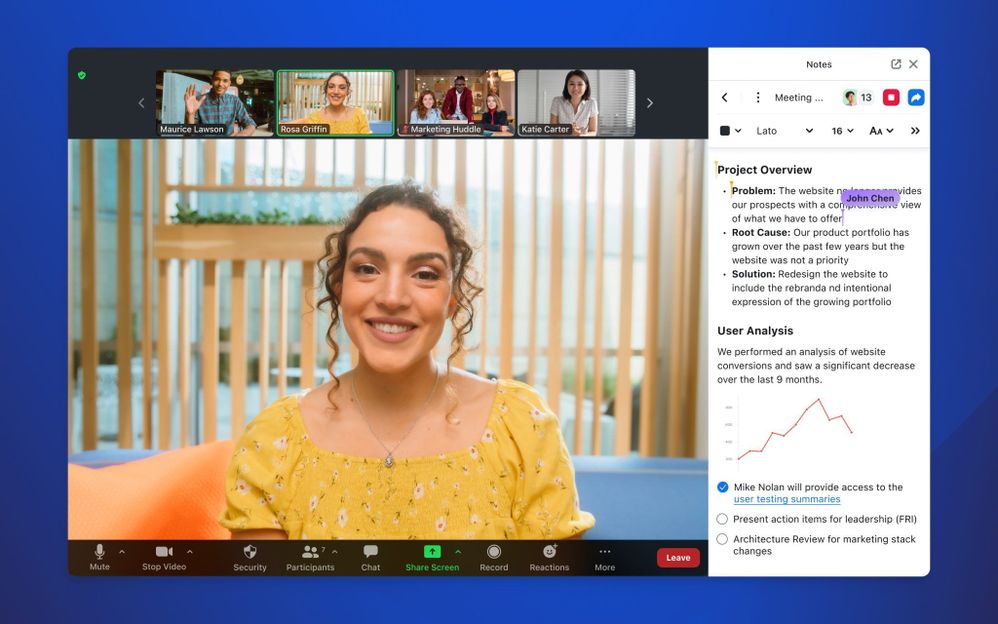
  • Video Conferencing: Zoom allows users to host or join video meetings with participants from around the world. It supports high-quality video and audio streaming, making it suitable for various purposes, such as business meetings, webinars, virtual events, and personal video chats.

  • Screen Sharing: Users can share their computer screens with others, which is useful for presentations, demonstrations, and collaborative work.

  • Team Chat: Zoom offers text-based chat features for sending messages, links, and files to meeting participants or individuals. It also supports group chat within meetings.

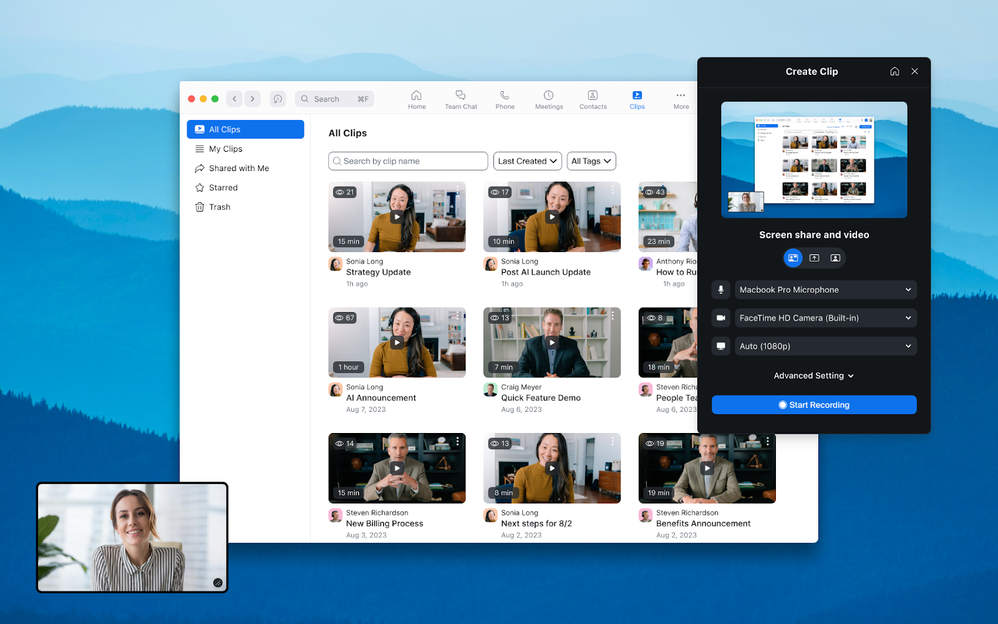
  • Recording: Zoom meetings can be recorded for later reference or sharing with others. This feature is often used for archiving important discussions or educational sessions.

  • Scheduling: Users can schedule Zoom meetings in advance and send invitations with meeting details and links to participants. Integrations with calendar apps like Google Calendar and Microsoft Outlook are available.

  • Virtual Backgrounds: Zoom allows users to set virtual backgrounds, which can be fun or professional, to enhance the visual appearance of their video calls.

  • Breakout Rooms: In larger meetings or webinars, hosts can create breakout rooms to facilitate small group discussions, collaboration, or workshops.

  • Security and Privacy: Zoom has implemented various security features, such as password protection for meetings and waiting rooms to control participant access. It also offers end-to-end encryption for Zoom meetings.

  • Cross-Platform Compatibility: Zoom is available as a desktop application for Windows and macOS, as well as mobile apps for iOS and Android devices. It can also be accessed through web browsers.

  • Integration: Zoom can integrate with various third-party applications and services, including productivity tools like Slack, Trello, and Dropbox, to enhance its functionality.

Zoom has become an essential tool for businesses, healthcare, educational institutions, and individuals to stay connected and collaborate remotely, especially during times when in-person meetings and gatherings are limited or not feasible. What is your favorite Zoom feature?


Show less

reply-icon Latest Reply - 

Security Considerations for Managing Zoom Software in Your Organization

Hi Everyone,Zoom is a powerful tool, but security should always be a top priority, especially for organizations using System Management Software. Here are some key security considerations to keep in mind:User Access Control: Ensure that only authoriz... Show more

Hi Everyone,

Zoom is a powerful tool, but security should always be a top priority, especially for organizations using System Management Software. Here are some key security considerations to keep in mind:

  1. User Access Control: Ensure that only authorized users have access to your Zoom meetings and account through your System Management Software. Use strong, unique passwords and enable multi-factor authentication (MFA) to add an extra layer of security.

  2. Meeting ID and Passwords: Avoid using personal meeting IDs for sensitive meetings. Generate random meeting IDs for each session and use strong, unique passwords. Don't share meeting details publicly, and manage this process through your System Management Software.

  3. Waiting Rooms: Enable the waiting room feature to control who enters your meetings, all within your System Management Software (lenovo.com/gb/en/servers-storage/software/management/). This gives you the ability to admit participants individually, reducing the risk of unwanted attendees.

  4. Screen Sharing: Limit screen sharing to hosts and trusted participants, with controls managed through your System Management Software. You can restrict screen sharing to prevent disruptions or inappropriate content.

  5. End-to-End Encryption: Zoom offers end-to-end encryption for meetings, but you need to enable it in your settings through your System Management Software. Keep in mind that some features, like recording, may not be available with E2E encryption.

  6. Updates: Regularly update Zoom to the latest version through your System Management Software to ensure you have the latest security patches and features. Configure automatic updates where possible.

  7. Data Privacy: Familiarize yourself with Zoom's data privacy policies and compliance standards. Ensure that your organization complies with relevant data protection regulations like GDPR or HIPAA through your System Management Software.

  8. Recordings: If you record meetings, store them securely and restrict access to authorized personnel through your System Management Software. Be mindful of any sensitive information shared in recordings.

  9. Third-Party Integrations: Review and audit third-party integrations that you use with Zoom through your System Management Software. Ensure they meet security standards and are kept up to date.

  10. Training and Awareness: Educate your organization's users about Zoom security best practices. Conduct training sessions and provide resources to help them use the platform securely, all managed through your System Management Software.

Best Regards,

William


Show less

Zoom Webinar Breakout Rooms! Create Focus Groups, Training Sessions or Panelist led Breakouts

Ever tried pulling off a webinar before? Felt like you were trying to connect with a bunch of distant relatives at a chaotic family reunion? Yep, you've stepped into my realm, friend!  So, picture this: I'm part of the Zoom squad, and one of the gig... Show more

Ever tried pulling off a webinar before? Felt like you were trying to connect with a bunch of distant relatives at a chaotic family reunion? Yep, you've stepped into my realm, friend! 🎉


So, picture this: I'm part of the Zoom squad, and one of the gigs I've got is hosting webinars. But hold up, it's not your typical snooze-fest. Nope, my mission is to make these webinars as lively as a carnival, where I can practically feel the vibes of the audience digging into my content. It's like trying to keep a bunch of energetic puppies focused – a delightful challenge, if you ask me!


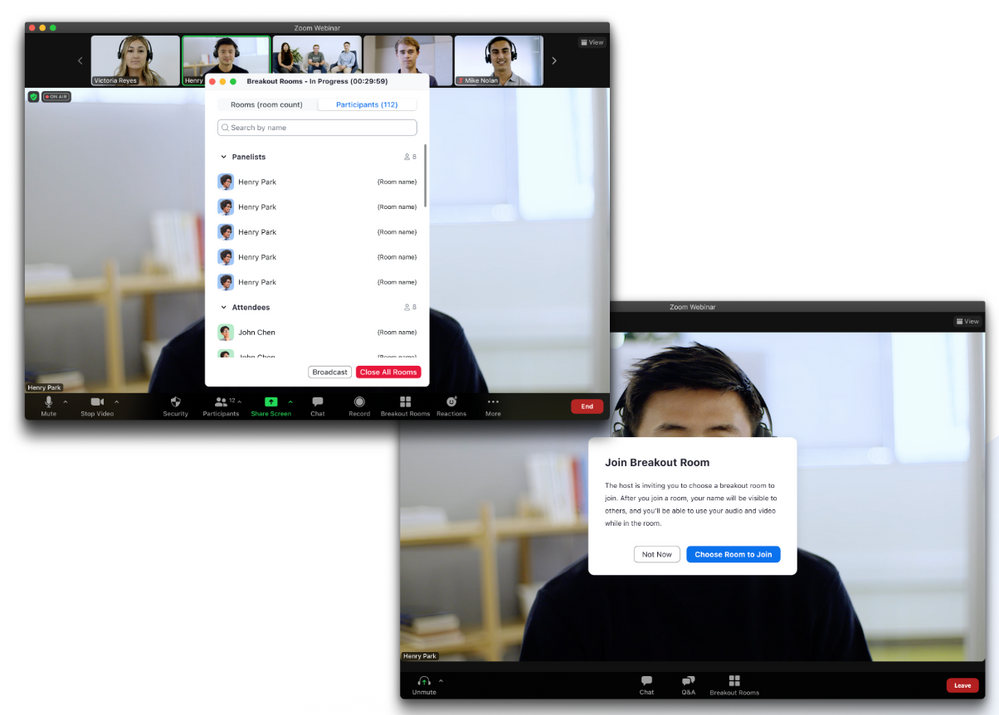
Now, here's the golden nugget: BREAKOUT ROOMS have made their grand entrance into the world of webinars! 🎉 Imagine it like this: you're at a super cool party, and you can just zip around the room to different conversation corners. Well, that's exactly what these breakout rooms do for our webinars!


They let us dive headfirst into interactive sessions, where everyone – from the big shots on the panel to the eager attendees – can mingle, brainstorm, and shoot ideas like confetti cannons. And guess what? If you've already mastered the art of Zoom Meetings, this is like second nature. You'll feel right at home, my friend.

And here's the cherry on top: when the breakout extravaganza wraps up, it's a breeze to get back to the main webinar mode. Just a tap, and we're back in control, ready to drop some knowledge bombs in the most engaging way possible. So there you have it, the magic wand that transforms webinars from monologues into a two-way street of awesomeness. Let's make those virtual stages rock! 🚀🎙


Now here's where you find out more!


Screenshot 2023-08-29 at 3.07.26 PM.png


Show less

reply-icon Latest Reply - 

New Zoom Learning Center Experience for CS Advisor Customers

Have you visited the Zoom Learning Center (ZLC) lately? If you’re supported by our Customer Success Advisor team, you may notice a few differences! We have refreshed the English-language homepage for these customers to make onboarding and ongoing lea... Show more

Have you visited the Zoom Learning Center (ZLC) lately? If you’re supported by our Customer Success Advisor team, you may notice a few differences!


We have refreshed the English-language homepage for these customers to make onboarding and ongoing learning as easy as possible, including:

  • New specialized tracks for administrators and end users
  • Banner and static announcements to let you know what’s happening
  • Quick access to the latest resources for ongoing learning opportunities
  • And more!

Why not refresh the basics by following the Zoom Admin Onboarding learning plan from your Start Your Onboarding page to achieve your onboarding certificate? Be sure to pass this information on to your end users as well, so they can experience the Zoom User Onboarding learning plan created specifically for them!


Show less

reply-icon Latest Reply - 

Caring for You Customer Story

Caring for You is an award-winning nursing agency who had a rapid period of growth during the pandemic and needed a solution that would scale with them. They were also looking for a solution to accommodate the nurses in rural areas who need a reliabl... Show more

Caring for You is an award-winning nursing agency who had a rapid period of growth during the pandemic and needed a solution that would scale with them. They were also looking for a solution to accommodate the nurses in rural areas who need a reliable phone and conferencing solution.


After success with Zoom Phone, they quickly turned to Zoom Contact Center to up-level how their customers’ experience with their agents. The transparent reporting and ability to monitor and measure interactions translated into greater efficiency and an overall better experience for both agents and customers.


As an organization built around helping others, Caring For You uses the convenience of Zoom’s all-in-one communications and collaboration platform to help create a more relaxed atmosphere for agents to serve their clients. 💙👩‍⚕️


Read more of Caring for You's customer story here: https://explore.zoom.us/en/customer_stories/caring-for-you/


Show less

reply-icon Latest Reply - 

Resolved! Sharing you tube audio-online children's book

I am trying to share a children's book via Youtube with a homebound student. The student can see the book but cannot hear the audio. I can hear audio and see the book on my end. What do I need to do so my student can hear the book? I have this issue ... Show more

I am trying to share a children's book via Youtube with a homebound student.  The student can see the book but cannot hear the audio.  I can hear audio and see the book on my end.  What do I need to do so my student can hear the book?  I have this issue with 3 other students so it's not their computer.  Thank you!


Show less

reply-icon Latest Reply - 

Turn on your Zoom Video and Virtual Background

The Virtual Background feature allows you to display an image or video as your background during a Zoom meeting, which can provide you with more privacy or a consistent and professional look for a presentation. Depending on the device you are joining... Show more


The Virtual Background feature allows you to display an image or video as your background during a Zoom meeting, which can provide you with more privacy or a consistent and professional look for a presentation. Depending on the device you are joining the meeting with, you can use the Virtual Background feature with or without the use of a green screen behind you, with the system requirements being higher for virtual background without a green screen.

How to turn on your video and add a virtual background


COMPUTER.jpegDESKTOP

  • If the host has requested video be on by default, you will be prompted with a video preview. This allows you to see your current video and decide to join the meeting with or without video. Click Join with Video.
  • While you’re in a meeting, click Start Video / Stop Video in the bottom-left corner of the meeting controls toolbar as needed to control your video.
  • (Optional) Next to Start Video / Stop Video, click the up arrow icon 🔼 to change any of your video settings, such as picking a different camera or choosing a virtual background. If you select a new background, it will automatically change in the meeting.

mobie.pngMOBILE

  • If the host has requested video be on by default, you will be prompted with a video preview. This allows you to see your current video and decide to join the meeting with or without video. Click Join with Video.
  • While you’re in a meeting, click Start Video / Stop Video in the bottom-left corner of the meeting controls toolbar as needed to control your video.
  • (Optional) Next to Start Video / Stop Video, click the up arrow icon 🔼


     to change any of your video settings, such as picking a different camera or choosing a virtual background. If you select a new background, it will automatically change in the meeting.


Reference Article : https://support.zoom.us/hc/en-us/articles/210707503-Changing-your-Virtual-Background-image


Show less

reply-icon Latest Reply - 

When New Licenses Aren't Automatically Assigned

I'm guilty. Guilty of making a bad assumption. Based on the large number of posts in the Zoom Community about "I paid for a Pro account but I'm still not Licensed and my meetings get cut off at 40 minutes," I had made the assumption that Zoom does no... Show more

I'm guilty. 


Guilty of making a bad assumption.  Based on the large number of posts in the Zoom Community about "I paid for a Pro account but I'm still not Licensed and my meetings get cut off at 40 minutes," I had made the assumption that Zoom does not automatically assign a newly-purchased Pro license to the owner and sole user on an account.


Yesterday, while recording some screen captures for an upcoming video I'm creating, I discovered -- much to my surprise -- that the account I purchased while recording did in fact get assigned to the owner and only user on the account.


And yet, the "New license not assigned" posts continue to come in!


The question I'm now researching is, "Under what conditions does Zoom do the automatic license assignment, and when does it not do the license assignment?"  I've done a quick review of the latest posts, and one or more of these situations seem to be present in many of them:

  1. The user previously had a Pro account, which lapsed, was cancelled, or otherwise interrupted, and the user has renewed their license subscription.
  2. The user has been on a Basic account for a very long time -- perhaps years -- and has recently decided to move to a Pro account.

In some cases, it appears that there is indeed a glitch in the application or recognition of the License that can only be fixed on the back end by Zoom Support.


I've developed a macro to provide this information to most posts with these issues:

(Don't know what a macro is on your Community profile?  You're missing out!)


You need to assign your newly purchased license to your user account. See this web page for assistance:

https://support.zoom.us/hc/en-us/articles/115004976063-Assigning-a-License

Follow these steps taken from the article:

    1. Sign in to the Zoom web portal at https://zoom.us.
    2. Click User Management, then Users.
    3. Locate or search for the user who you want to assign a license. There will likely only be your single account – click your account
    4. Click Edit at the end of the user row. This will open a window.
    5. Choose the User Type to assign, selecting Licensed.
    6. After choosing the User Type, use the drop down to select the license. There should be an indication that you have 1 available user license if you have indeed purchased one or more new licenses. Click the available license.
    7. (Optional) Assign add-ons can be included by checking the boxes for the add-on. You will not likely have any add-ons, so you might skip this step.
    8. Click Save.

The license is now applied to your user account and you can use it immediately.

If this does not fix your issue, please submit a support ticket to our Billing team here and they will be able to assist you.

https://support.zoom.us/hc/en-us/requests/new?ticket_form_id=360000983032


If you have any insight or opinions on why these situations of "New license not assigned" continue to occur, I'd like to know!  Maybe the automatic assignment process can be tweaked to reduce the number of posts with this issue.


Show less

reply-icon Latest Reply - 

Centro de Aprendizaje de Zoom / Zoom Learning Center

¿Sabías que Zoom tiene su propio Centro de Aprendizaje y que es GRATUITO? ¡Pues, cómo lo oyes! En nuestro Centro de Aprendizaje (ZLC, por sus siglas en inglés) podrás encontrar cursos actualizados de todos los productos de Zoom, no tienes más que sus... Show more

¿Sabías que Zoom tiene su propio Centro de Aprendizaje y que es GRATUITO? ¡Pues, cómo lo oyes! En nuestro Centro de Aprendizaje (ZLC, por sus siglas en inglés) podrás encontrar cursos actualizados de todos los productos de Zoom, no tienes más que suscribirte a los cursos que te interesan y completarlos a tu ritmo. Al final del curso obtendrás un certificado digital confirmando que has superado el curso con éxito. Si tienes un equipo a tu cargo o te encargas de las capacitaciones de los miembros de tu empresa, esta es una manera sencilla de tener a toda la plantilla que usa los productos de Zoom bien entrenada. 


He trabajado en el pasado con un par de organizaciones de carácter internacional, con oficinas tanto en América del norte como del sur, mediante nuestro Centro de Aprendizaje han conseguido superar barreras lingüísticas y logísticas que hubiesen supuesto un gran reto para los equipos de RR.HH de ambos continentes. ¡Y todo esto ofrecido por Zoom de manera gratuita!

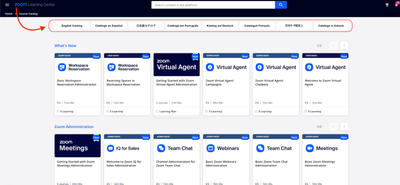
Os animo a echarle un vistazo y compartir con nosotros vuestra experiencia. Os dejo un vistazo rápido al nuevo sistema de selección de catálogos para diferentes idiomas:

AnderV_0-1692733730753.png


¿Preparado para tu próxima aventura en Zoom? ¿Qué curso vas a elegir en el Centro de Aprendizaje de Zoom?

 ¡Un saludo Zoomeros!


—----------------------------------------------------------------------------------------------------------------------------

Did you know that Zoom has its own Learning Center and that it is completely free? Well now you do! In our Zoom Learning Center (ZLC) you will find updated training courses for all our products. You only have to subscribe to the courses that are more appealing to you and complete them at your own pace. At the end of the training you will receive a digital certificate showing successful completion of the course. If you are managing a team or you are in charge of your organization's training, this is an easy way to have all your staff well trained and up to speed on Zoom’s products.


In the past I have had the luck to work with several organizations that have offices both in North and South America, through our Zoom Learning Center they managed to overcome language and logistic obstacles thus saving substantial time as well as expenses to their HR team. And all this thanks to our free to use Zoom Learning Center!

I highly encourage you to check it out and share with us your experience. Also, check out the new fast language catalog access functionality:

AnderV_1-1692733730757.png


Ready for your next learning adventure with Zoom? What course will you choose next in the Zoom Learning Center?

Happy Zooming!


Show less

reply-icon Latest Reply - 

Resolved! Team Chat Question

Hello everyone, In our tenant, we would like to have Team Chat disabled for everyone, but we would also like to be able to slowly deploy it should we decide to do so. Our Zoom reps mentioned creating a group with a name something like "Team Chat Disa... Show more

Hello everyone,


In our tenant, we would like to have Team Chat disabled for everyone, but we would also like to be able to slowly deploy it should we decide to do so.  Our Zoom reps mentioned creating a group with a name something like "Team Chat Disabled," then disable team chat in that group's settings.  Then it was mentioned to enable team chat at the account level and leave it unlocked there.  From there, people we don't want team chat enabled would be added to the "Team Chat Disabled" group.


Surely, others here have wanted the same thing to where you perhaps want certain groups to have team chat, but not others.  For those with experience with this, how did you handle it?


Thanks!


Show less

reply-icon Latest Reply -