cancel
Showing results for 
Search instead for 
Did you mean: 

Turn off waiting room during presentation

NemanMTX
Contributor II
Contributor II

Hi. We're hosting internal presentations on Zoom Meetings. Some of our guest presenters will be external (different email domain), some internal to our company (same email domain). I'll be made a co-host by the meeting creator.


I want some private prep time with the guest presenter prior to allowing everyone to join to do A/V checks, housekeeping, and the like. It'll be me, the host, and the presenter. A few minutes before the scheduled meeting time, I'll allow the attendees in.


If we enable the Waiting Room feature, we can let the guest presenter in, and up to a few dozen people will be waiting.


1. Can we allow everyone in at once?

2. Can the Waiting Room be disabled so late attendees can come in without host interaction?

3. Is the Waiting Room the best way to resolve this problem?

4. At the end of the presentation, can I kick everyone out except those designated as host/co-host/presenter (i.e. everyone who was in the Waiting Room) as a group? Or do they need to be manually removed one-by-one?


Thanks!

2 ACCEPTED SOLUTIONS

YaBoiB
Community Champion | Employee

Hello,
My name is Brandon. Thanks for joining the Zoom Community! The answer to this question would be a resounding yes to all. As the host or co-host, you can either let one or admit all participants into the meeting at one time. Host and Co-Host controls allow you to click on the security button and disable the waiting room at any time throughout the meeting to allow your participants to enter without having to go into the waiting room. Using the participant's button will allow you to remove participants at any time throughout the meeting to allow only the participants that you want to stay at the end of the meeting. Please see the linked support article if you have any further questions about Host and Co-Host controls


Brandon (he/him/his)
Zoom Community Champion
Have you heard of Zoom AI Companion?

View solution in original post

J-Zoom-ATL
Zoom Employee
Zoom Employee

@NemanMTX 

1. Can we allow everyone in at once?
Yes, you will have an "Admit All" button in the participants pane. 

2. Can the Waiting Room be disabled so late attendees can come in without host interaction?

Yes, you can open the "Security" feature and disable/enable waiting room when needed. 

3. Is the Waiting Room the best way to resolve this problem?
Yes, I would agree. However, you may want to consider doing a webinar if you are going to have panelists presenting to an audience that doesn't need to interact as much. With webinar you can utilize the practice session feature to practice before the webinar begins. No attendees can join during that time. 

Practice Session 

4. At the end of the presentation, can I kick everyone out except those designated as host/co-host/presenter (i.e. everyone who was in the Waiting Room) as a group? Or do they need to be manually removed one-by-one?

This will need to be done one by one

Reference: Waiting Room  


If this answer helped solve your question/issue, please hit the "Accept as Solution" button below.

View solution in original post

10 REPLIES 10

YaBoiB
Community Champion | Employee

Hello,
My name is Brandon. Thanks for joining the Zoom Community! The answer to this question would be a resounding yes to all. As the host or co-host, you can either let one or admit all participants into the meeting at one time. Host and Co-Host controls allow you to click on the security button and disable the waiting room at any time throughout the meeting to allow your participants to enter without having to go into the waiting room. Using the participant's button will allow you to remove participants at any time throughout the meeting to allow only the participants that you want to stay at the end of the meeting. Please see the linked support article if you have any further questions about Host and Co-Host controls


Brandon (he/him/his)
Zoom Community Champion
Have you heard of Zoom AI Companion?

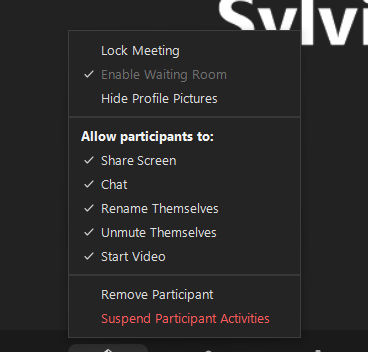
Hi Brandon! I appreciate the answer here about the ability to disable the waiting room during a meeting; however, I'm having trouble with that because the option is greyed out in the Security tab so I'm not able to toggle on or off. Do you have any ideas regarding this? 

SylviaF_0-1652816027463.png


YaBoiB
Community Champion | Employee

Hi @SylviaF


 That tells me that your Admins have locked that ability for some reason, so you would need to reach out to your organization's Zoom Admins to determine why this setting is locked. Zoom does not lock settings by default. Only an IT team for a company or organization can do this function. 


Brandon (he/him/his)
Zoom Community Champion
Have you heard of Zoom AI Companion?

Were you ever able to resolve this? I'm having the same issue. I am the admin, and I can enable or disable the waiting room in the account settings, but during an actual meeting it is either greyed out (if waiting room is enabled) or non-existent (if waiting room is disabled) based on the backend settings. Thanks

MGSR
Community Moderator | Employee

Hello @jrarmstrong36

Welcome to the Zoom Community! We're glad to have you here!

If the Waiting Room feature is enabled in your Zoom account settings, it will appear in your meeting controls, but it may be greyed out if certain security settings are enforced at the account or group level. If the Waiting Room is disabled in the backend settings, the option will not appear at all during your meetings.

As an admin, to manage this:

  • If you want hosts to have the ability to turn the Waiting Room on or off during meetings, ensure that the Waiting Room setting is enabled but not locked at the account or group level. If it’s locked, individual hosts cannot change it during a meeting.
  • If the Waiting Room is disabled at the account or group level, it will not be available in meeting controls.

To adjust these settings:

  1. Sign in to the Zoom web portal as an admin.
  2. Go to Account Management > Account Settings (or Group Management for group-level settings).
  3. Under the Security section, find the Waiting Room option.
  4. Enable or disable it as needed, and decide whether to lock the setting.

Mark
Zoom Community Team
Have you heard of Zoom AI Companion?

Hello, when in the meeting the "enable waiting room" option is greyed out. I have contacted Zoom support twice to figure out how to change this and have not received a solution. Do you have any ideas? It is not locked in the Admin panel or Personal settings. 


NemanMTX
Contributor II
Contributor II

As per https://support.zoom.us/hc/en-us/articles/115000332726-Waiting-Room

1. Yes

2. Yes

3. Would still appreciate some thoughts here

4. Would still appreciate some thoughts here

J-Zoom-ATL
Zoom Employee
Zoom Employee

@NemanMTX 

1. Can we allow everyone in at once?
Yes, you will have an "Admit All" button in the participants pane. 

2. Can the Waiting Room be disabled so late attendees can come in without host interaction?

Yes, you can open the "Security" feature and disable/enable waiting room when needed. 

3. Is the Waiting Room the best way to resolve this problem?
Yes, I would agree. However, you may want to consider doing a webinar if you are going to have panelists presenting to an audience that doesn't need to interact as much. With webinar you can utilize the practice session feature to practice before the webinar begins. No attendees can join during that time. 

Practice Session 

4. At the end of the presentation, can I kick everyone out except those designated as host/co-host/presenter (i.e. everyone who was in the Waiting Room) as a group? Or do they need to be manually removed one-by-one?

This will need to be done one by one

Reference: Waiting Room  


If this answer helped solve your question/issue, please hit the "Accept as Solution" button below.

NemanMTX
Contributor II
Contributor II

Many thanks @YaBoiB and @J-Zoom-ATL! I appreciate the speed and clarity of your responses. For the record, I have to stick with Zoom Meetings right now (these are already scheduled), but will consider Zoom Webinars as well.

YaBoiB
Community Champion | Employee

Hello @NemanMTX , 


 Webinar is different but the host capabilities work the same with some slight small differences in the platform where you will see participants and attendees in the webinar product and only participants in the meeting product. I am happy that we were able to assist you. If this reply offers you a solution please do not forget to click on the "accept as a solution" button. Thanks and happy meetings ahead for you and yours. 


Brandon (he/him/his)
Zoom Community Champion
Have you heard of Zoom AI Companion?