cancel
Showing results for 
Search instead for 
Did you mean: 
The Zoom Community will be placed in read-only mode January 9th, 2026 through January 22nd, 2026 to deliver you a new and improved community experience!

The community will still be accessible, however, the creation of any new discussions or replies will be temporarily unavailable. We appreciate your patience during this time.

Portal Guide

Laila
Zoom Employee
Zoom Employee

Hello,


Where can I find in my portal the licenses that were purchased vs provisioned vs the total licenses being used monthly?


Thank you.

1 ACCEPTED SOLUTION

Peter_Uy
Community Champion | Employee

Hello @Laila 


To view some account details, your permission access level should either be the owner or admin of the account.


Under the Admin Option, go to:

User Management >> Users 


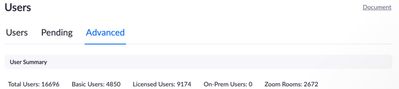
Then in the top section you will see, Users, Pending and Advanced

*If you are on the Users tab, you will see there how many available licenses you can still deploy

*If you are on the Pending tab, you will see the list of invited users who have not accepted the invitation yet.  

> Note: Pending users who have not activated will be removed in 30 days.


Peter_Uy_0-1629413298595.jpeg


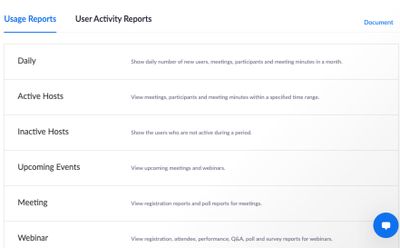
To view the account's full list of reports, your permission access level should either be the owner or admin of the account.  For Usage Reports, it will display a list of available reports, below image displays only a fraction of the available reports. 

Peter_Uy_1-1629413978044.jpeg

 To see the full available reports, 

Under the Admin Option, go to:

Account Management >> Reports


Hope this helps!


Please don't forget to mark this as solved!


Thank you and stay safe.  

View solution in original post

1 REPLY 1

Peter_Uy
Community Champion | Employee

Hello @Laila 


To view some account details, your permission access level should either be the owner or admin of the account.


Under the Admin Option, go to:

User Management >> Users 


Then in the top section you will see, Users, Pending and Advanced

*If you are on the Users tab, you will see there how many available licenses you can still deploy

*If you are on the Pending tab, you will see the list of invited users who have not accepted the invitation yet.  

> Note: Pending users who have not activated will be removed in 30 days.


Peter_Uy_0-1629413298595.jpeg


To view the account's full list of reports, your permission access level should either be the owner or admin of the account.  For Usage Reports, it will display a list of available reports, below image displays only a fraction of the available reports. 

Peter_Uy_1-1629413978044.jpeg

 To see the full available reports, 

Under the Admin Option, go to:

Account Management >> Reports


Hope this helps!


Please don't forget to mark this as solved!


Thank you and stay safe.