

background is always blurred | Community
Skip to main content
Newcomer
February 17, 2023
Solved

background is always blurred

  • February 17, 2023
  • 16 replies
  • 29 views

I am using Mac OS 13.2 and recently my Zoom background is always blurred unless I have a photo for my virtual background.  I have tested with multiple cameras (built-in, iPhone, NexiGo) and all show this behavior in Zoom.  It does not occur in other apps such as FaceTime or Photo Booth.  It is not quite as blurred as the "Blur" option in the "Background & Effects" but clearly out of focus.


I notice this only on my MacBook Pro and not my iPhone.

This is fairly recent behavior and I cannot find any setting in either the desktop or web client that corrects it.

Has anyone seen this behavior or know how to correct it?
    Best answer by TomO

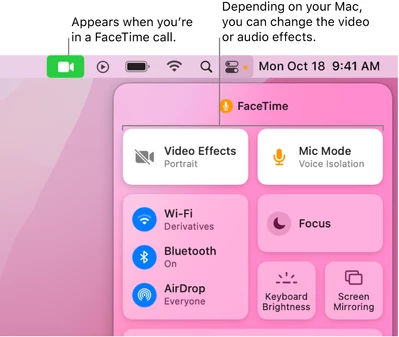
    On the new versions of MacOS, Apple has added a new Video Effects (Change video effects for FaceTime calls on Mac ). Try to turn off the Video Effects mode while using Zoom. The blurred background effect should then be removed.


    If this resolves your issue please mark this reply as an accepted solution.

    16 replies

    TomO
    Community Champion | Employee
    TomOAnswer
    Community Champion | Employee
    February 17, 2023

    On the new versions of MacOS, Apple has added a new Video Effects (Change video effects for FaceTime calls on Mac ). Try to turn off the Video Effects mode while using Zoom. The blurred background effect should then be removed.


    If this resolves your issue please mark this reply as an accepted solution.

    sonoerinAuthor
    Newcomer
    February 18, 2023

    Thank you for not only identifying the issue, but providing a solution.  It appears to be working correctly now.

    Newcomer
    April 1, 2025

    I can't get it to work on my MacBook!  Help please


    Newcomer
    March 31, 2023

    Also worked for me but that's crazy that one would have to turn off Video Effects for FT to get rid of a undesired blur in Zoom.

    Newcomer
    November 6, 2023

    Just FYI - It looks like it's called "Portrait" on the dropdown on the apple menu (white video icon with green background) while you're in zoom.

    Newcomer
    March 21, 2024

    Thank you so much! i totally went nuts with that issue!!


    Newcomer
    March 27, 2024

    Thank you for this answer. I had the same problem; in Zoom, I always had a blurred background, which I do not want. I opened FaceTime and clicked on "portrait." In FaceTime, my screen is sharp, but then, following what Tom suggested, I went to the panel where you should see the video effect (see photo), and I couldn't find it. My Mac and Zoom are both updated to the latest version. Does anybody have a tip? Thanks 

    Newcomer
    March 28, 2024

    I actually found the different filter options by clicking the green FaceTime/camera button in the top menu bar, not the control panel. You can see where the green FaceTime button is in the Accepted solution photo above.

    Newcomer
    March 28, 2024

    Thanks for your reaction. I already tried enabling and reactivating "portrait," (see foto) but in the Zoom app, the background is still blurred without activating the blur function in Zoom. Has somebody experienced this? (My MacBook is updated to Sonoma 14.4.1.) Regards.

    Newcomer
    April 2, 2024

    Same here. FaceTime selection changes and Zoom selection changes have zero effect. The blur is "lighter" (like FaceTime vs Zoom blur), but can't remove it.

    Also, I just turned off Privacy access to my camera for everything but Zoom, and still happening. [Note: no option to remove access for FaceTime in that spot.]

    Newcomer
    May 2, 2024

    YES! I'm going crazy trying to resolve. Have you had any luck? Did this happen for you after the recent update?


    Newcomer
    May 8, 2024

    I need a solution to this ASAP -- when presenting slides (whether native in Zoom or through mmhmm) the blurring is affecting my ability to be professional to large groups. Someone please find a solution!

    Newcomer
    May 22, 2024

    You can click on the white camera on green background at the top, namely the FaceTime icon, then either turn off Portrait or slide it to your liking, this will impact the level of blur even if turned off in the Zoom app.

    Newcomer
    August 22, 2024

    Perfect - thank you. I have just spent ages trying to document and research this problem.

    All sorted - phew!

    Newcomer
    September 10, 2024

    Did not work for me - I restarted my computer and it is worse than ever even though portrait is off - help!!