

Zoom Auto-Registering My Email for Unwanted Webinars | Community
Skip to main content
New Member
July 30, 2026
Question

Zoom Auto-Registering My Email for Unwanted Webinars

  • July 30, 2026
  • 1 reply
  • 26 views

Hi,

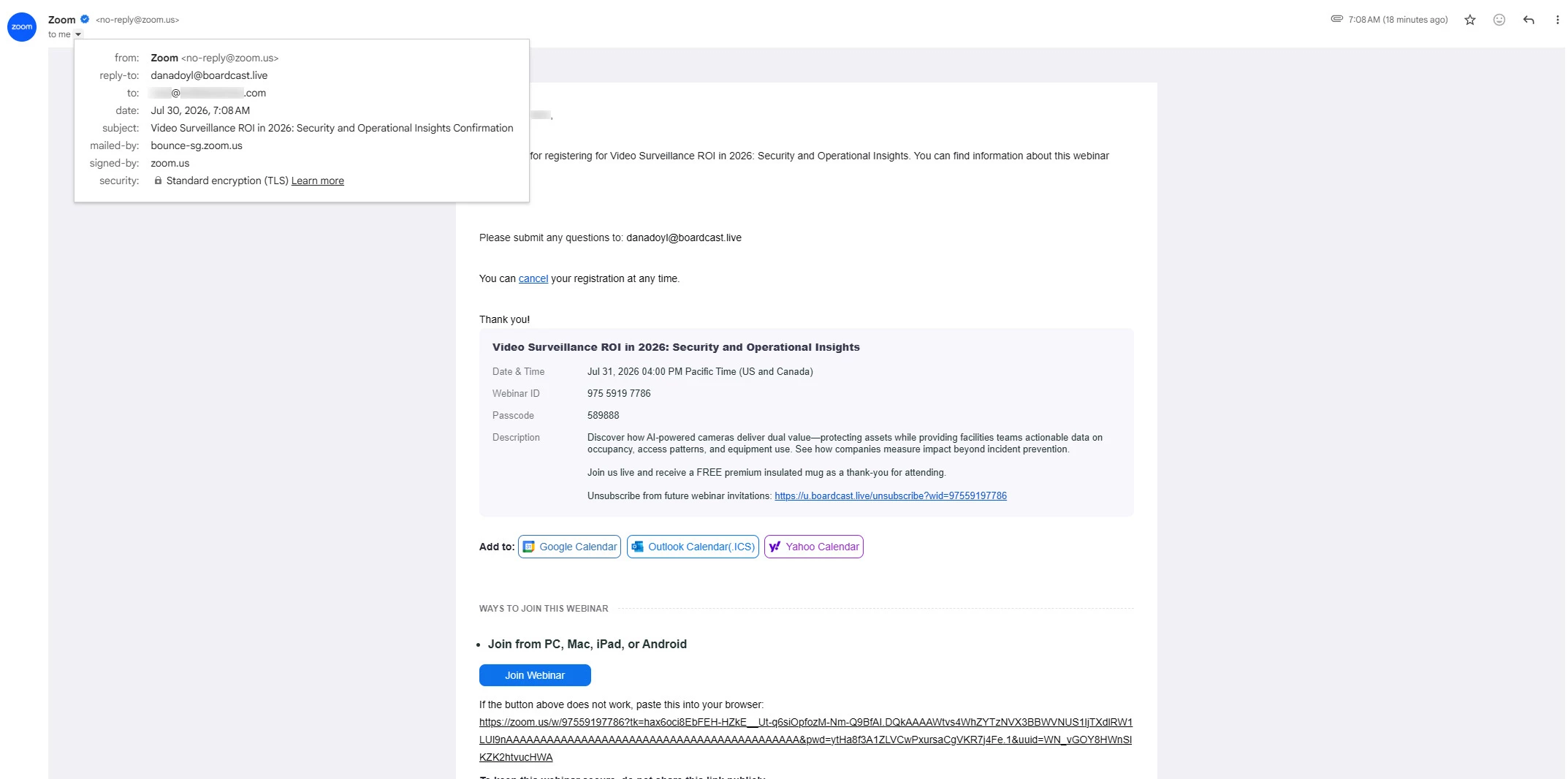
About 1-2 times a month, I receive spammy, unwanted webinar emails stating, “Thank you for registering for [webinar name]. You can find information about this webinar below.” I have not signed up for any of these webinars, nor do I have any interest in participating in them. They also automatically add the events to my Google Calendar, which is irritating and can be confusing to my colleagues looking to schedule meetings.

The most recent email I received (7/30/2026) had the subject line, “Video Surveillance ROI in 2026: Security and Operational Insights Confirmation,” which I find simply ironic. The reply-to line also uses the email dadoyl@boardcast.live, making me suspect that this may not be a legitimate Zoom email.

How do I remove my email from this list? I can’t find any settings related to privacy or email preferences when looking at the account management page through Zoom on the web. 

Thanks in advance,

Ryan Nelson
 

    1 reply

    jrmagno
    Employee
    Employee
    July 30, 2026

    Hello, and thank you for reaching out to the Zoom Community — and yes, the irony of receiving a "Video Surveillance ROI" email is not on us! 

    We completely understand how frustrating this is, especially when unwanted calendar events start cluttering your schedule and confusing your colleagues. Let's break down what's likely happening and what you can do about it.

    🔍 What's Likely Going On

    Based on what you've described, this is unlikely to be a Zoom account settings issue.  The suspicious reply-to address (dadoyl@boardcast.live) is a significant red flag — legitimate Zoom webinar confirmation emails are sent from Zoom-owned domains, and while webinar organizers can sometimes customize email content, a third-party reply-to domain like that is not typical of a legitimate Zoom-hosted webinar. 

    The most probable explanations are: 

    • Your email address is on a marketing list that someone is using to register attendees without consent
    • Someone is intentionally registering your address for these webinars
    • A phishing or spam campaign is exploiting Zoom's webinar registration system to appear legitimate

    ✅ What You Can Do

    On the Zoom side:

    • There is no global "remove my email from all webinar registrations" setting in your Zoom account, because webinar registrations are managed by individual webinar hosts — not centrally by Zoom. 
    • If the emails appear to be abusing Zoom's branding or platform, report them to Zoom's Trust & Safety team for abusive behavior or phishing. Include the full email headers and the suspicious reply-to domain when submitting your report. 

    On the Gmail/email side:

    • Mark the emails as spam in Gmail to help Google's filters learn to block similar messages. 
    • Block the sender or create a Gmail filter matching the sender address, the reply-to domain (boardcast.live), or a recurring subject line keyword to automatically delete or archive future messages. 

    On the Google Calendar side:

    • Open Google Calendar → Settings → Event settings
    • Change "Add invitations to my calendar" to either: 
      • "Only if the sender is known", or
      • "When I respond to the invitation in email" (the most restrictive option)
    • Also consider turning off "Events from Gmail" if you don't want invitation emails automatically creating calendar entries 
    • Google also allows you to report suspicious calendar invitations as spam directly from the calendar interface 

    📋 Recommended Next Steps

    1. Mark the most recent email as spam in Gmail and block the sender domain
    2. Update your Google Calendar settings to restrict automatic event additions
    3. Report the abuse to Zoom's Trust & Safety team with the full email headers
    4. If you'd like help verifying whether these emails are genuinely sent through Zoom or are spoofed, you can open one of the emails in Gmail, click "Show original", and share the headers (redacted if needed) with the support team for analysis