Past webinar dates showing on the registration page | Community
Skip to main content
Explorer
July 9, 2026
Question

Past webinar dates showing on the registration page

  • July 9, 2026
  • 1 reply
  • 63 views

Hi community, 

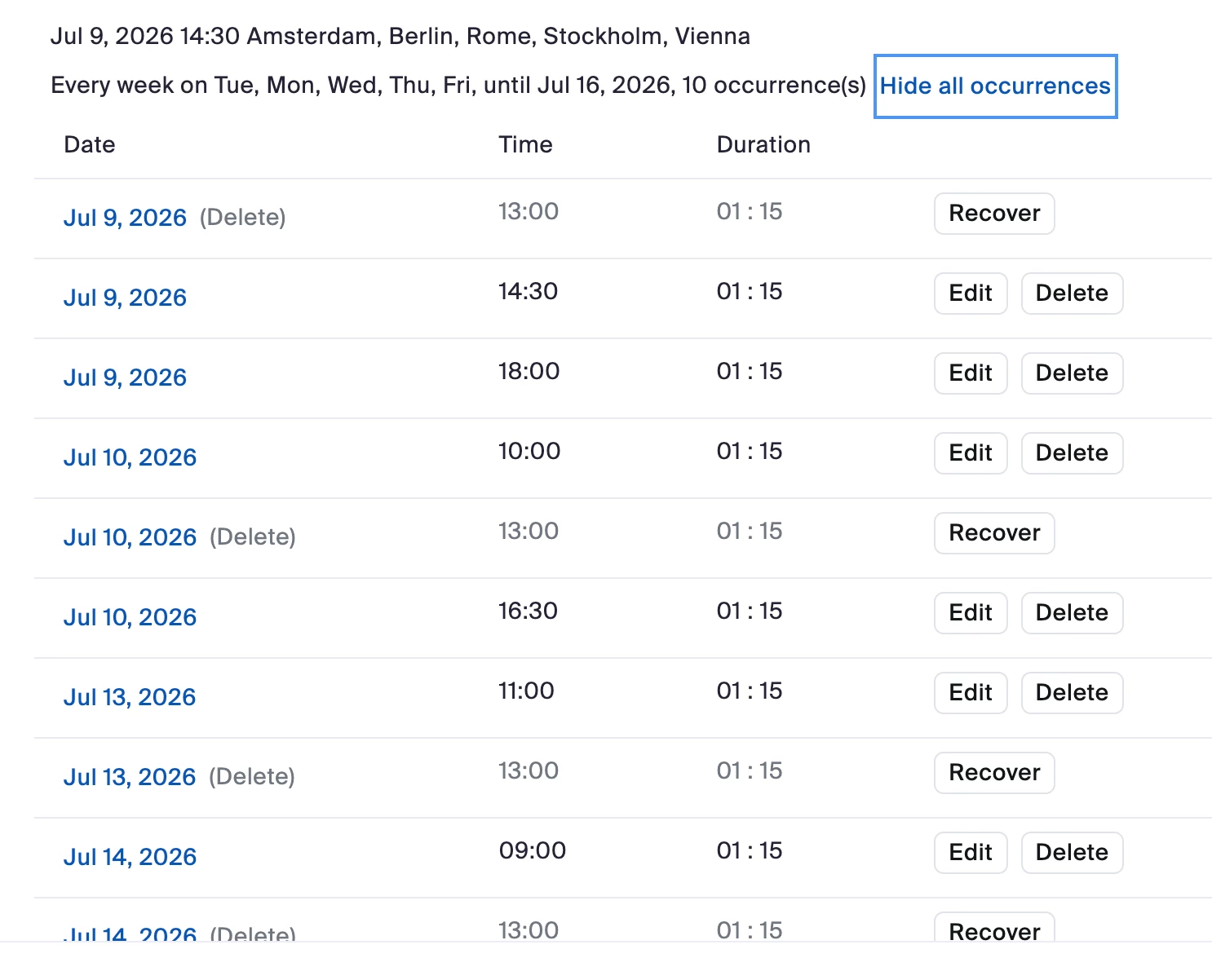
we are running webinars Mo-Friday multiple times a day (during different times). These are currently set up as recurring weekly webinars, and all the dates are added manually every day. 

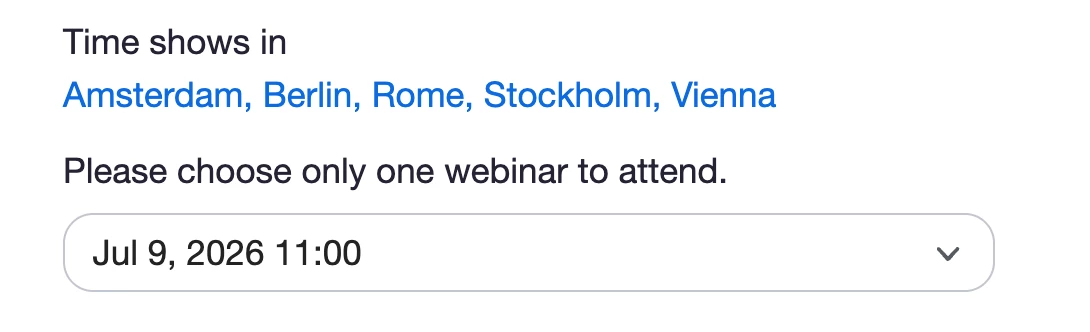
Nevertheless on our booking page old dates are still available to book. We don’t want to loose the data from these sessions so removing these seems not an option. Additionally, a time at 1pm comes automatically to the schedule even though it is not time we offer. How do we setup the booking page so that – only dates in the future are visible (preferably to block 60 minutes before webinar starts), not have to add all occurencies manually, and not having this 1pm sessions plop up randomly? 

Also, why doesn’t the booking page show day of week, and webinar duration? Can this be changed? 

Thank you in advance. 


1 reply

Employee
July 27, 2026

Thank you for sharing the screenshot it helps clarify the behavior you're seeing.

From what I can see, the recurring webinar contains your intended occurrences, but there are also deleted 1:00 PM occurrences that appear with a "Recover" option. This indicates that those occurrences were created at some point and later deleted—they are not being generated automatically by Zoom.

Please try the following steps to review your webinar configuration:

  1. Sign in to the Zoom web portal.
  2. Navigate to Webinars and select the recurring webinar.
  3. Click Show all occurrences.
  4. Review the occurrence list:
    • Confirm that only your intended times (for example, 9:00 AM, 10:00 AM, 11:00 AM, 2:30 PM, 4:30 PM, and 6:00 PM) are active.
    • If you see deleted 1:00 PM occurrences with a "Recover" option, you can safely leave them deleted. They remain visible only for recovery purposes and do not indicate that Zoom is recreating them.
  5. Click Edit on the webinar and review the Recurrence settings to ensure there isn't a recurrence rule that includes 1:00 PM.
  6. Save any changes.

To verify the registration page:

  1. Open the webinar.
  2. Navigate to the Registration settings.
  3. Review how attendees register for occurrences.
  4. Open the registration page in an incognito/private browser window to confirm which occurrences are visible to registrants.

Regarding the other questions:

  • There is currently no documented Zoom setting that automatically hides future webinar occurrences or closes registration a specific amount of time (such as 60 minutes) before each session. If this functionality is required, it would typically need to be managed through an external booking platform.

  • If past webinar dates are still available for booking, this is not expected behavior for Zoom's native registration page. If you're using a third-party booking system, the availability of past sessions may be controlled by that platform instead.

  • There is also no documented option to customize the Zoom registration page to display the day of the week or the webinar duration alongside each occurrence.