Adding more occurrences to Recurring Webinars after the sequence has started | Community
Skip to main content
Newcomer
November 8, 2023
Solved

Adding more occurrences to Recurring Webinars after the sequence has started

  • November 8, 2023
  • 1 reply
  • 15 views

I've set up a recurring webinar with 5 occurrences initially, then deleted 2 occurrences because 3 dates was fine by me. Now I want to add one more occurrence, but I couldn't edit to add an extra occurrence. Also, the webinar sequence has started and occurrence 1 is done.

Is it not possible to edit a recurring webinar to add one more occurrence ? (Please keep in mind that the webinar sequence has started in my case)

    Best answer by newl

    Hello @mariam665 


    You should be able to add the additional webinar to the series.


    Select the next scheduled webinar and choose "Edit"


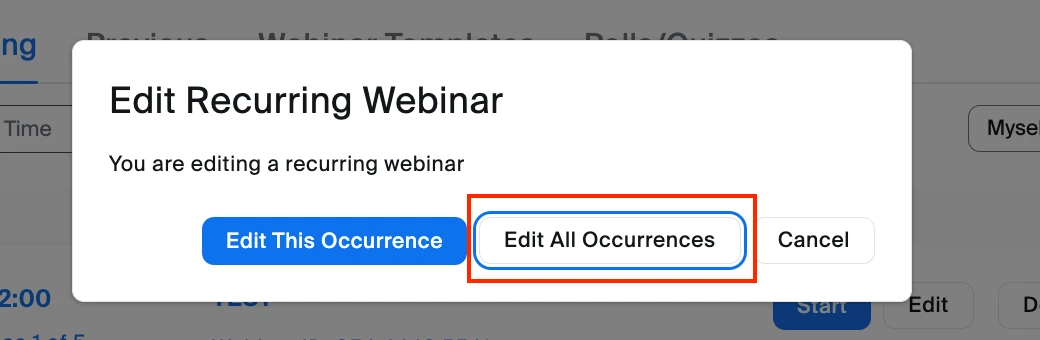
    You will be prompted to choose how you want to edit the webinar;  currently selected occurrence or all occurrences, you will want to choose "Edit All Occurrences"


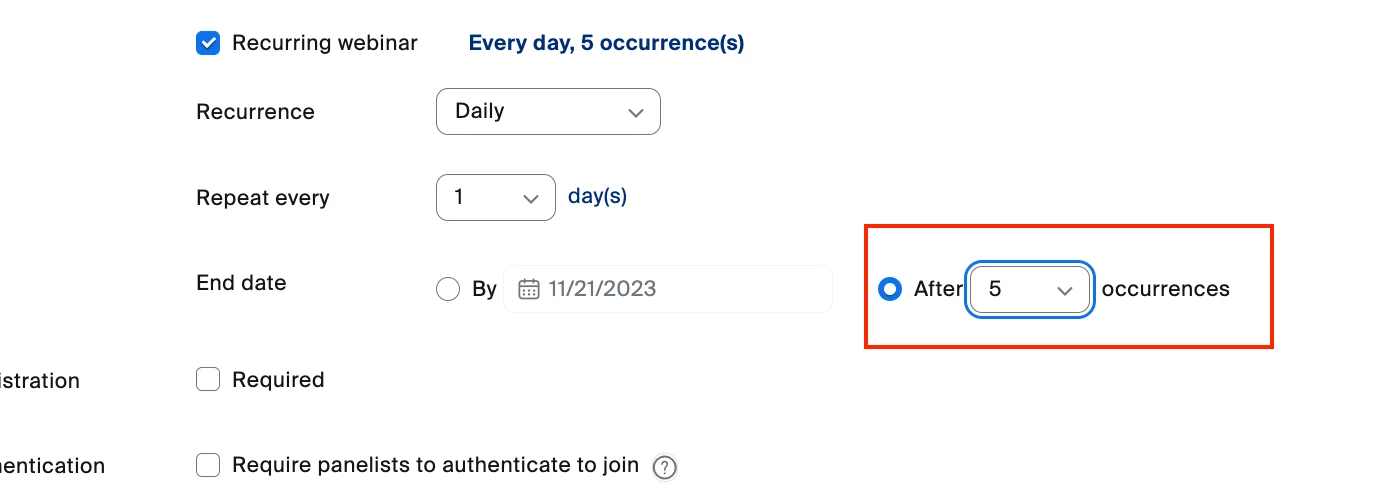
    Navigate to the "Recurrence" settings and find the section labeled "End date".


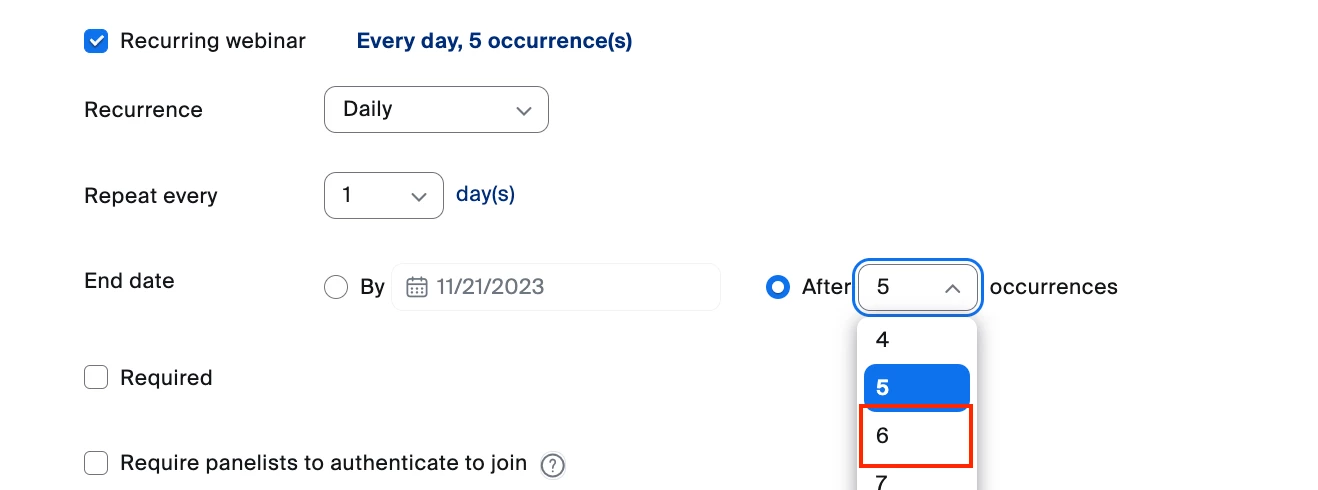
    Choose the "After X occurrences" drop-down dialog; select the number to add one more day than the total occurrences. In your case you would change the number to 6 to add one additional occurrence to the webinar series.


    I hope that this provides the information you need, reply if you have any further questions. Otherwise, consider marking the solution as "Accepted" so others may find this solution as well!


    Cheers!

    1 reply

    newl
    Education Ambassador
    newlAnswer
    Education Ambassador
    November 15, 2023

    Hello @mariam665 


    You should be able to add the additional webinar to the series.


    Select the next scheduled webinar and choose "Edit"


    You will be prompted to choose how you want to edit the webinar;  currently selected occurrence or all occurrences, you will want to choose "Edit All Occurrences"


    Navigate to the "Recurrence" settings and find the section labeled "End date".


    Choose the "After X occurrences" drop-down dialog; select the number to add one more day than the total occurrences. In your case you would change the number to 6 to add one additional occurrence to the webinar series.


    I hope that this provides the information you need, reply if you have any further questions. Otherwise, consider marking the solution as "Accepted" so others may find this solution as well!


    Cheers!