

Stop the Scheduling Spiral: Automate Your Meetings with Zoom Scheduler
It's 9:02 AM on a Monday. You open your inbox to find 14 new messages, and 10 of them are some variation of: "Does Tuesday at 2:00 PM work? No? How about Wednesday at 4:00 PM?".
Before you've even had your first cup of coffee, you're already paying what feels like a "productivity tax". You are spending more time scheduling meetings than actually being in them. Zoom Scheduler was built to address that tax, offering automated scheduling and smart calendar management so you can get back to the work that matters more.
Which "Time Warrior" Are You?

Before we dive into the technical "how-to," take a moment to identify your workflow. Zoom Scheduler isn't a one-size-fits-all tool; it adapts like a chameleon to your specific role.
🏢 The Executive Assistant (The Firefighter)
Your executive's calendar is like a "juggling act". You coordinate across three time zones, juggle board members, and handle last-minute "can we push this?" requests.
Your Goal: Move from reactive firefighter to proactive time strategist.
🚀 The Small Business Owner (The Solopreneur)
You're a coach, consultant, or creator. Your audience is on social media, and you need a professional way to book consultations and collect payments without managing five different apps.
Your Goal: Consolidate tools and look like a Fortune 500 company on a startup budget.
🎓 The Recruiter (The Connector)
Your job is to align multiple managers for a single panel interview. When schedules don't align you get forced back into a cycle of "phone tag" and risk losing top talent to faster-moving competitors.
Your Goal: Use Collective booking to find the slots where every interviewer is free, supporting a faster "time-to-hire".
👥 The Team Lead (The Optimizer)
You are tired of playing middleman and want to automate the logistics of team coordination so you can focus on coaching and results.
Your Goal: Use Round Robin to automatically distribute meetings across your team or Collective booking to align everyone for co-selling calls.
The All-in-One Advantage: A Case for Consolidation
Many professionals use "A La Carte" tools, but toggling between disconnected systems may add friction. Here is what an integrated platform can offer:
| Feature | Standalone Tools | Zoom Scheduler |
| Workflow | Involves switching between multiple apps | Unified experience for scheduling and meetings |
| Meeting Creation | Often manual or dependent on third-party integration | Automatically generates Zoom meeting links during scheduling |
| AI-Powered Meeting Assistance | May require separate tools or extra subscriptions for different AI capabilities | Generate AI meeting summaries and follow-ups for appointments with Zoom AI Companion.* |
| Cost | May involve multiple monthly subscriptions depending on the tool set | Included with Zoom Workplace at the Business tier and higher, or available as a standalone add-on for other plans |
Core Features for Everyday Use
Zoom Scheduler lives inside the Zoom Workplace platform, reading your availability in real time to block conflicts.
- Multiple Booking Formats: Supports One-to-One, Round Robin (team rotation), Collective (all hosts free), One-to-Many (webinars/workshops), and One-Off links.
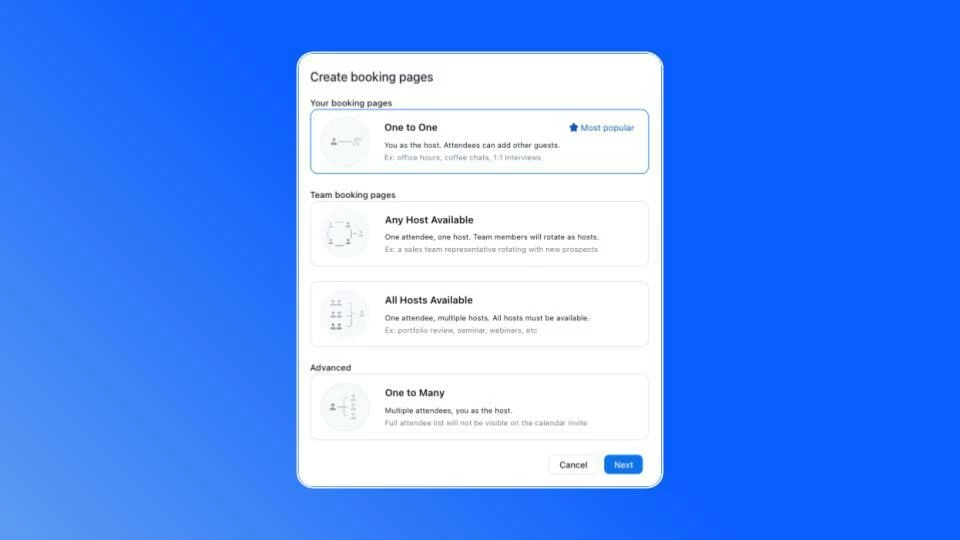
Screenshot from the Zoom Web Portal for Zoom Scheduler showing the option to create different types of booking pages.
- Calendar Sync: Connect up to five calendars (Google, Microsoft 365, or Zoom) on paid plans to prevent double-bookings.
- Custom Branding: Add your logo, brand colors, and a custom URL to help maintain a professional experience.
- Monetization: Connect Stripe to accept payments at the time of booking so you spend less time chasing invoices. Stripe integration availability may vary by region and account type.
- Buffer Time: Automatically set buffer time between calls so you aren't sprinting from one meeting to the next.
Deep Dive: The "Executive Assistant"
The secret weapon for EAs is Scheduling Privilege. This allows you to manage an executive's calendar on their behalf.
Pro Tip: Once access is granted, you're automatically added as an Alternative Host to all meetings you schedule for your exec. That means you can start the meeting or manage the waiting room if they're running late.
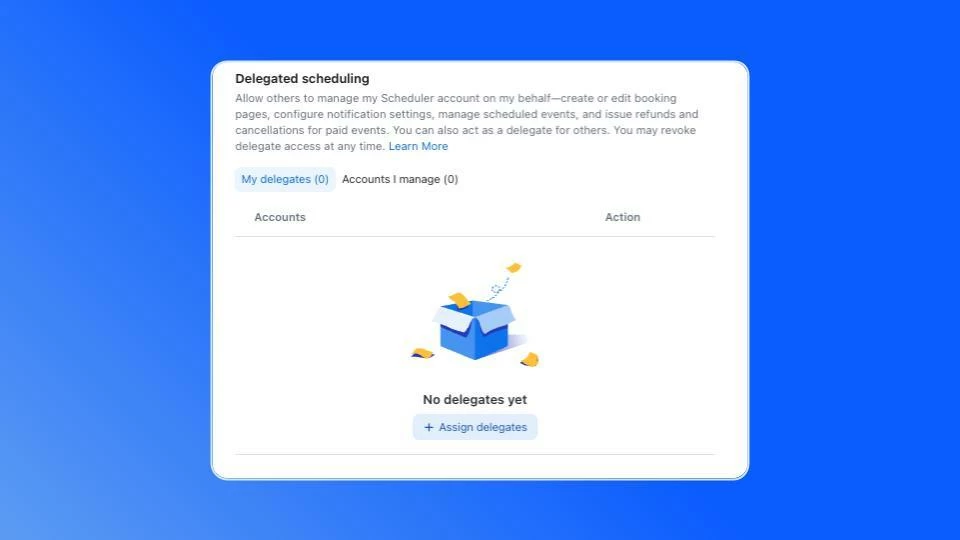
How to Set Up Delegate Access for Zoom Scheduler
- Exec Side: Sign in to the Zoom web portal
- Navigate: Go to Scheduler → Settings → scroll to bottom of the page
- Assign: Click + next to "Assign delegates" and enter the EA's email
- Activate: The EA signs out and back in to activate the new powers
Deep Dive: The "Small Business"
For small business owners, Zoom Scheduler isn't just a calendar—it can help turn ephemeral scheduling into durable, automated workflows.
- Filter Leads: Use Routing Forms to ask qualifying questions like "What is your budget range?" before they can book your time.
- Embed Everywhere: Drop the booking widget directly onto your "Work With Me" page so visitors book without leaving your site.
- Automate Reminders: Enable SMS and email reminders to reduce no-shows. Stop sending "just confirming" emails; let the system do it.
Deep Dive: The "Team Lead"
You're the glue that keeps projects moving, but that glue shouldn't be your inbox.
Use Round Robin to distribute demo requests evenly across your team or Collective booking to align multiple hosts for co-selling calls.
This can turn ephemeral coordination (emails, DMs, and "who's free?" messages) into durable scheduling logic that scales with your team.
Deep Dive: The "Recruiter"
Recruiters often lose top candidates due to scheduling delays. Zoom Scheduler's Collective Booking identifies time slots when all interviewers are available, helping to reduce time-to-hire.
Outcome:
- Fewer manual reschedules
- Faster candidate engagement
- Durable record of interview coordination

⚡ Quick Wins Checklist
Ready to reclaim your time? Here is your Quick Get Started checklist:
- Create your first One-to-One page: Name it something professional like "30-Minute Strategy Call".
- Add 15 minutes of Buffer Time: Your future self will thank you for the breather between calls.
- Update your email signature: Every email you send is now a passive booking opportunity.
- Replace one email thread: The next time someone asks "when are you free?", send your link instead of a list of times.
Where Zoom Scheduler Fits in the Bigger Picture
Zoom Scheduler is more than a scheduling tool – it's an entry point into the Zoom Workplace ecosystem. When someone books through your Scheduler link, they're stepping into a workflow that can connect scheduling → meetings → AI-generated summaries → documented outcomes.
That's the shift from ephemeral work to durable work. The meeting isn't just a conversation that disappears. It's a captured moment that produces notes, action items, and follow-ups – all within the same platform.
For organizations already using Zoom Workplace, Scheduler may be the missing piece that turns calendar management from a manual chore into an automated, branded, data-informed system.
Get Started
Ready to put Zoom Scheduler to work?
→ Set up your first booking page – It takes minutes
→ Learn more about Zoom Scheduler features – Explore the full feature set
→ Configure delegate scheduling – EAs, start here to set up scheduling privilege
Have questions? Drop them in the comments below – we're here to help you get the most out of every Zoom tool in your stack.
Disclaimers
*Features described in this article may vary by plan and are subject to change. Visit zoom.us/pricing for the most current plan details and feature availability. Zoom AI Companion features may not be available on all plans, in all regions, or in certain industry verticals.
For additional technical insights tailored to IT admins and decision makers, visit the Zoom Technical Library.
Written by Jamie Jones, Product Adoption Expert, Zoom Workplace Meetings & Productivity Suite. For questions about this article or Zoom Scheduler, reach out via the Zoom Community or your Customer Success team.