
Outgoing Caller ID from Yealink Phone | Community
Skip to main content
factor110
Explorer
Explorer
July 26, 2024
Solved

Outgoing Caller ID from Yealink Phone

  • July 26, 2024
  • 1 reply
  • 24 views

Hello. I am trying to update the outgoing caller ID to display our main number when we call out from our Yealink Phones (T46S). Our main number has been ported from our previous phone co. I have found the setting to change the outgoing caller ID for the Zoom app for each user, which worked fine, but that setting does not seem to carry through to the phones. 


Is there a way to do this on the phones as well, or is this not possible? Even if I could add the main line to one of the soft keys so they could call out on that line, that would work -- but it only lets me add lines that are assigned to that user, and I can't assign the main number to everyone.


My major concern with it not showing the main number as the caller ID is that some phones are showing it as a "spam risk" since it's a Zoom number, I assume. I'm afraid people are just not going to answer our calls.


Thanks for any insight!

Best answer by Eliot

Hi factor110

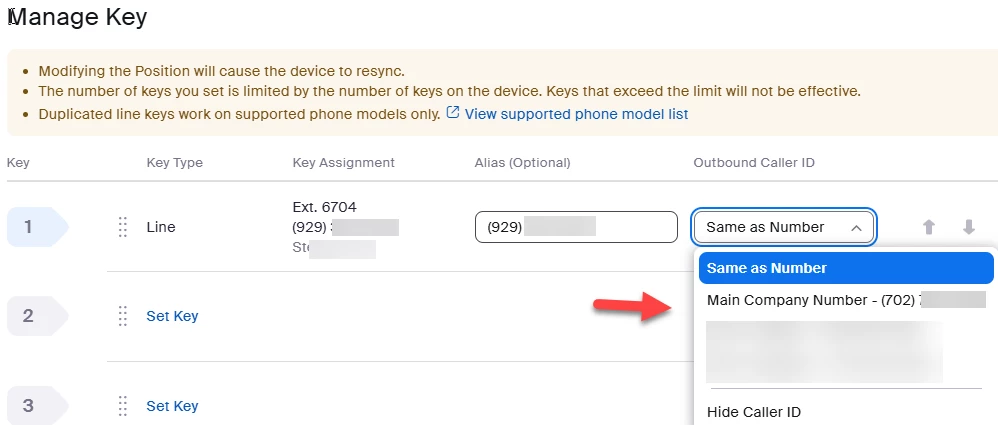
For desk phones, you set the outgoing caller id number by customizing line keys.

  • Outbound Caller ID (only applies to lines that are direct phone numbers): Select an outbound caller ID number for the line. You can select from the following options:
    Note: You can't change the outbound caller ID for shared lines. Only the owner of the phone number can change it.

    • Same as Number: Use the number in the Live Subscription column as the caller ID number.
    • Main Company Number: The number assigned to the main auto receptionist.
    • Additional Company Number: Phone numbers assigned to auto receptionists.
    • Call queue numbers (the call queue name is displayed next to the caller ID number): Phone numbers assigned to call queues that you are a member of.
    • Hide Caller ID: Hide the outbound caller ID name and number.


Customizing line keys and positions settings (zoom.com)


Did my response answer your question? If so, please don't forget to mark the reply as an accepted solution.


thanks,  eliot


1 reply

EliotAnswer
Community Super Champion | Partner
July 27, 2024

Hi factor110

For desk phones, you set the outgoing caller id number by customizing line keys.

  • Outbound Caller ID (only applies to lines that are direct phone numbers): Select an outbound caller ID number for the line. You can select from the following options:
    Note: You can't change the outbound caller ID for shared lines. Only the owner of the phone number can change it.

    • Same as Number: Use the number in the Live Subscription column as the caller ID number.
    • Main Company Number: The number assigned to the main auto receptionist.
    • Additional Company Number: Phone numbers assigned to auto receptionists.
    • Call queue numbers (the call queue name is displayed next to the caller ID number): Phone numbers assigned to call queues that you are a member of.
    • Hide Caller ID: Hide the outbound caller ID name and number.


Customizing line keys and positions settings (zoom.com)


Did my response answer your question? If so, please don't forget to mark the reply as an accepted solution.


thanks,  eliot


factor110
Explorer
factor110Author
Explorer
July 29, 2024

That was helpful. Thank you!