

Question
Use Zoom virtual background sharing (Powerpoint) with two monitors
I have the following setup:
- MacBook
- TV connected to MacBook via HDMI
- Remote Presenter (which I still have to buy - the Logitech R500 which I used so far has no control for Muting/Unmuting and also does not work when used in Zoom virtual background sharing)
How can I share a Powerpoint presentation during a meeting with only the slides in full view mode on the TV (for all physical attendees in my room) and the Zoom window on my MacBook containing
- the attendee list
- mute/unmute button (ideally controllable through my remote presenter)
- my slides (controllable through my remote presenter)?
I have tried two approaches so far - but both of them failed:
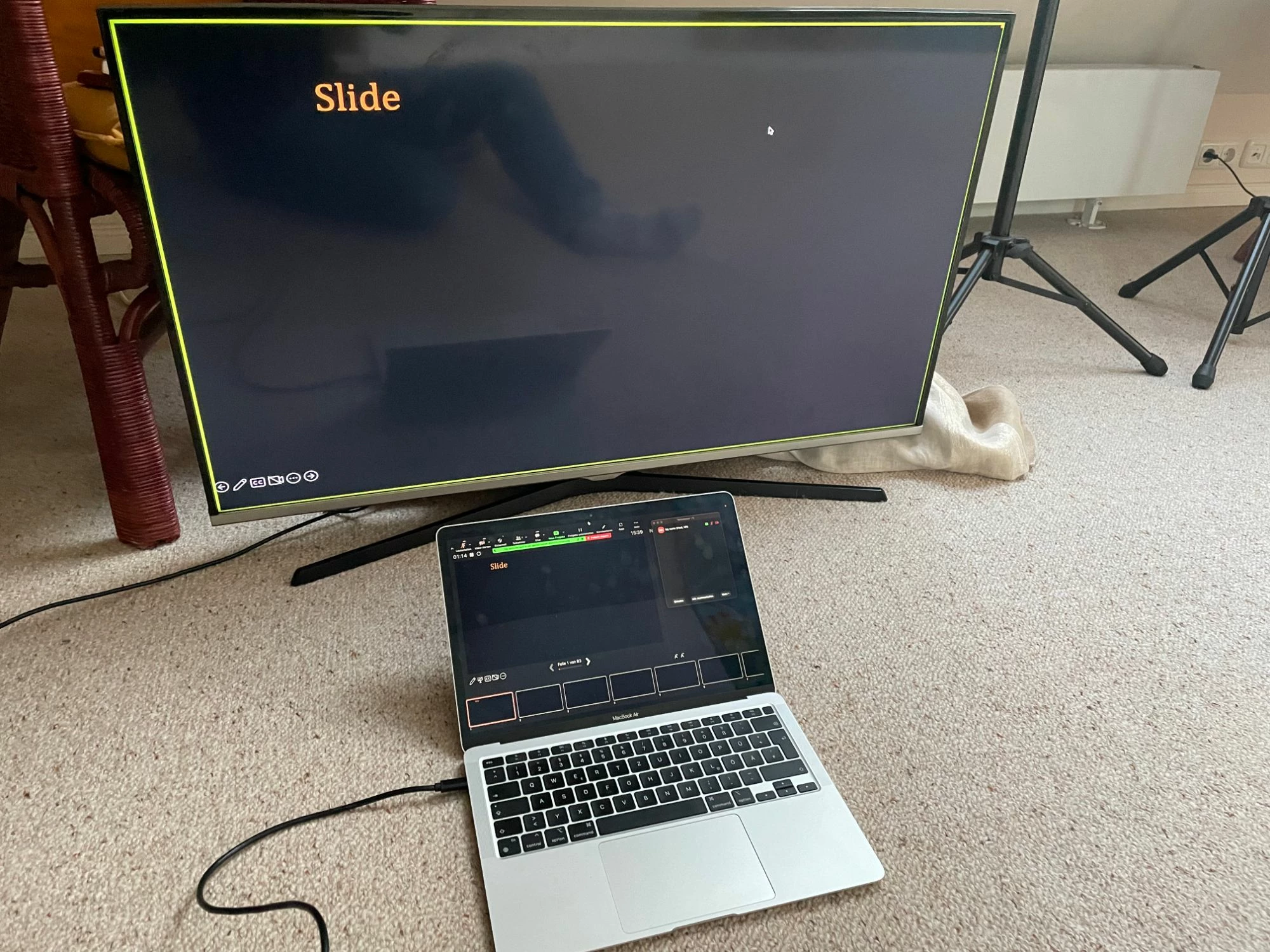
- Starting (i.e. playing) my presentation in full view mode on the TV and sharing the screen of my TV in Zoom (as described in the official zoom support). This works fine for both the physical people in my room as well as my online attendees. But on my MacBook this creates both, the presenter view of Powerpoint (which in itself is fine) and the Zoom control menu ribbon making it two separate applications which is the problem. Once Zoom is the active window I can use Shortcuts (e.g. CMD+Shift+A to mute/unmute) but I cannot advance the slides further. Likewise once Powerpoint is the active application, I cannot use Zoom shortcuts anymore. This makes everything very cumbersome. This is what it looks like:
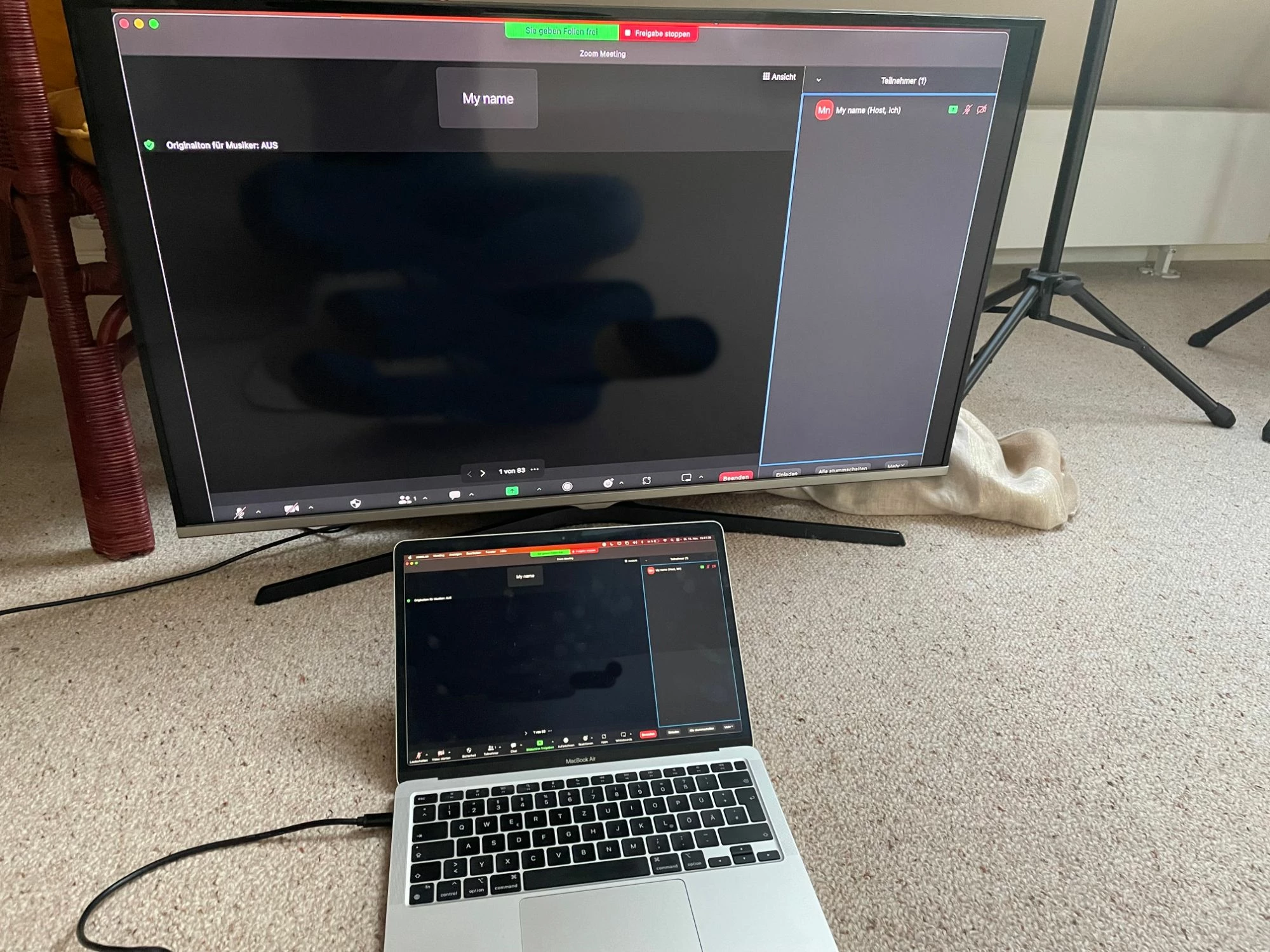
- Sharing my Powerpoint presentation through virtual backgrounds. This solves the problem of two separate applications but it does not let me show my presentation in full view mode on the TV anymore. Instead I have to mirror my displays to show my presentation to my physical attendees. This way they also see all the other information (attendee list, Zoom control ribbon, slide preview etc.) which I do not want. This is what it looks like:
Am I missing something or doing something wrong? How can I achieve what I described above?
P.S. If you have a recommendation on a remote presenter that lets me both, change slides and mute/unmute, that would be great!