

Regarding Cloud recording | Community
Skip to main content
Newcomer
August 1, 2022
Question

Regarding Cloud recording

  • August 1, 2022
  • 2 replies
  • 7 views

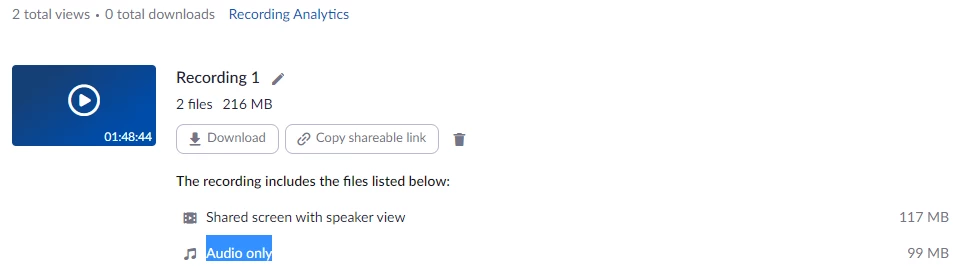
I have recorded my class during the meeting. I have shared my screen to the audience. But in the records there is only audio and no video part. There is two files which "Shared screen with speaker view" and " Audio only "  files. But there is no video is playing in the record. only audio I can hear. Please help me.
 

    2 replies

    Community Champion | Employee
    August 2, 2022

    Hello @DilshanG ,


    Thank you for your message. If these options are enabled in your profile settings:


    And the issue still persists, more often than not, it is due to network issues.


    If this is a frequent issue you're having, I recommend that you log a ticket with our Zoom Support.

    New Member
    April 7, 2026

    If your downloaded Zoom cloud recording plays audio but shows no video — even in VLC — the cause is incorrect color metadata written by Zoom's cloud encoder. The file itself is not corrupted.

    In my case this started after upgrading to an NVIDIA RTX 5070 Ti, which suggests newer GPU hardware decoders are stricter about color metadata consistency.

    **Step 1: Install ffmpeg**

    ffprobe (the diagnostic tool) and ffmpeg (the fix tool) are both included in the ffmpeg package. Download it from:
    https://www.gyan.dev/ffmpeg/builds/ — grab **ffmpeg-release-essentials.zip**, extract it, and add the `bin` folder to your system PATH. Then restart your terminal.

    Alternatively, if you have winget:
    ```
    winget install Gyan.FFmpeg
    ```

    **Step 2: Confirm the issue with ffprobe**

    ```
    ffprobe -v error -show_streams -select_streams v:0 your_recording.mp4
    ```

    Look for these lines in the output:

    ```
    color_space=bt470bg
    color_primaries=bt470bg
    color_transfer=bt709
    ```

    The mixed color standards (bt470bg primaries with bt709 transfer) confuse Windows hardware decoders and cause a blank video track. The pixel data itself is fine.

    **Step 3: Fix with ffmpeg**

    ```
    ffmpeg -i your_recording.mp4 -c:v libx264 -color_primaries bt709 -color_trc bt709 -colorspace bt709 -c:a copy fixed.mp4
    ```

    This re-encodes the video with correct BT.709 color metadata. Audio is copied without re-encoding. For a typical hour-long meeting it takes a few minutes.

    This may be related to newer NVIDIA GPU hardware decoders being stricter about color metadata. (The issue appeared for me after I upgraded to an RTX 5070 TI) Local recordings do not appear to have this issue.

    New Member
    April 7, 2026

    **[FIX] Cloud recording downloads show no video / blank screen on Windows**

    If your downloaded Zoom cloud recording plays audio but shows no video — even in VLC — the cause is incorrect color metadata written by Zoom's cloud encoder. The file itself is not corrupted.

    In my case this started after upgrading to an NVIDIA RTX 5070 Ti, which suggests newer GPU hardware decoders are stricter about color metadata consistency.

    **Step 1: Install ffmpeg**

    ffprobe (the diagnostic tool) and ffmpeg (the fix tool) are both included in the ffmpeg package. Download it from:
    https://www.gyan.dev/ffmpeg/builds/ — grab **ffmpeg-release-essentials.zip**, extract it, and add the `bin` folder to your system PATH. Then restart your terminal.

    Alternatively, if you have winget:
    ```
    winget install Gyan.FFmpeg
    ```

    **Step 2: Confirm the issue with ffprobe**

    ```
    ffprobe -v error -show_streams -select_streams v:0 your_recording.mp4
    ```

    Look for these lines in the output:

    ```
    color_space=bt470bg
    color_primaries=bt470bg
    color_transfer=bt709
    ```

    The mixed color standards (bt470bg primaries with bt709 transfer) confuse Windows hardware decoders and cause a blank video track. The pixel data itself is fine.

    **Step 3: Fix with ffmpeg**

    ```
    ffmpeg -i your_recording.mp4 -c:v libx264 -color_primaries bt709 -color_trc bt709 -colorspace bt709 -c:a copy fixed.mp4
    ```

    This re-encodes the video with correct BT.709 color metadata. Audio is copied without re-encoding. For a typical hour-long meeting it takes a few minutes.

    This may be related to newer NVIDIA GPU hardware decoders being stricter about color metadata. Local recordings do not appear to have this issue.