


Position of speaker window when recording | Community
Skip to main content
JunT
Newcomer
Newcomer
December 16, 2022
Question

Position of speaker window when recording

  • December 16, 2022
  • 2 replies
  • 40 views

When I record while screen sharing with ZOOM, the speaker image is fixed to the upper right corner;


Does ZOOM have an option to change the speaker image to record somewhere other than the upper right corner, say the lower right or lower left?
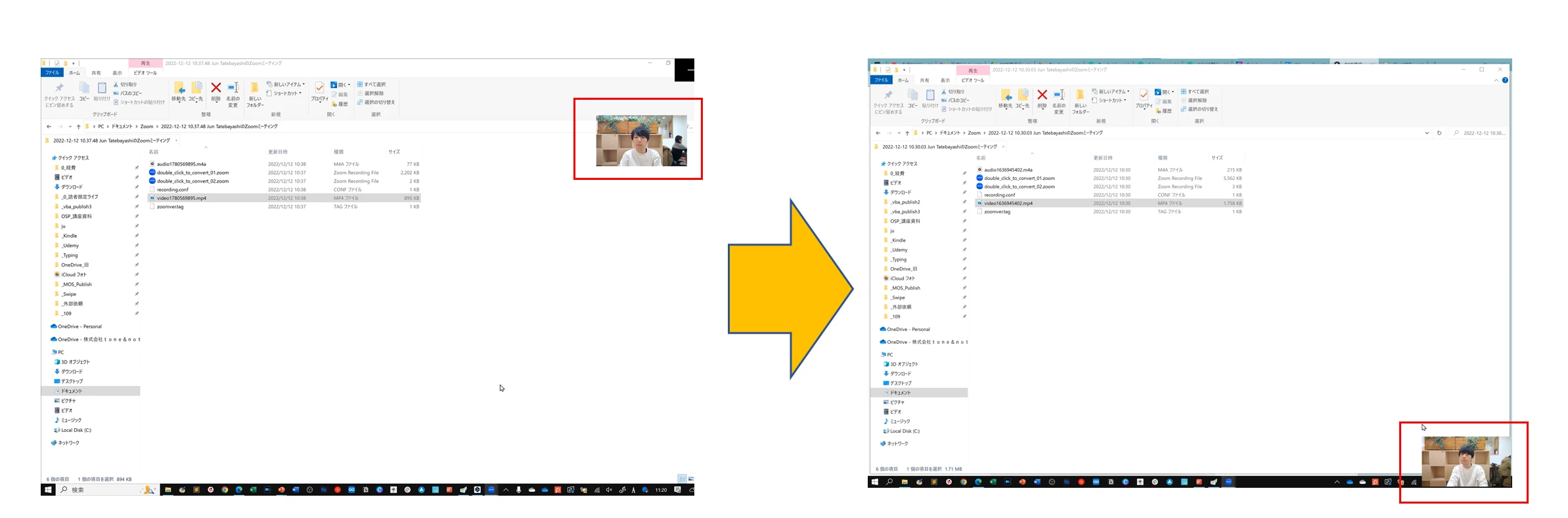
 

I can do that on my PC, but others often tell me they can't do it on their PCs. I do not know what is causing this.

    2 replies

    Ray_Harwood
    Community Super Champion | Customer
    Community Super Champion | Customer
    December 16, 2022

    Welcome to the Zoom Community, @JunT.

    Unfortunately, there’s no way to configure where the Speaker video is placed on a Zoom-created recording. 

    Are you using Local, or Cloud recording?  There are different configurations for both. 

    See the Recording section in this Zoom Support article for Local Recording options:

    https://support.zoom.us/hc/en-us/articles/201362623 

    Especially see the details on these two options:

    The first one Record video during screen sharing means do or do not show the Speaker video at all when when screen sharing is in progress. If enabled, the next item of Place video next to the shared screen in the recording can be checked to place the speaker video adjacent to the shared screen image, and if unchecked it will overlay part if the screen share image, as you have shown. Consider checking this box for Local recordings to ensure the full screen of the screen share is visible on the recording. 

    I do most of my Zoom recording in the Cloud, and I typically check all of the separate video options, recomposing the video in post production. See the recordings from a Webinar I produced earlier this month in this YouTube playlist. All video was downloaded and edited this week in Premiere Pro. I understand Adobe products are not accessible to everyone, but there are free, inexpensive, and easy-to-use options out there for anyone that doesn’t want the default Zoom video layouts. 

    Newcomer
    February 4, 2026

    This is an old questions, but it’s still very useful today. 

    You can only accomplish this using a local recording. 

    When sharing, select your screen or app and then select your video “as background” on the right panel. adjust the video position and size in your screen, then Click share

    There will be two videos showing in screen, while looking on the screen preview “You are screen sharing”

    use the three dot on the upper right menu, “More” and then select “hide video panel” That will leave only the invisible background on your shared screen. 

    THIS ONLY WORKS WHILE RECORDING LOCALLY, CLOUD RECORDING IS NOT SUPPORTED!

    Before Hide Video Panel

    After clicking “Hide Video Panel”