Explorer
October 2, 2026
Solved

My Zoom webcam thumbnail is suddenly blurry

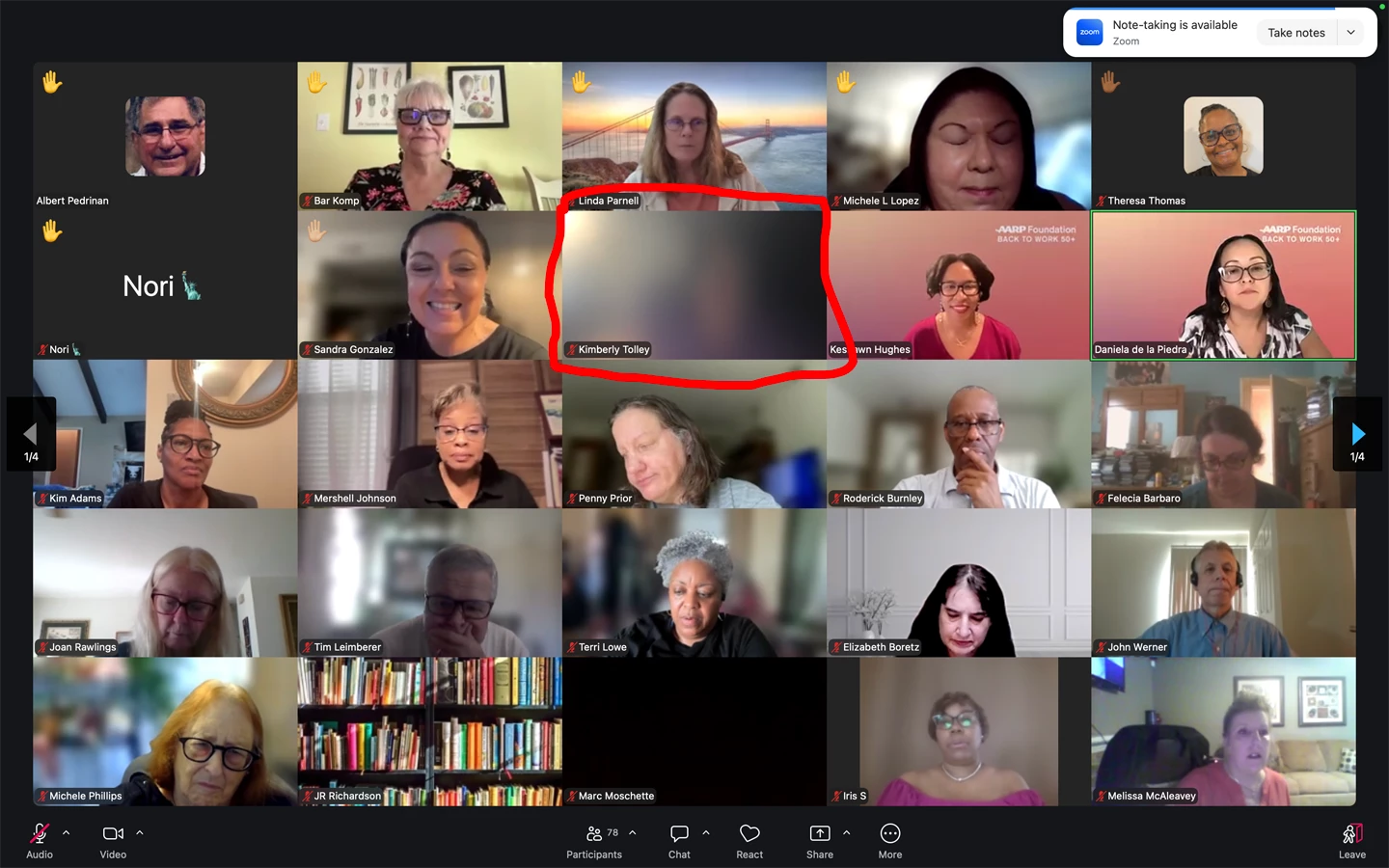
I logged into my Zoom webcam meeting this afternoon and when the screen came up my thumbnail was suddenly blurry, and it’s not supposed to be.  I’ve been doing these weekly webcams for over 2 years and this is the first time this issue has happened.  I’m on a MacOS using Google Chrome.  

 problem is.  

Don.zAnswer
Community Manager
October 2, 2026

Welcome, ​@Kimberly Tolley! It’s great to have you here in the Zoom Community. Since this is the first time you’ve run into this after two years of weekly meetings, there are a few things we can check to narrow down what’s causing the blur.

I’d start with the video settings in the Zoom web app. Click the ^ next to Stop Video, then open Video settings or Choose Virtual Background. Under Backgrounds & Effects, make sure the background is set to None, not Blur.

While you’re there, check Video & effects → Camera and make sure Touch up my appearance is turned off.

If those settings look right, try resetting the camera connection:

  • Click the ^ next to Stop Video.
  • If another camera is available, select it, then switch back to your usual camera.
  • Stop your video, wait a few seconds, and start it again.

It’s also worth trying the same meeting in the Zoom Workplace app on your Mac. If the video looks clear there, that can help narrow things down to Chrome or the web client rather than the camera itself.

If you’re still seeing the blur, one detail would help us narrow it down further: is the video blurry only in your own thumbnail, or do other participants see you blurry too?


4 replies

Don.zAnswer
Community Manager
October 2, 2026

Welcome, ​@Kimberly Tolley! It’s great to have you here in the Zoom Community. Since this is the first time you’ve run into this after two years of weekly meetings, there are a few things we can check to narrow down what’s causing the blur.

I’d start with the video settings in the Zoom web app. Click the ^ next to Stop Video, then open Video settings or Choose Virtual Background. Under Backgrounds & Effects, make sure the background is set to None, not Blur.

While you’re there, check Video & effects → Camera and make sure Touch up my appearance is turned off.

If those settings look right, try resetting the camera connection:

  • Click the ^ next to Stop Video.
  • If another camera is available, select it, then switch back to your usual camera.
  • Stop your video, wait a few seconds, and start it again.

It’s also worth trying the same meeting in the Zoom Workplace app on your Mac. If the video looks clear there, that can help narrow things down to Chrome or the web client rather than the camera itself.

If you’re still seeing the blur, one detail would help us narrow it down further: is the video blurry only in your own thumbnail, or do other participants see you blurry too?
Translate
Explorer
October 7, 2026

​@Don.z  I will be able to attempt all these solutions during the next webcam meeting this Friday. Thank you for responding. 

Translate
Explorer
October 9, 2026

​@Don.z   I have good news! I went into my Zoom meeting a few minutes ago and was able to see my webcam thumbnail with no technical issues! (I circled myself in green in this screen shot). 😎 😀 😀 😀 I suppose I will never know why this problem occurred since I have never changed any of my video settings in the last 2 years 

 but I’m just glad that everything is back to normal.  

Translate