

Meeting Capacity Is Different, Depending On Where I Look As Admin | Community
Skip to main content
Newcomer
September 12, 2023
Solved

Meeting Capacity Is Different, Depending On Where I Look As Admin

  • September 12, 2023
  • 2 replies
  • 0 views

I purchased a large meeting add-on for my organization (I'm the only user) several months ago, renewing monthly.  I wanted to double check the capacity before a meeting we're hosting tomorrow.


I found under Account Management/Account Profile it says meeting capacity is 100.


I also looked under Users, and the large meeting add on is assigned to me, the only user.


I also looked under Plans/Billing, and see the Large Meeting Add-On is there, renewing monthly.


So do I have a 100 capacity limit or a 500 capacity limit? I'm worried ... Susan
Best answer by Frank_TB

Hello,


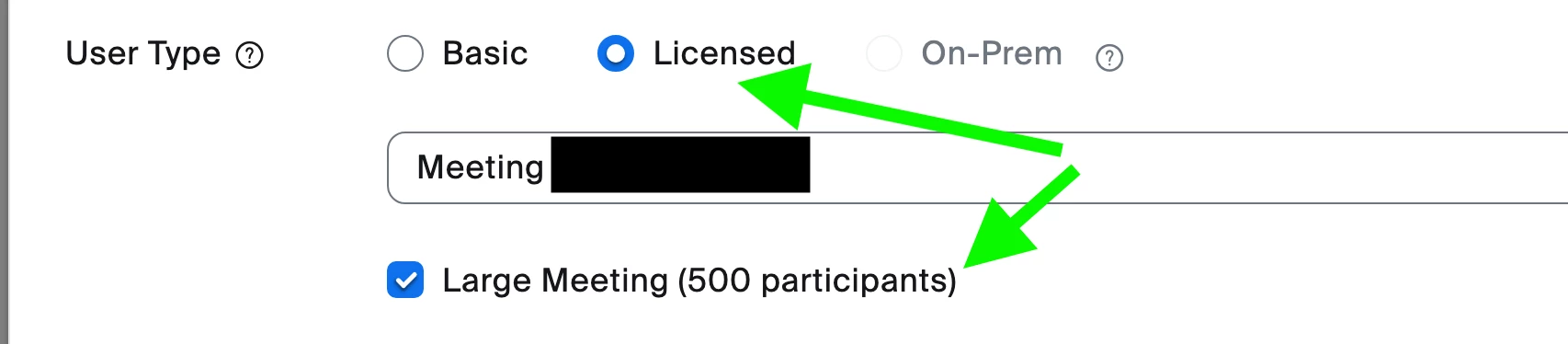
If the user type says licensed and there is also a checkmark in the Large Meeting add on box, then you have the maximum capacity of whatever large meeting add on you purchased  and added to that licensed user. In the following picture the user has a 500 maximum capacity because of the large Meeting (500) Add on.


Regards

If my reply helped, don't forget to click the accept as solution button!

2 replies

Frank_TBAnswer
Community Champion | Customer
September 12, 2023

Hello,


If the user type says licensed and there is also a checkmark in the Large Meeting add on box, then you have the maximum capacity of whatever large meeting add on you purchased  and added to that licensed user. In the following picture the user has a 500 maximum capacity because of the large Meeting (500) Add on.


Regards

If my reply helped, don't forget to click the accept as solution button!

Newcomer
September 25, 2023

In that case, after confirming the "licensed" check, can the conference room be opened without any additional settings and accommodate up to 500 people?

Community Champion | Customer
September 25, 2023

Hello,


You have to follow the process:

  1. Have a paid Zoom licence.
  2. Purchase a Zoom Large Meeting Add on.
  3. Assign the Large Meeting Add on to the licenced user who needs the extra capacity.


Regards

If my reply helped, don't forget to click the accept as solution button!