

How to Use a Teleprompter on Zoom, Even While You Share Your Screen (Mac and Windows)
Key takeaways
- The trick to looking natural on Zoom is eyeline, not memory. Get your script close to the lens and most of the problem goes away.
- Almost every teleprompter method falls apart the second you share your screen. That is the part this guide actually solves.
- You can run a prompter that you see clearly but your viewers and your recording never do. Setup takes about five minutes.
You join a Zoom call, you have a few key points to hit, and you tell yourself you will just remember them. Then the call starts. Your mind goes blank, your eyes drift to the sticky note on the side of your monitor, and everyone watching sees that little side glance. You look unsure, even when you know your stuff cold.
Here is the good news. That nervous glance is not a confidence problem. It is a setup problem, and it is fixable. By the end of this you will be able to read a script on Zoom and still look people in the eye, even on the calls where you have to share your screen.
Let me walk you through it.
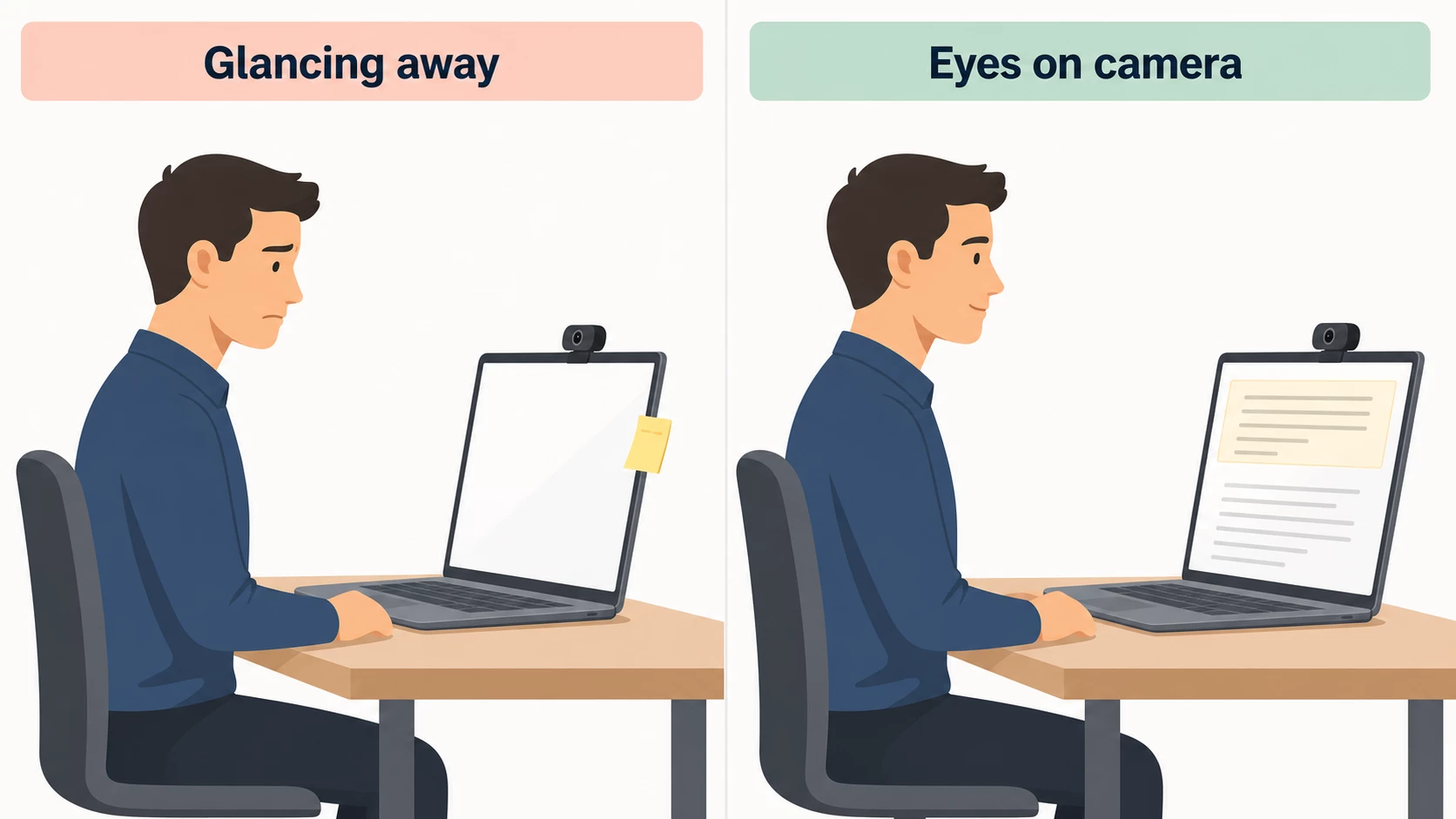
Why reading on Zoom looks worse than it does in real life
In a room, you can glance at notes on the table and nobody thinks twice. On camera it is different. The lens sees your eyes head on, so even a small look to the side reads as a big tell.
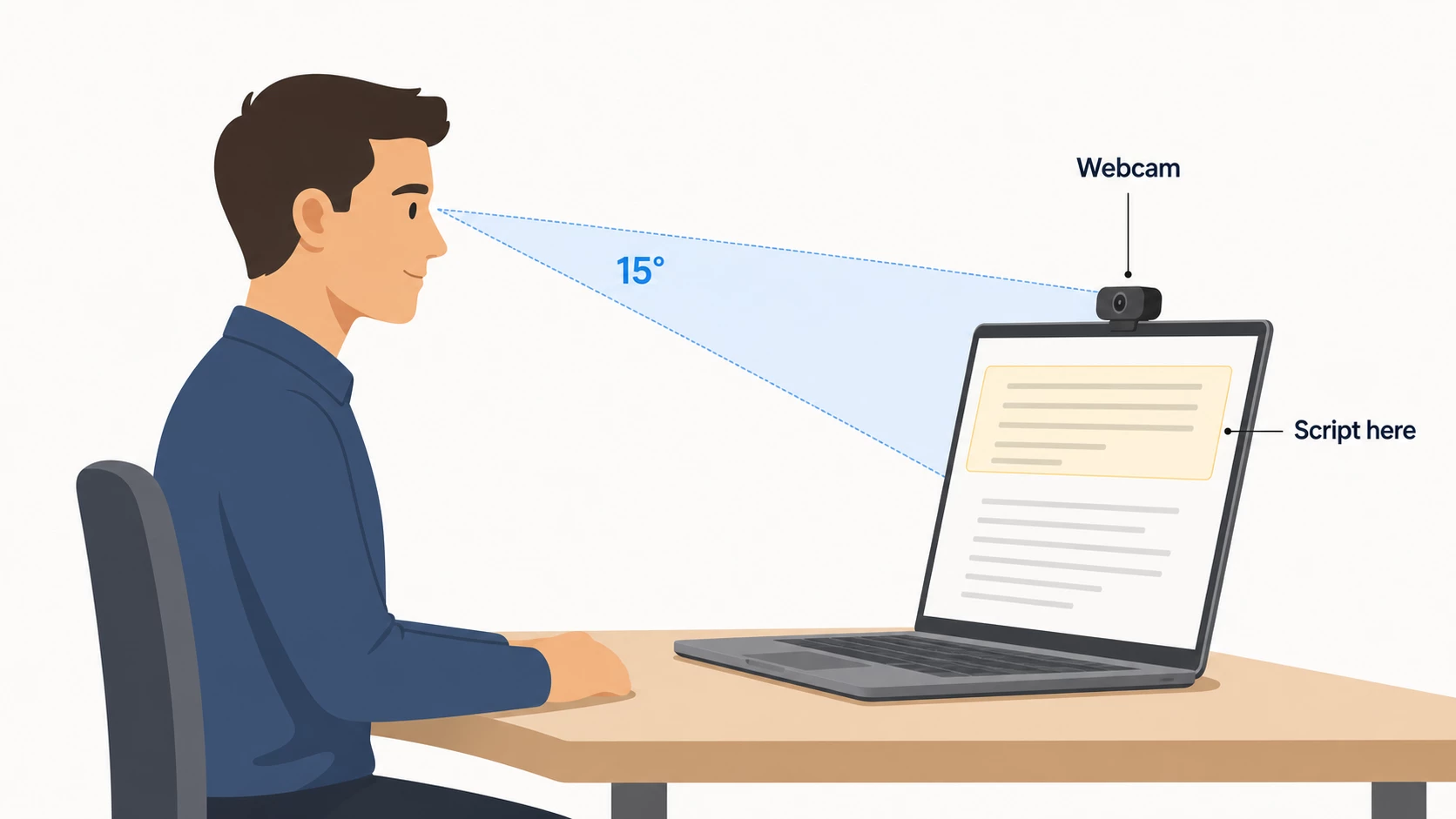
The fix is simple. Your script needs to sit as close to the webcam as you can get it, ideally within about 15 degrees of the lens. When your eyes are near the camera, a quick read looks like normal eye contact. That is the whole principle. Everything below is just how to pull it off cleanly.
The part nobody warns you about: screen sharing
Here is where most setups break.
A browser prompter floating on your screen, a phone propped under the monitor, a second display off to the side. They all work fine until the moment you click Share Screen. Then one of two things happens. Either the prompter is gone from view because your shared window took over, or worse, your audience can see your script scrolling right there on the slide.
So the real question is not "how do I show myself a script." It is "how do I show myself a script that my viewers and my recording never catch." Keep that in mind as you set this up, because it changes which tools are worth your time.
Step by step: set up an invisible teleprompter for Zoom
Step 1: Fix your eyeline first
Before any software, sort out where the words will live. You want them top and center, right under your webcam, not down in the corner.
If you use a laptop, that means the prompter text should sit near the top edge of the screen. If you use an external webcam, mount it just above the spot where your script will be. Small move, big payoff.
Step 2: Pick a prompter that survives screen sharing
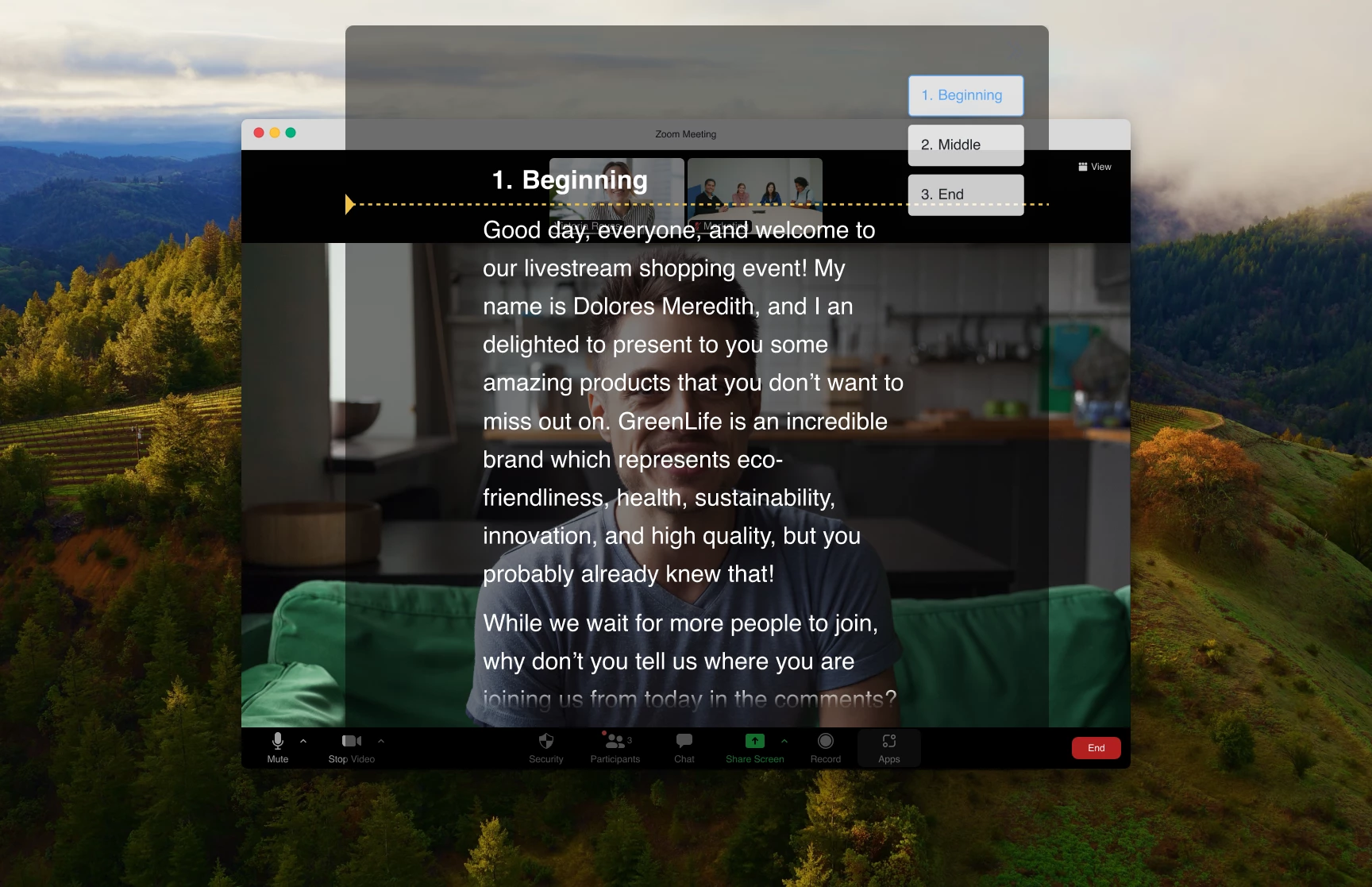
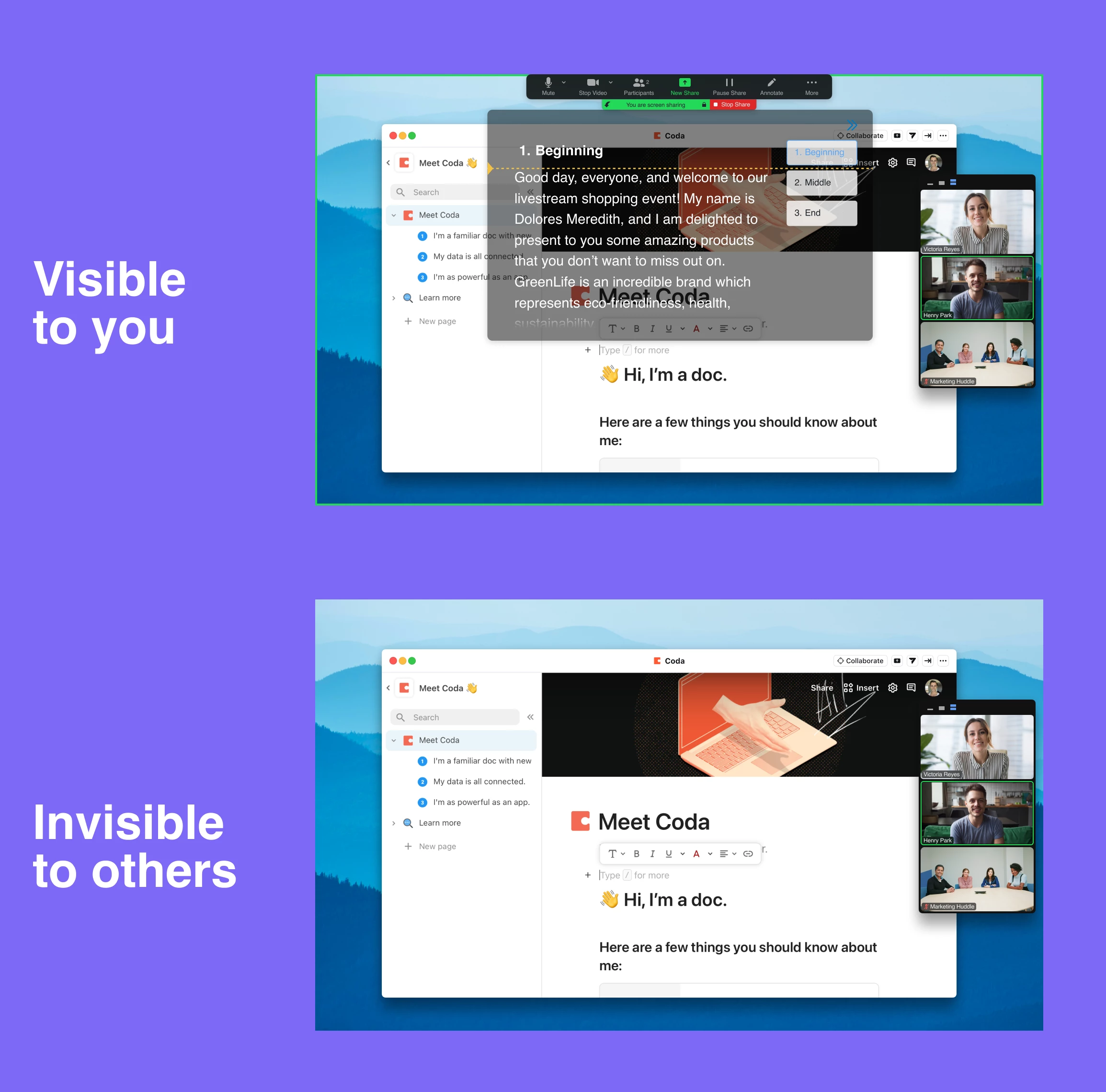
This is the deciding choice. You want a teleprompter that draws as an overlay your screen capture ignores, so it stays visible to you and invisible to everyone else, on Zoom and in any recording.
A few desktop apps do this now on both Mac and Windows. Full disclosure, I work on one of them (FlowPrompter), so weigh that however you like. The point that matters for you is the capability, not the brand: make sure whatever you choose can stay hidden during screen share and recording, works on your OS, and lets you float the text over other windows. If a tool cannot do the screen share part, it will let you down on the exact call where you need it most. You can see how the overlay approach works here: https://flowprompter.app
Step 3: Position the window so only you see it
Open your prompter and drop the window up near your webcam. Paste in your script. Set the window to stay on top so Zoom does not bury it when you click around.
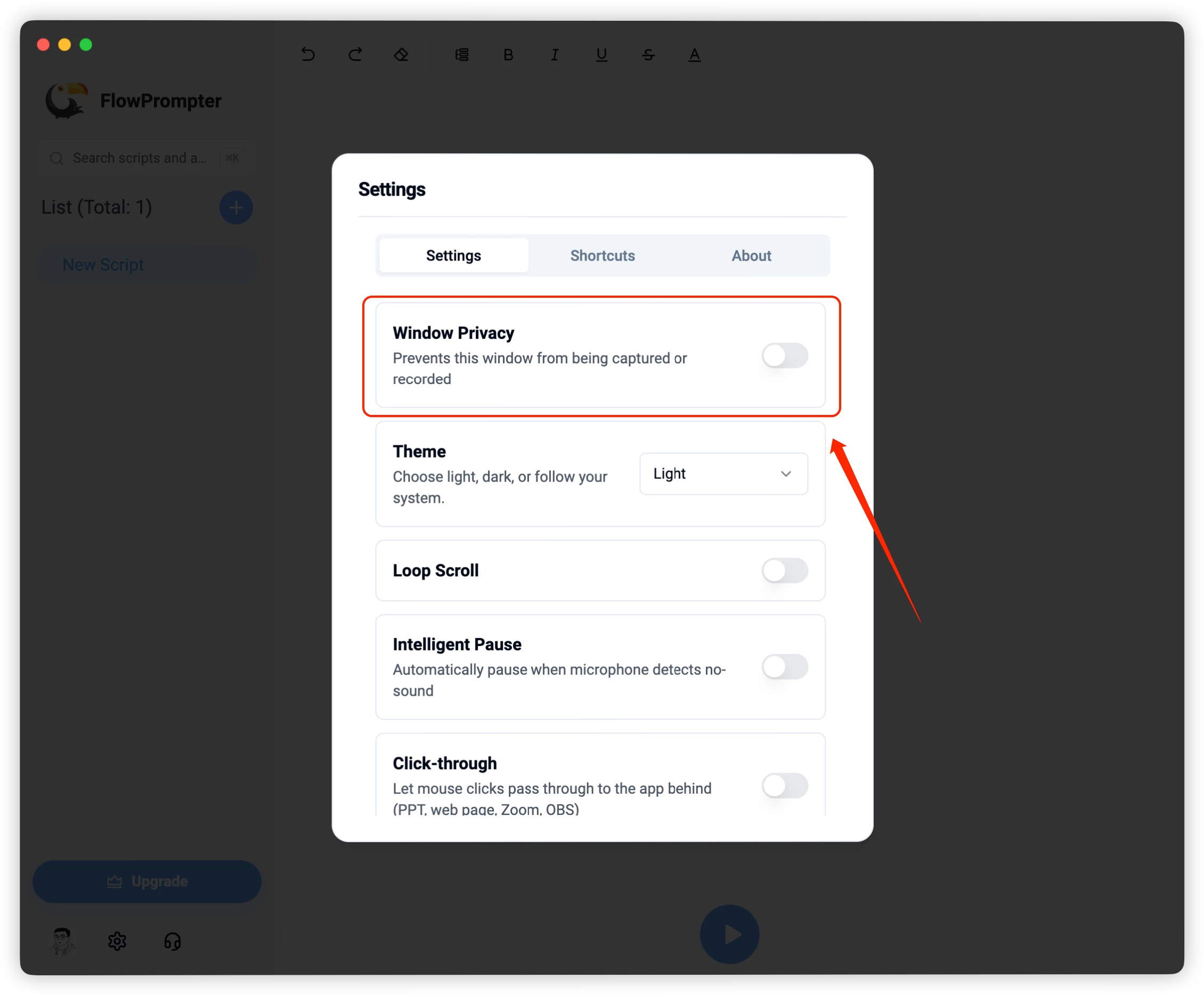
Now turn on the screen capture hiding option (names vary by app, look for "invisible," "hidden from screen share," or "private overlay"). This is the setting that keeps it off your viewers' screens.
Step 4: Dial in speed and size
Set the font big enough to read at a glance without leaning in. Then set the scroll slower than feels right.
I know that sounds backwards. When you are nervous you want to rush, so a speed that looks comfortable on screen is usually too fast once you are talking. Start around 140 words per minute and let the text come to you. If you feel like you are waiting on the words a touch, you have it about right.
Step 5: Do one screen share dry run
Do not trust it live for the first time. Start a quick test meeting with yourself, or hop on with a friend, and share your screen.
Watch what they see. Your slide should look clean, with no script on it. On your side, the prompter is still right there. Once you have confirmed that once, you will never sweat it again.
How to read without sounding like you are reading
Setup gets you most of the way. Delivery does the rest.
- Write it the way you talk. Short lines, contractions, the words you would actually say. Scripts written for the eye sound stiff out loud.
- Break your script into short chunks. A line or two per idea, with space between. It gives your eyes a natural place to land and your voice a place to breathe.
- Look, then talk. Read a phrase, lift your eyes to the lens, say it. That small rhythm reads as thinking, not reading.
- Leave yourself notes, not a wall. Bold the key phrase in each chunk so you can find your place after a glance away.
Common mistakes to avoid
- Script too low on the screen. The further from the lens, the more obvious the glance. Pull it up.
- Scrolling too fast. The number one reason people sound rushed. Slow it down a notch past comfortable.
- Skipping the dry run. This is how a script ends up live on a shared slide. Test it once, every new setup.
- Reading every word verbatim. Let yourself paraphrase. A tiny stumble sounds human. A flawless robotic read does not.
- Covering the Zoom controls. Keep the prompter window clear of the mute and share buttons so you are not fishing for them mid call.
What to do next
Pick your next real call, even a low stakes one. Write three or four bullet points as a script, set the prompter under your webcam, and run the screen share test once before you join.
That is it. One practice pass and the whole thing stops feeling like a trick and starts feeling like just how you show up on camera now.
FAQ
Can people on the call see my teleprompter?
Not if you use an overlay tool with screen capture hiding turned on. They see your normal screen or shared slide. You see the script. That is the entire point of setting it up this way.
Will it show up in the Zoom recording?
With the right app, no. The same hiding that keeps it off your viewers' screens keeps it out of the recording. Always confirm with one test recording the first time.
Does this work on both Mac and Windows?
Yes. The overlay approach exists on both. Just check that your specific tool lists your OS before you rely on it.
Do I need a hardware teleprompter or extra monitor?
No. A hardware rig is great for studio work, but for Zoom a software overlay on your one screen is enough. A second monitor is a nice to have, not a must.
What is a good scrolling speed?
Start near 140 words per minute and adjust. If you are racing the text, slow down. If you are waiting on it constantly, nudge it up. Comfortable for the viewer almost always means a little slower than feels natural to you.