

How to disable WebView2 services | Community
Skip to main content
Newcomer
July 4, 2023
Question

How to disable WebView2 services

  • July 4, 2023
  • 4 replies
  • 184 views

I have disabled all features related to calendar, email, whiteboard, etc. in my Zoom account and noticed that several services are still running in background (iFrames probably that are running somewhere):
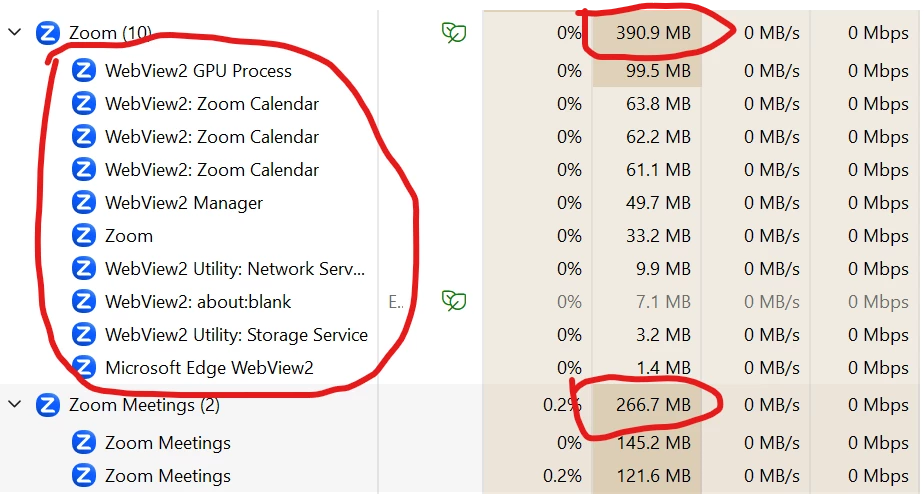
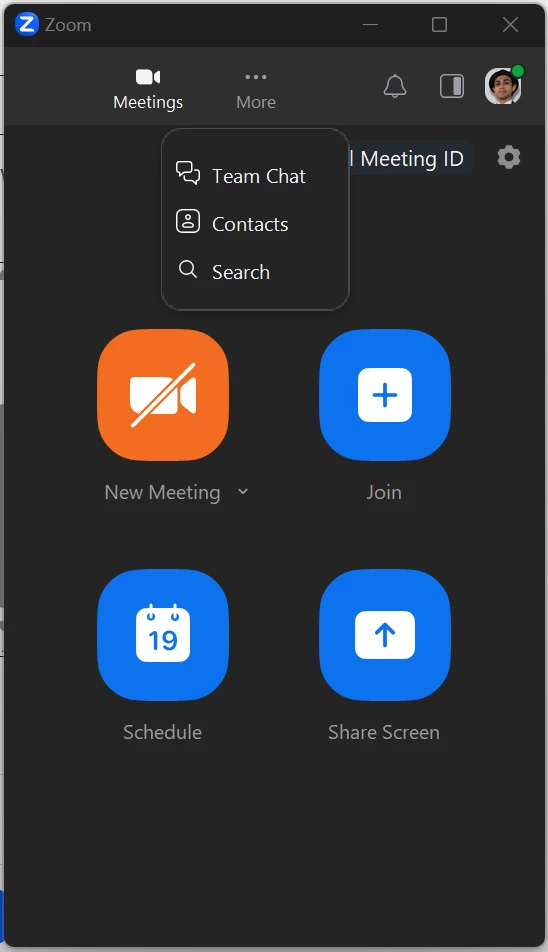


They consume an insane amount of RAM, almost 400 MiB for processes that don't do anything or they should be disabled.


I'm sure this can be a bug. I reported it also. Does anyone know if there is any way to fully disable them?

4 replies

Newcomer
April 25, 2024

I can see that no one posted a reply to your query but were you able to find a workaround to disable those services?

Newcomer
May 27, 2024

Close Zoom Client and rename:
C:\Users\[USERNAME]\AppData\Roaming\Zoom\bin\zWebview2Agent.exe
, for example to zWebview2Agent_Backup.exe
I upgraded from Zoom 5.17 to 6 and got multiple hang-ups (scheduling appointments, viewing appointments), but now I am able to work in the new version Zoom Workplace thanks to this trickery.

Newcomer
October 14, 2024

What is the result from removing these services?


Newcomer
December 16, 2024

I reduce the Zoom memory usage to under 142MB by disabling all the calendar, email and contact integration with Gmail / Google workspace.  I can still see my scheduled zoom meetings in the app, but this finally got rid of the duplication zoom had with showing me my emails, and calendar items, which I could already see in my Google account.


Here's the link to disabling calendar and contacts 

https://support.zoom.com/hc/en/article?id=zm_kb&sysparm_article=KB0069503


And for me I disabled -

Manage emails and calendar events on Zoom client

Calendar and contacts integration

And after making these updates, I just had to log out of my zoom client and back in to see the memory improvement.