Hide All Video When Attending Zoom Meeting | Community
Skip to main content
Newcomer
August 9, 2022
Solved

Hide All Video When Attending Zoom Meeting

  • August 9, 2022
  • 1 reply
  • 0 views

I can't be alone on this.  When joining a meeting with my colleagues, I like to share pleasantries and see their smiling faces.  Once the meeting gets moving on the agenda, I often need to really focus on what's being said and not get distracted by this voyeuristic view of the other remote attendees.  It would be wonderful if I could select the video feeds of certain attendees to hide, or all videos.  It would also be helpful when you need as much screen real estate as possible because Tammy is sharing a spreadsheet with 8pt font and isn't considerate enough to zoom into the content for her audience.


1. Hide my video
2. Hide their video

3. Hide all video


🙂  Thank you

    Best answer by Ray_Harwood

    Hi, @DRGzoom,


    You're mostly in luck!  There is an option to stop all video... you just have to enable the option in order to use it.


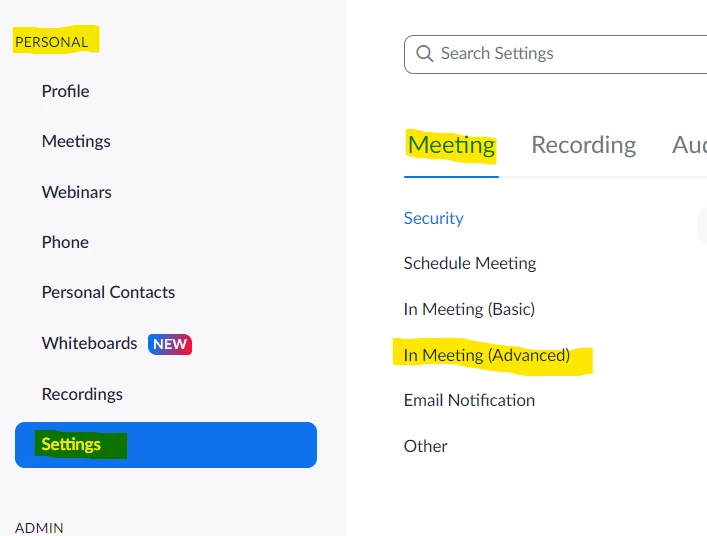
    On the web view of your account, go to Personal -> Settings -> Meetings tab and click In Meeting (Advanced):

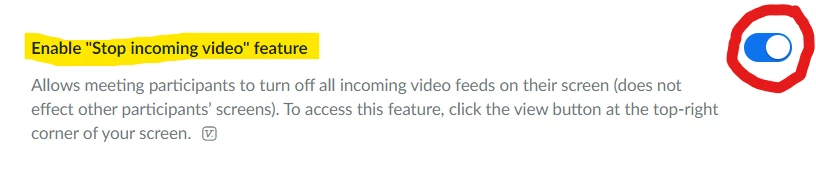
    then continue to scroll down to the Enable "Stop incoming video" feature (WAY down...) and turn that switch ON (blue):

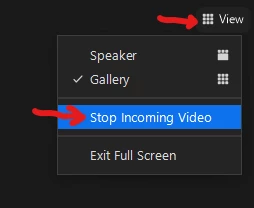
    Once that is set, you have the ability then to stop and start all the incoming user video feeds by clicking the View menu in the upper right corner of the Zoom app, then click Stop Incoming Video:

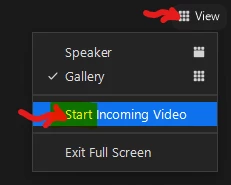
    Then later if you want to see everyone, click View and Start Incoming Video:

    You can't do individual users, but you can stop/start the entire gallery of video in just a couple of clicks.


    Staying focused is good... and with this, hopefully easier to do.

    1 reply

    Ray_Harwood
    Community Super Champion | Customer
    Community Super Champion | Customer
    August 9, 2022

    Hi, @DRGzoom,


    You're mostly in luck!  There is an option to stop all video... you just have to enable the option in order to use it.


    On the web view of your account, go to Personal -> Settings -> Meetings tab and click In Meeting (Advanced):

    then continue to scroll down to the Enable "Stop incoming video" feature (WAY down...) and turn that switch ON (blue):

    Once that is set, you have the ability then to stop and start all the incoming user video feeds by clicking the View menu in the upper right corner of the Zoom app, then click Stop Incoming Video:

    Then later if you want to see everyone, click View and Start Incoming Video:

    You can't do individual users, but you can stop/start the entire gallery of video in just a couple of clicks.


    Staying focused is good... and with this, hopefully easier to do.