Disabling Wait Room AFTER a Scheduled Recurring Meeting Has Started | Community
Skip to main content
Newcomer
August 4, 2022
Solved

Disabling Wait Room AFTER a Scheduled Recurring Meeting Has Started

  • August 4, 2022
  • 3 replies
  • 2 views

I saw some related, but not quite identical, issues with this from other users, so I'm adding a new post. 

We use a recurring meeting in our organization to allow public access and keep the Zoom link consistent. Administratively we have Wait Room forcibly enabled for all meetings as a locked setting. Last night, I was asked at the last minute to disable the waitroom and allow members of the public to join as needed since we were short staffed and someone would not be monitoring the waiting room the whole time. I am a full admin in Zoom and knew I needed to unlock, then disable the waiting room. I did this after stopping the meeting (did a dry run before the actual meeting started). Even after restarting the meeting, the ability of the host to disable the waiting room was still grayed out and the feature was still forcibly enabled. What would I need to do to:

1) turn off one of those administratively locked settings during a meeting (if that is possible)

2) turn off administratively locked settings on a recurring meeting that had already had occurrences and did not yet start for tonight's occurence (if possible)


One angle I did not explore was creating a NEW meeting - because the meeting link had already been published on an agenda, it was not appropriate to change the login at the last minute. I was also thinking that perhaps there was some kind of delay on that toggle to filter through the system, but if there is a delay I don't know what the timeframe would be.


Thank you!

    Best answer by Ray_Harwood

    Hi, @mpilakowski.


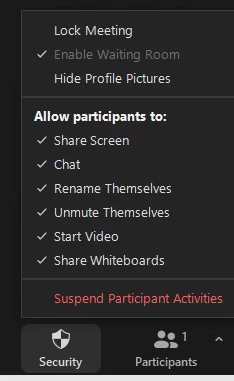
    The ability to turn off the Waiting Room is dependent on whether one of the other security settings is enabled, either the Passcode or the Authenticated User setting.  For example, if you have a meeting with ONLY Waiting Room enabled, the Security menu looks like this, with the "Enable Waiting Room" menu checked but greyed out:

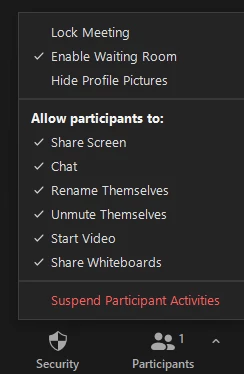
    If you have a meeting with both Passcode and Waiting Room enabled, the Security menu is not greyed out and can be disabled/re-enabled by clicking on that menu item:

    I hope that helps!

    3 replies

    Ray_Harwood
    Community Super Champion | Customer
    Community Super Champion | Customer
    August 5, 2022

    Hi, @mpilakowski.


    The ability to turn off the Waiting Room is dependent on whether one of the other security settings is enabled, either the Passcode or the Authenticated User setting.  For example, if you have a meeting with ONLY Waiting Room enabled, the Security menu looks like this, with the "Enable Waiting Room" menu checked but greyed out:

    If you have a meeting with both Passcode and Waiting Room enabled, the Security menu is not greyed out and can be disabled/re-enabled by clicking on that menu item:

    I hope that helps!

    Newcomer
    January 16, 2024

     Hi thanks for this information.  It is helpful. I find the help and account section very confusing.  I don't want a WAITROOM at all, as it keeps interrupting me. Is the passcode the best option?

    Ray_Harwood
    Community Super Champion | Customer
    Community Super Champion | Customer
    January 16, 2024

    Welcome to the Zoom Community, @Rhonda5965.


    My personal practice and recommendation is to always have the Passcode enabled, and only enable the Waiting Room if you suspect they might be “bad people” attending. You can enable Waiting Room when scheduling the meeting, or after entering the meeting. 

    Newcomer
    January 16, 2024

    I really appreciate you reply. thank you. I am not sure where I mark as Accepted, but I gave you the thumbs up. There should be an appreciated thumb 🙂