Captioning Zoom Sessions | Community
Skip to main content
Newcomer
September 21, 2022
Solved

Captioning Zoom Sessions

  • September 21, 2022
  • 1 reply
  • 1 view

Online resources instructing me how to enable captioning Zoom sessions point to:

https://support.zoom.us/hc/en-us/articles/4409683389709-Enabling-manual-captions

but  its Step #3 says to click a "Meeting" tab with a "In Meeting (Advanced)" option.  I have searched and found no such tab and option.


Has Zoom possibly upgraded without the instruction being updated?

    Best answer by ccameron
    That seems to have done the trick.  Thank you.
     
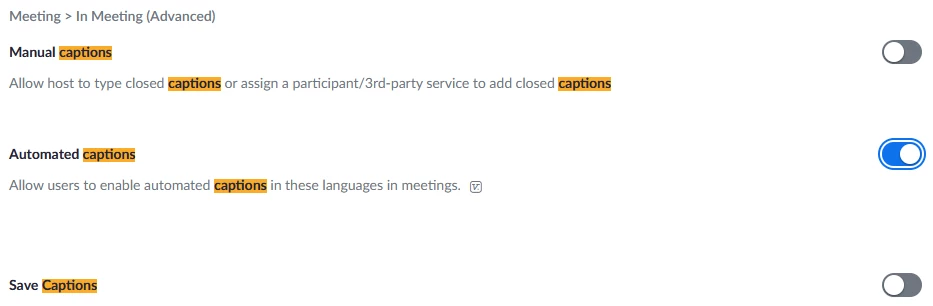
    It does give me several options, and I'm not sure which is the one to select so that a deaf attendee will be able to turn on captions. Is the button that I moved to the right below the correct selection?


    Cheers,
    Peter

    Yep! You're all set to allow users to enable captions if they need them 👍

    Please select "accept as a solution" in the above post to help future community posters find the right answer.

    1 reply

    ccameron
    Community Champion | Employee
    Community Champion | Employee
    September 21, 2022

    @pshikli,


    When you go to "Account Settings", I'd recommend just using the search bar at the top. You can search the word "captions" and follow the rest of the article from there.

    Photo attached.


    If you are still having trouble, please share a screenshot of what you're seeing/where it is you're looking.


    If this answers your question, please accept as solution.

    pshikliAuthor
    Newcomer
    September 21, 2022

    Hi Cameron,


    Perhaps I'm in the wrong place but I also see no search option per the attached screen capture:


    Cheers,
    Peter

    ccameron
    Community Champion | Employee
    Community Champion | Employee
    September 21, 2022

    @pshikli,


    If you close your Zoom desktop app window, and look at the web page, the search bar will be in the web browser right behind it.

    From there you can search for captions and follow the steps.


    If this answers your question, please accept as solution.