


How To Set Your Language Preference & Translate Content
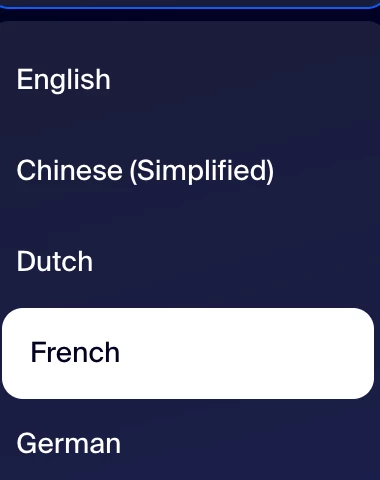
Community users can select from various preferred languages in the Zoom Community. Available language options currently include the following:
- English
- Chinese (simplified)
- Dutch
- French
- German
- Italian
- Indonesian
- Japanese
- Korean
- Polish
- Portuguese (Brazil)
- Russian
- Spanish
- Swedish
- Turkish
- Vietnamese
How to Set Your Preferred Language:
- Scroll to the bottom of any community page
- Click on the language selector dropdown in the community footer
- Select your preferred language. The page will reload to reflect your language selection.
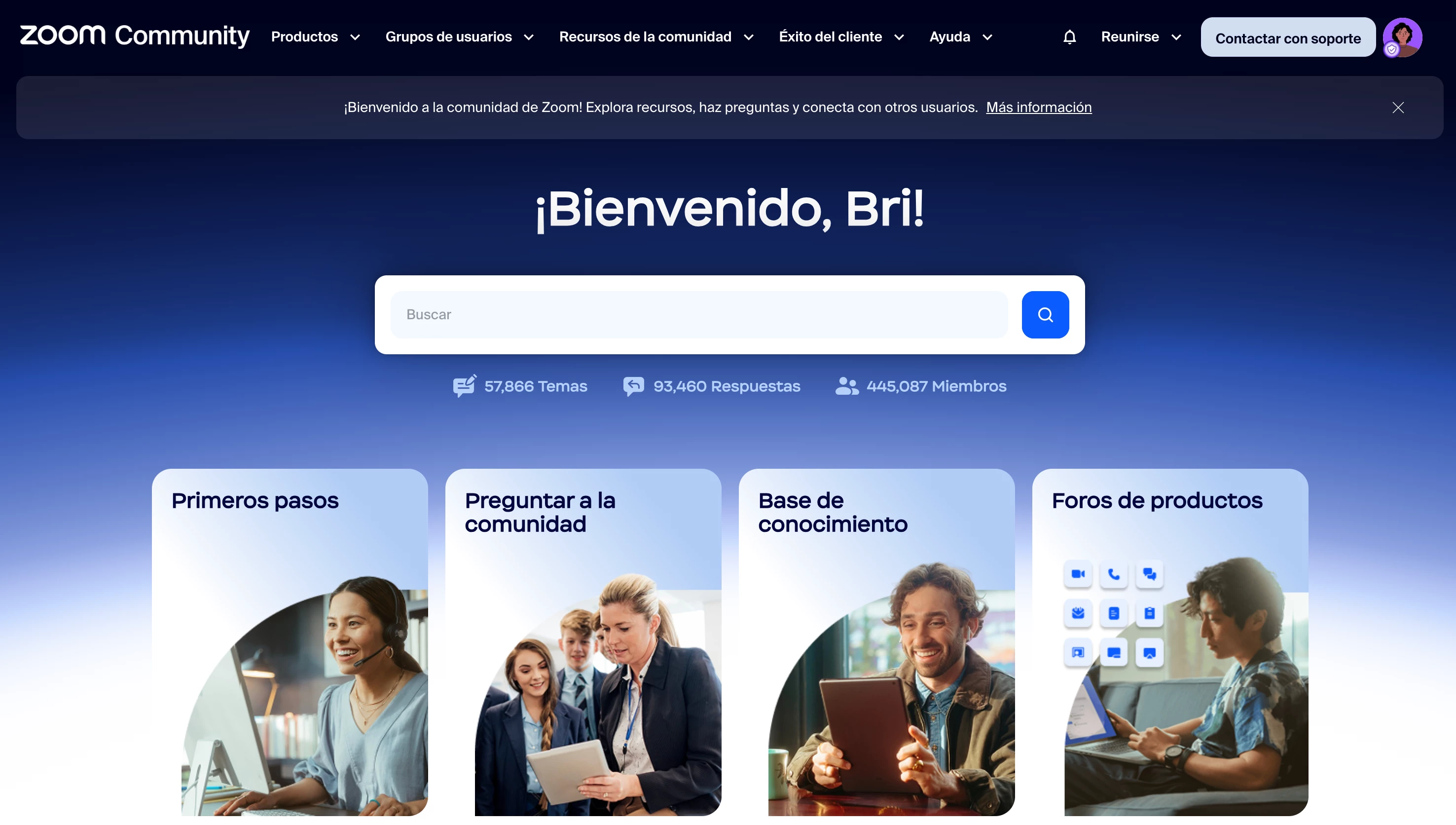
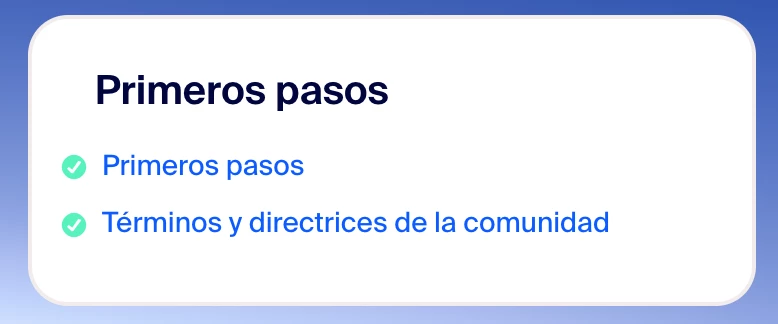
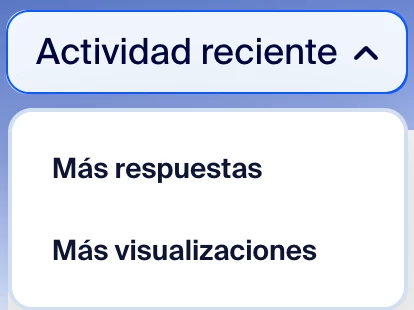
Items that will translate include but are not limited to the following:
- Headers
- Descriptions
- Settings
- Statistics
- Leaderboards
- Filtering options
- Buttons
- User-generated content


How to Translate User Generated Content
The Zoom Community has a global user base, and our AI-powered translation feature helps you easily read and engage with content from users around the world.
To translate a post:
- Navigate to the post you want to view.
- Under the post title, select the Translate dropdown menu.

- Choose the language you’d like the content translated into.
- (Optional) Select Show Original to view the post in its original language.
This feature makes it easier to connect, collaborate, and learn—no matter the language.
Note: Changing your global language preference will update user-generated content to reflect your selected language.