

Transform How Your Team Works with Zoom Canvas
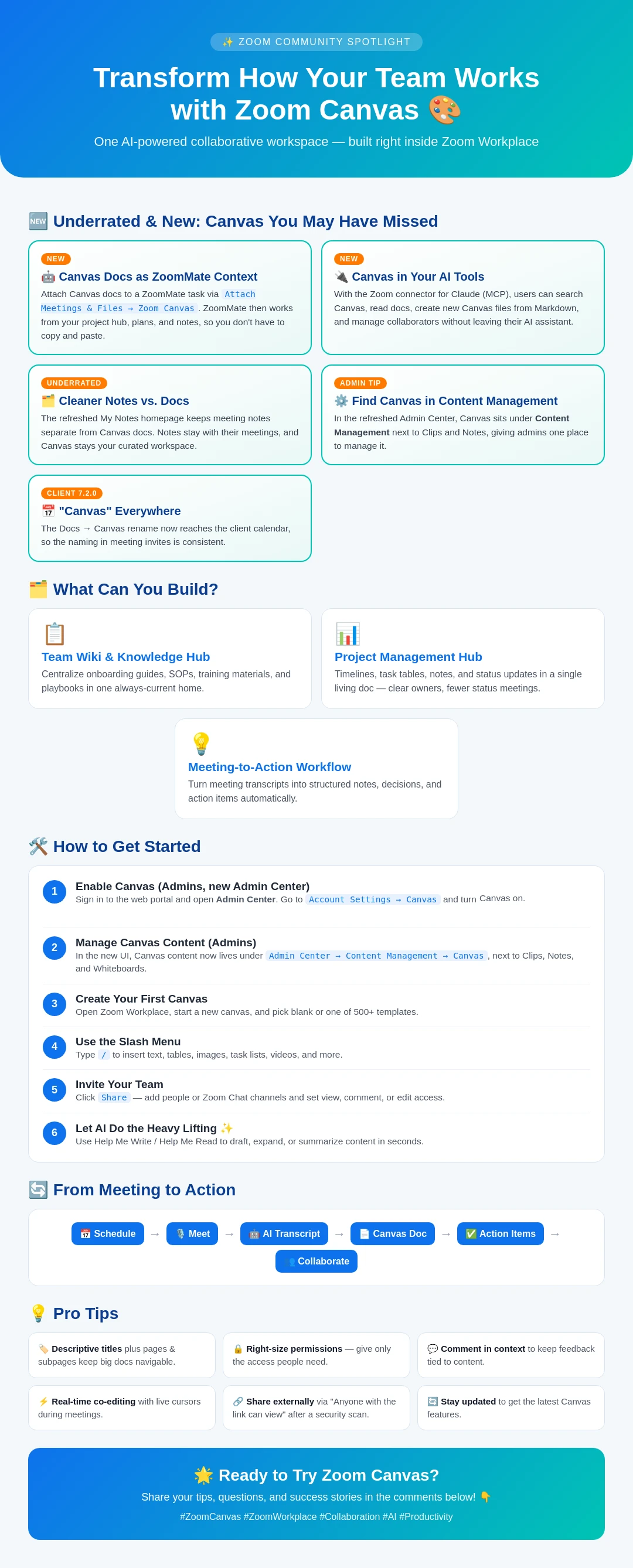
Transform How Your Team Works with Zoom Canvas 🎨
One AI-powered collaborative workspace — built right inside Zoom Workplace
🆕 Underrated & New: Canvas You May Have Missed
NEW — 🤖 Canvas Docs as ZoomMate Context Attach Canvas docs to a ZoomMate task via Attach Meetings & Files → Zoom Canvas. ZoomMate then works from your project hub, plans, and notes, so you don't have to copy and paste.
NEW — 🔌 Canvas in Your AI Tools With the Zoom connector for Claude (MCP), users can search Canvas, read docs, create new Canvas files from Markdown, and manage collaborators without leaving their AI assistant.
UNDERRATED — 🗂️ Cleaner Notes vs. Docs The refreshed My Notes homepage keeps meeting notes separate from Canvas docs. Notes stay with their meetings, and Canvas stays your curated workspace.
ADMIN TIP — ⚙️ Find Canvas in Content Management In the refreshed Admin Center, Canvas sits under Content Management next to Clips and Notes, giving admins one place to manage it.
CLIENT 7.2.0 — 📅 "Canvas" Everywhere The Docs → Canvas rename now reaches the client calendar, so the naming in meeting invites is consistent.
🗂️ What Can You Build?
📋 Team Wiki & Knowledge Hub: Centralize onboarding guides, SOPs, training materials, and playbooks in one always-current home.
📊 Project Management Hub: Timelines, task tables, notes, and status updates in a single living doc. Clear owners, fewer status meetings.
💡 Meeting-to-Action Workflow: Turn meeting transcripts into structured notes, decisions, and action items automatically.
🛠️ How to Get Started
- Enable Canvas (Admins, new Admin Center): Sign in to the web portal and open Admin Center. Go to Account Settings → Canvas and turn Canvas on.
- Manage Canvas Content (Admins): In the new UI, Canvas content now lives under Admin Center → Content Management → Canvas, next to Clips, Notes, and Whiteboards.
- Create Your First Canvas: Open Zoom Workplace, start a new canvas, and pick blank or one of 500+ templates.
- Use the Slash Menu: Type / to insert text, tables, images, task lists, videos, and more.
- Invite Your Team: Click Share, add people or Zoom Chat channels, and set view, comment, or edit access.
- Let AI Do the Heavy Lifting ✨: Use Help Me Write / Help Me Read to draft, expand, or summarize content in seconds.
🔄 From Meeting to Action
📅 Schedule → 🎙️ Meet → 🤖 AI Transcript → 📄 Canvas Doc → ✅ Action Items → 🎙️ Collaborate
💡 Pro Tips
- 🏷️ Descriptive titles plus pages & subpages keep big docs navigable.
- 🔒 Right-size permissions: give only the access people need.
- 💬 Comment in context to keep feedback tied to content.
- ⚡ Real-time co-editing with live cursors during meetings.
- 🔗 Share externally via "Anyone with the link can view" after a security scan.
- 🔄 Stay updated to get the latest Canvas features.
🌟 Ready to Try Zoom Canvas?
Share your tips, questions, and success stories in the comments below! 👇
#ZoomCanvas #ZoomWorkplace #Collaboration #AI #Productivity