Need to view the people who signed up for the meeting. | Community
Skip to main content
Newcomer
May 29, 2023
Solved

Need to view the people who signed up for the meeting.

  • May 29, 2023
  • 1 reply
  • 0 views

I have an admin role on our company's Zoom account. The owner wants me to monitor if anyone new had signed up for the weekly Zoom Meeting we have posted on our website. The problem is, despite my admin role, I can't view the scheduled meeting and as a result, can't view who has signed up. 

Is there a way for an admin to view that scheduled meeting? And also, can a "new sign-up notification" be also emailed to another email address and not just the account email? 

Best answer by Ray_Harwood

Welcome to the Zoom Community, @KimBerou.


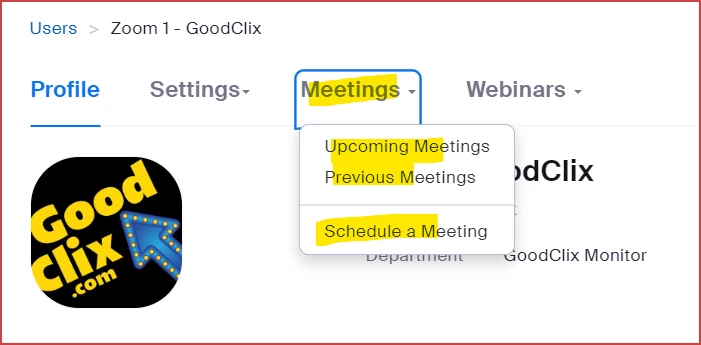
If you are an account Admin, you can view Meetings and Webinars created by one of your users.  Go to Admin -> User Management -> Users and click on the user's Email/NameID field.  Click on the Meetings tab and a submenu appears as follows:

Once you click Upcoming Meetings, their list of meetings is displayed, and you can click the title of any meeting to view the Registration information at the bottom of the meeting page.


The same approach works for viewing a user's Webinars -- whether or not you have a Webinar license assigned to you.


Alternatively, you can see Registration Reports from Admin -> Account Administration -> Reports; then select Meetings or Webinars, and follow the prompts to generate the report.


1 reply

Ray_Harwood
Community Super Champion | Customer
May 29, 2023

Welcome to the Zoom Community, @KimBerou.


If you are an account Admin, you can view Meetings and Webinars created by one of your users.  Go to Admin -> User Management -> Users and click on the user's Email/NameID field.  Click on the Meetings tab and a submenu appears as follows:

Once you click Upcoming Meetings, their list of meetings is displayed, and you can click the title of any meeting to view the Registration information at the bottom of the meeting page.


The same approach works for viewing a user's Webinars -- whether or not you have a Webinar license assigned to you.


Alternatively, you can see Registration Reports from Admin -> Account Administration -> Reports; then select Meetings or Webinars, and follow the prompts to generate the report.


KimBerouAuthor
Newcomer
May 29, 2023

Thank you so much! This solved the problem we've been working on for days!