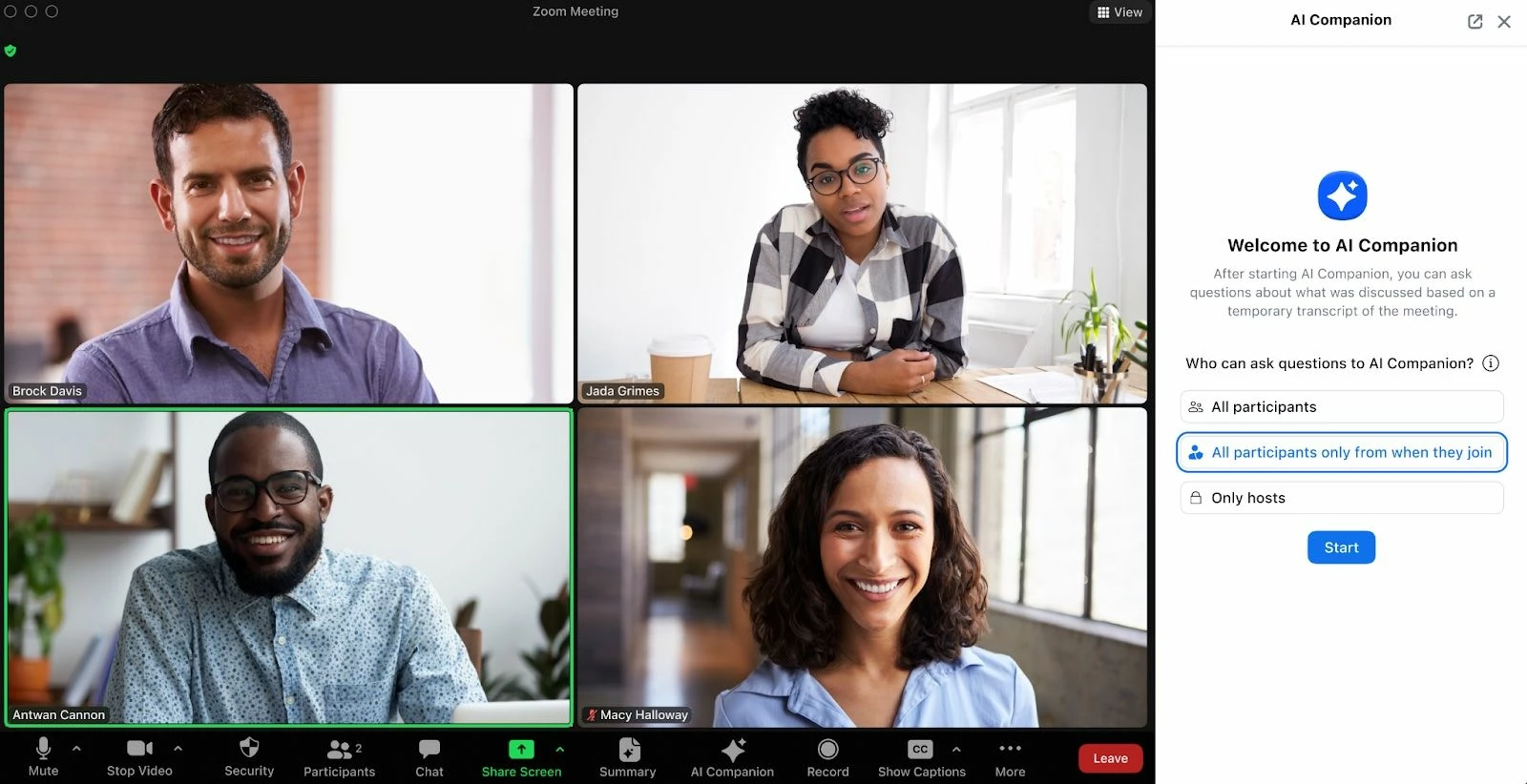

Question
Getting Started with Zoom AI Companion
Wondering how to get started with Zoom AI Companion?
Here are some tips & tricks 👇👇
- Set it and forget it. If you love the note-taking capabilities of an AI meeting assistant but keep forgetting to click the AI Companion “meeting summary” button at the start of your meetings, enable the setting to automatically start the meeting summary at the beginning of all meetings you host.
- Get specific with your prompts. When you want AI Companion to help compose an email or chat message for you, you can include specifics like the desired tone or the purpose of the message in your prompt. This will help AI Companion generate a message that’s more in line with what you’re looking for.
- Keep an eye out for the AI Companion icon. The great thing about AI Companion is that it’s present throughout the Zoom platform, so it’s integrated into how you work. Just keep your eye out for the
 icon as you work in Team Chat or join your next meeting. Clicking it will show you how AI Companion can help you be more productive throughout your workday.
For more information about how Zoom AI Companion can be useful to you, read the entire article on the Zoom Blog!