

Share Whiteboard Options - what does "Who can start sharing when someone else is sharing?" mean | Community
Skip to main content
Newcomer
August 31, 2022
Solved

Share Whiteboard Options - what does "Who can start sharing when someone else is sharing?" mean

  • August 31, 2022
  • 1 reply
  • 0 views

I suspect this is incredibly obvious to everyone but me but I can't find it in Zoom's documentation.  For the new Whiteboard, when I click the arrow to the right of the Whiteboard icon at the bottom of a Meeting, there are two Share Whiteboard Options.


What does "Who can start sharing when someone else is sharing?" mean?
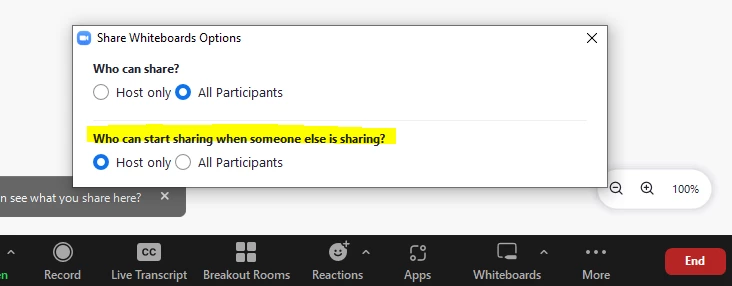
 

The first Option for "Who can share" was confusing enough and it took a LOT of testing to realize that it meant who can add/share a whiteboard within the meeting. It sounds like this setting should control who has the ability to share the whiteboard that displays with users outside of the invited participants.

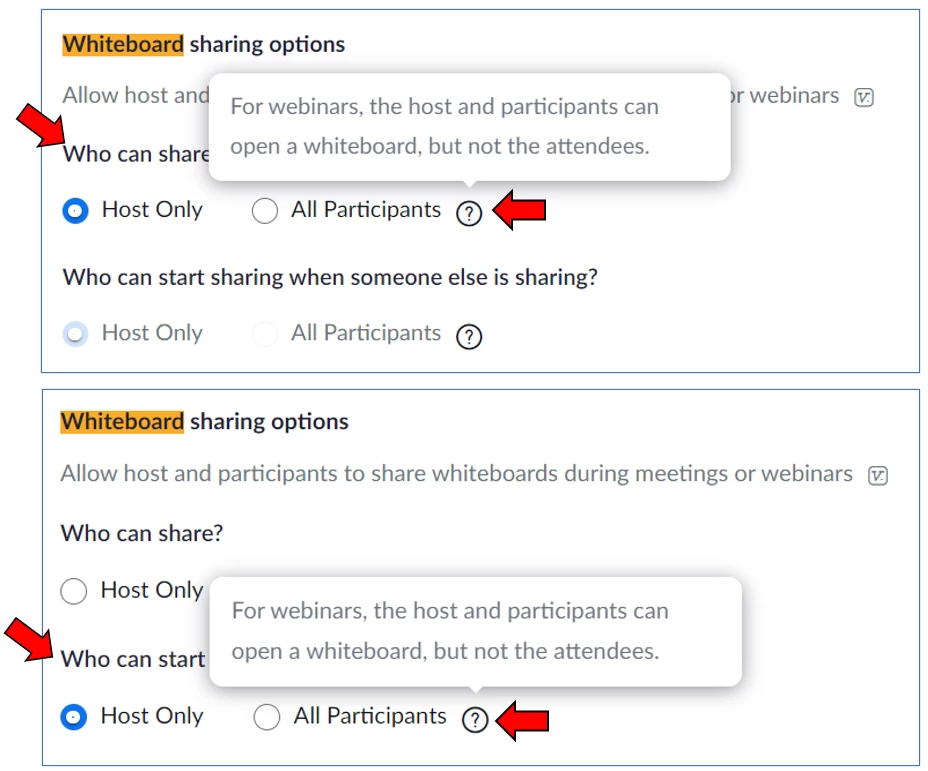
It also doesn't help that in Zoom's Portal Settings for Whiteboard sharing options, both options have the same information in the information popup. 
 

    Best answer by ccameron

    Hi MaryM,


    This refers to a participant being able to "takeover" the share automatically. Most often, I see Zoom users prefer to keep the takeover option to host only. 

    -If set to host only, the attendee attempting to share will be notified that the current sharer must stop first. 


    If this answers your question please remember to "Accept as a solution" and add a thumbs up! 

    1 reply

    ccameron
    Community Champion | Employee
    ccameronAnswer
    Community Champion | Employee
    August 31, 2022

    Hi MaryM,


    This refers to a participant being able to "takeover" the share automatically. Most often, I see Zoom users prefer to keep the takeover option to host only. 

    -If set to host only, the attendee attempting to share will be notified that the current sharer must stop first. 


    If this answers your question please remember to "Accept as a solution" and add a thumbs up!