

Webinar - side by side with presenter video & presentation for all attendees (as a default mode) | Community
Skip to main content
Newcomer
July 5, 2023
Solved

Webinar - side by side with presenter video & presentation for all attendees (as a default mode)

  • July 5, 2023
  • 3 replies
  • 1 view

Hello


I would like to organize a webinar - which will be mostly myself presenting a powerpoint, and answering a few questions.
I would like to make sure that all the attendees see the same thing: a split screen with on one side the document I am presenting and on the other side the video feed of myself.

I searched the support but did not manage to find any clear answer on how to do that.
Can someby help me out?

Many many thanks!!
    Best answer by crissyd

    @groupecapitole Side-by-side: Speaker for the Attendee View is only available when you're sharing your screen that's why you can't see it in the options.


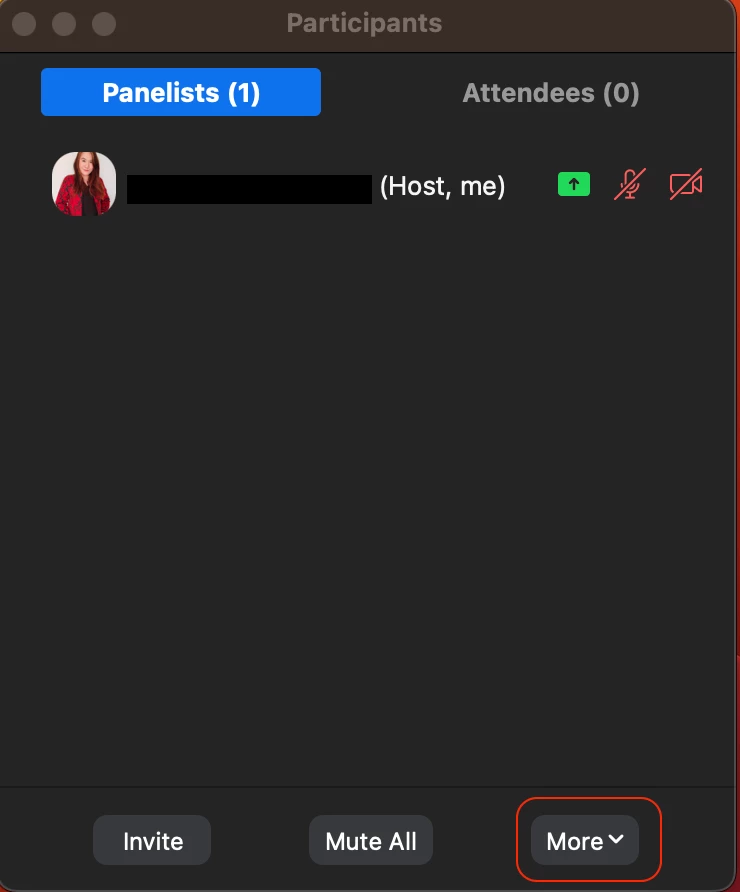
    Also, when sharing screen, you can change the video layout by clicking Participants then More. Scroll down to Attendee View and select Side-by-side: Speaker.


    Let me know if it worked!

    3 replies

    crissyd
    Employee
    Employee
    July 5, 2023

    @groupecapitole During you practice session, make sure to adjust your video layout by clicking View then select Speaker for My View (host view) and Side-by-side: Speaker for the Attendee View.

    Attendees will be able to view the shared screen on the left hand side, and see the speaker on the right hand side of the screen.


    I hope this helps.

    Newcomer
    August 29, 2023

    When I go to view, I don't have "side-by-side: speaker" as an option.  how do I get that option?


    Ray_Harwood
    Community Super Champion | Customer
    Community Super Champion | Customer
    August 29, 2023

    The Side-by-Side options only show when screen sharing is in progress.

    Newcomer
    July 6, 2023

    Hey - thanks so much for taking the time.

    I have tried what you said and bumped into 2 challenges:

    - when not sharing anything, the view menu does not offer the side by side option (see screenshot)


    - when sharing a screen, I cannot find the view menu...


    Many many thanks for your support

    crissyd
    Employee
    crissydAnswer
    Employee
    July 7, 2023

    @groupecapitole Side-by-side: Speaker for the Attendee View is only available when you're sharing your screen that's why you can't see it in the options.


    Also, when sharing screen, you can change the video layout by clicking Participants then More. Scroll down to Attendee View and select Side-by-side: Speaker.


    Let me know if it worked!

    Newcomer
    September 5, 2023

    As a speaker, you can’t affect the attendee’s view. Only a Host/Co-Host can do this. When done by someone with Host privileges, it affects all attendees uniformly. 


    Sorry, misspoke.  I am the host, signed in as host.  Still not working.  I was signed in as an attendee on my ipad to see what it looked like.  I wish it would work, but it isn't.

    Newcomer
    July 7, 2023

    Thanks so much @crissyd - it worked! 🙏