Line one is greyed out on Zoom portal | Community
Skip to main content
Partner
March 31, 2025
Solved

Line one is greyed out on Zoom portal

  • March 31, 2025
  • 3 replies
  • 0 views

Referring to the following community chat, I understand that I need to change the caller on line one. However, on the Zoom portal, line one is greyed out, so I am not able to change the caller ID. How can I undo that?


https://community.zoom.com/t5/Zoom-Phone-System/Outgoing-Caller-ID-from-Yealink-Phone/m-p/192534
Best answer by Eliot

hi @MBA786

 here are a few screen shots that may help.

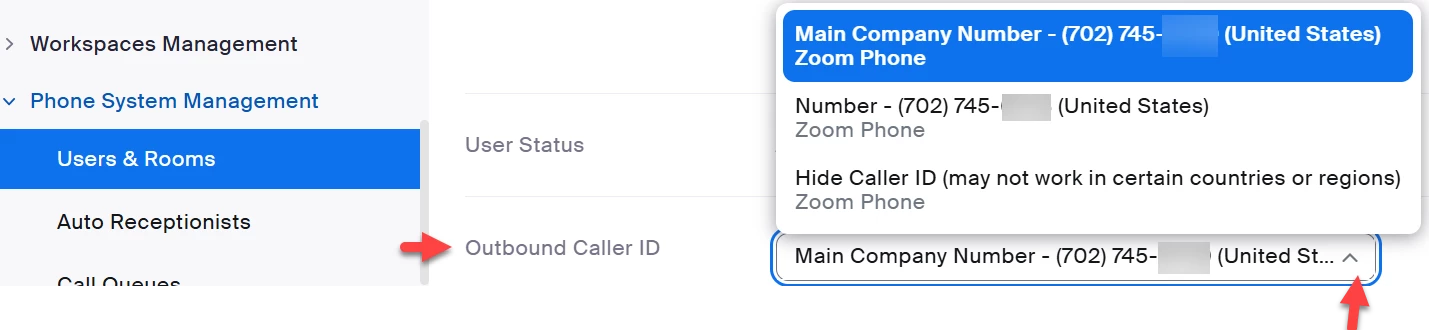
User Profile – Outbound Caller ID


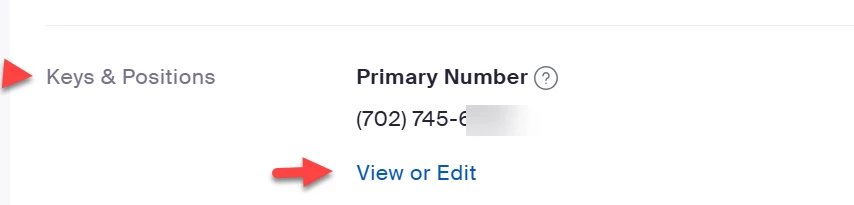
User Settings – Keys & Positions

Desk Phone


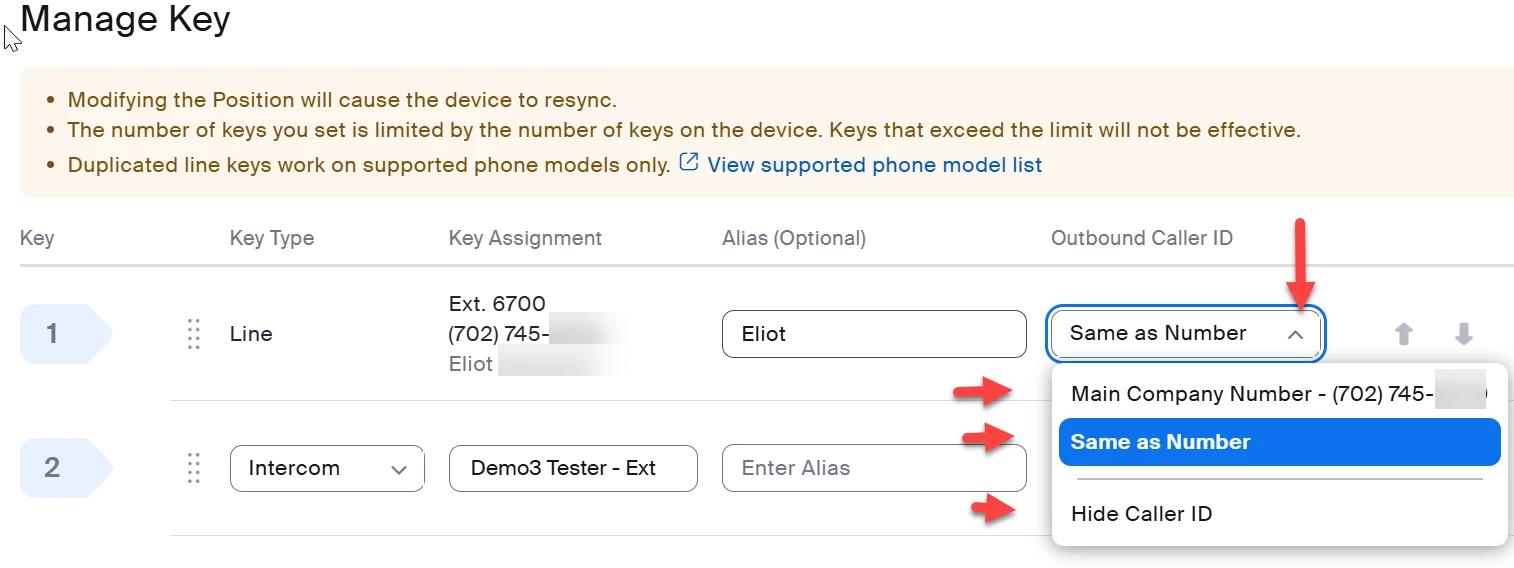
Even though Desk Phone Key 1, Key Type, Key Assignments are greyed out, you can change the Alias and Outbound Caller ID unless restricted by your owner or admin.


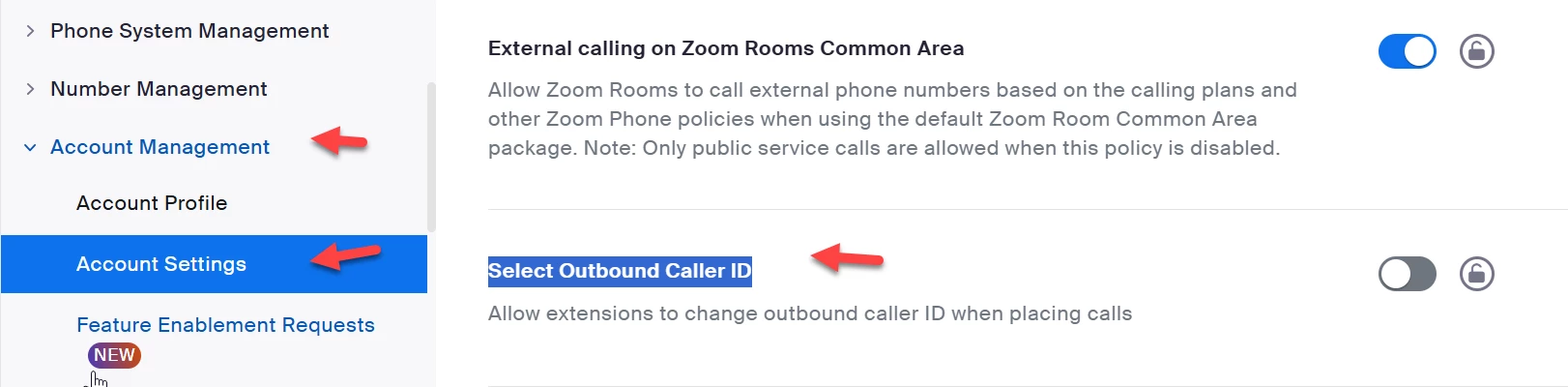
Owners and Admins can control user’s ability to select outbound caller id.  Go to Account Management, Account Settings, Zoom Phone:


Did my response answer your question? If so, please don't forget to mark the reply as an accepted solution.


Thanks,  eliot

3 replies

Community Super Champion | Partner
March 31, 2025

Hi @MBA786


click manage, select line 1 and select line 1 outgoing caller id.  You should be able to select your main company telephone number. 

MBA786Author
Partner
March 31, 2025

Yes, I select the manage, but line one is greyed out.

Community Super Champion | Partner
March 31, 2025

Hi @MBA786 


you may need to enable select outgoing caller id in account settings.   Please see


https://support.zoom.com/hc/en/article?id=zm_kb&sysparm_article=KB0069655#h_af4d1935-9cb1-44d2-9a10-9bfba10d58a7


thanks. Eliot

Community Super Champion | Partner
March 31, 2025
EliotAnswer
Community Super Champion | Partner
April 1, 2025

hi @MBA786

 here are a few screen shots that may help.

User Profile – Outbound Caller ID


User Settings – Keys & Positions

Desk Phone


Even though Desk Phone Key 1, Key Type, Key Assignments are greyed out, you can change the Alias and Outbound Caller ID unless restricted by your owner or admin.


Owners and Admins can control user’s ability to select outbound caller id.  Go to Account Management, Account Settings, Zoom Phone:


Did my response answer your question? If so, please don't forget to mark the reply as an accepted solution.


Thanks,  eliot