

cancel
Showing results for 
Search instead for 
Did you mean: 

Issues with default IVR message playing after our custom greeting prompt.

Chinook
Participant
Participant

Hi we have a main phone auto receptionist that will direct dial some call queues, but for others, we want to leave a dialback option, so that when a user makes a selection, if they change their mind they can return to the main menu and make a different selection.

The only way I'm finding to make this happen is by setting up a secondary auto receptionist for those lines (I would love is there was a better solution at this level). In doing that we have a scenario that runs somewhat like this:
Main IVR: Customer selects 3
Secondary IVR, "You have reach team 3 who handle the following types of calls (e.g). Please stay on the line while we connect you or press 1 to return to the main menu or 0 to leave a voicemail."
Auto IVR message (that we would like to remove) "if you know the extension of the person you are trying to reach please dial it now or press zero to return to the operator...please wait while we connect your call."

This IVR message is confusing customers, many don't realize that the line is actually being connected (because the IVR message really makes it sound like it likely isn't) so they dial zero, which we actually have pointed to VM, and then they hang up, call back in and tell us our system isn't working. Obviously we could change the zero dialing setup, but the fundamental problem is the errant IVR message. 

Having the dialback option is important to us. Is there a better way to do this, or a way we can turn off the IVR automated message so it isn't misdirecting our customers?
2 ACCEPTED SOLUTIONS

Eliot
Community Champion | Zoom Partner

hi @Chinook 


You can change the IVR Greeting Prompt to whatever you want, i.e. “Connecting You”, “Please stay on the line while we connect you or press 1 to return to the main menu or 0 to leave a voicemail."

Eliot_0-1755661250683.png


Once the call is transferred to a call queue, the call queue can answer the call with a message “You have reached Sales. A representative will be with you shortly.”


Please see Zoom support articles:

Creating an interactive voice response system

Changing auto receptionist settings

Managing auto receptionists

Managing Zoom Phone call queues

https://support.zoom.com/hc/en/article?id=zm_kb&sysparm_article=KB0064844

Changing call queue settings

https://support.zoom.com/hc/en/article?id=zm_kb&sysparm_article=KB0065370

Enabling call queue callback for Zoom Phone

https://support.zoom.com/hc/en/article?id=zm_kb&sysparm_article=KB0081661


Did my response answer your question? If so, please don't forget to mark the reply as an accepted solution.


thanks,  eliot

View solution in original post

Eliot
Community Champion | Zoom Partner

hi @Chinook 


Eliot_0-1755868379361.png


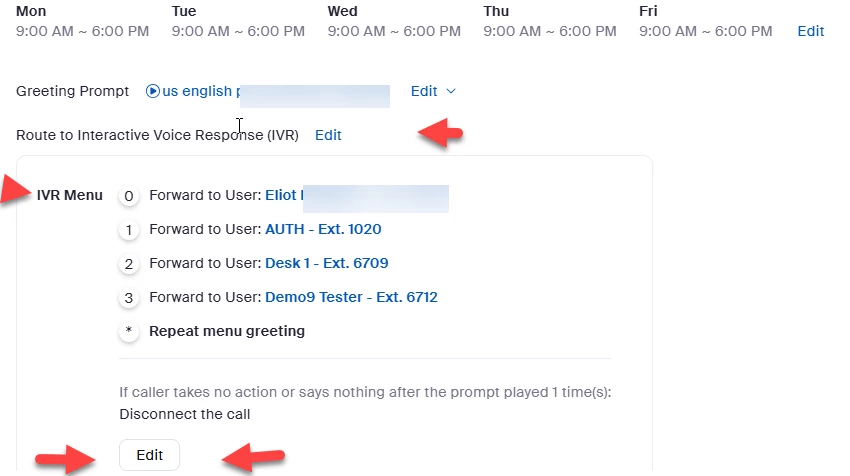
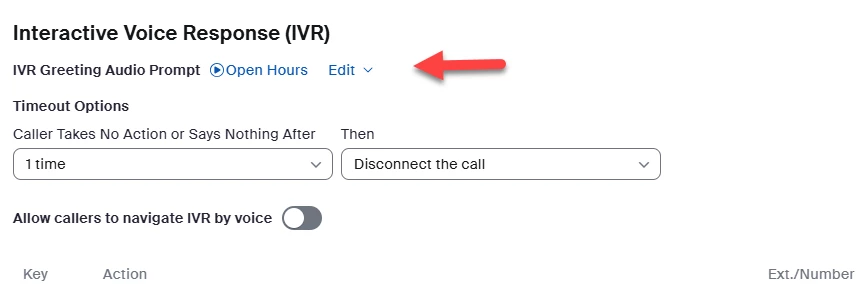
once you click the Edit button with the two red arrows, you get the Edit screen for the IVR.  You can edit IVR Greeting Audio Prompt.  Depending on how you want your system to work, you can put in your IVR Greeting Audio Prompt how users can select whatever options they need.  Zoom has a lot of flexibility allowing you to tailor how you want your system to operate.  It is a matter of personal preference.


Eliot_1-1755868559528.png


Did my response answer your question? If so, please don't forget to mark the reply as an accepted solution.


thanks,  eliot

View solution in original post

4 REPLIES 4

Eliot
Community Champion | Zoom Partner

hi @Chinook 


You can change the IVR Greeting Prompt to whatever you want, i.e. “Connecting You”, “Please stay on the line while we connect you or press 1 to return to the main menu or 0 to leave a voicemail."

Eliot_0-1755661250683.png


Once the call is transferred to a call queue, the call queue can answer the call with a message “You have reached Sales. A representative will be with you shortly.”


Please see Zoom support articles:

Creating an interactive voice response system

Changing auto receptionist settings

Managing auto receptionists

Managing Zoom Phone call queues

https://support.zoom.com/hc/en/article?id=zm_kb&sysparm_article=KB0064844

Changing call queue settings

https://support.zoom.com/hc/en/article?id=zm_kb&sysparm_article=KB0065370

Enabling call queue callback for Zoom Phone

https://support.zoom.com/hc/en/article?id=zm_kb&sysparm_article=KB0081661


Did my response answer your question? If so, please don't forget to mark the reply as an accepted solution.


thanks,  eliot

Chinook
Participant
Participant

Hi Eliot,

Thank you for your reply. I'm not sure that I can translate your response into what I see. I don't have that setting that I see on my IVR. Mine looks like this:

Chinook_0-1755812606223.png

and the greeting prompt we have there is playing, but there is something that is in the default Zoom computer voice that plays after it, that is causing the confusion for our customers, and I'm unable to find where I can turn that off or replace it.

Thank you again for your assistance,

Frances

Chinook
Participant
Participant

My apologies @Eliot I actually did just find it, after I posted, and I see it is the default. So is the correct method to disable the main greeting prompt and move the message we have there to the IVR prompt on the Edit page for the IVR?

Eliot
Community Champion | Zoom Partner

hi @Chinook 


Eliot_0-1755868379361.png


once you click the Edit button with the two red arrows, you get the Edit screen for the IVR.  You can edit IVR Greeting Audio Prompt.  Depending on how you want your system to work, you can put in your IVR Greeting Audio Prompt how users can select whatever options they need.  Zoom has a lot of flexibility allowing you to tailor how you want your system to operate.  It is a matter of personal preference.


Eliot_1-1755868559528.png


Did my response answer your question? If so, please don't forget to mark the reply as an accepted solution.


thanks,  eliot