

record only the (all) participant's videos | Community
Skip to main content
Newcomer
December 15, 2023
Solved

record only the (all) participant's videos

  • December 15, 2023
  • 2 replies
  • 1 view

Normally, I use dual monitors with Zoom in full screen mode.


Shared screen and control bar(+chat, participant list) on the main monitor and

on the sub monitor, I usually have videos of all participants(max 49?) in gallery(basic) mode in full screen.

I only want what's shown on the sub monitor(gallery view of all participants' videos) to keep track of the attendance and to use it as a proof that they participated in the meeting.


Is this possible? If so, how do I record it? (only the participant's videos (all participants))


I've tried it before but shared screen, host video(presenter) is still recorded and not all participants' videos are recorded. 


Help.


Best answer by LK_EXN

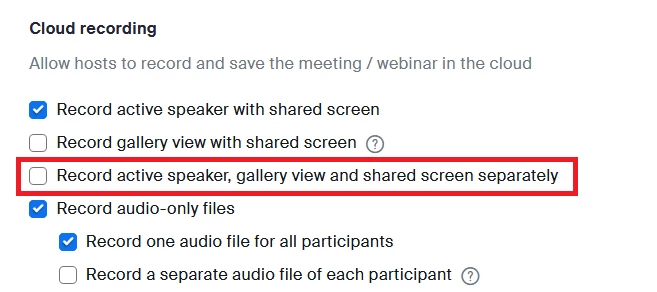
If you go into Settings > Recording tab > Cloud recording, there is an option "Record active speaker, gallery view and shared screen separately". With that you will get separate file for Gallery view and it should be what you are searching for.


2 replies

LK_EXNAnswer
Community Champion | Partner
December 15, 2023

If you go into Settings > Recording tab > Cloud recording, there is an option "Record active speaker, gallery view and shared screen separately". With that you will get separate file for Gallery view and it should be what you are searching for.


Community Champion | Customer
December 15, 2023

Hello,

There is another approach you may want to consider.


You can generate attendance reports  (called an Active host report) in Zoom.


This may be an easier way to track attendance than screen recording. 


Login to your account. Navigate on the left menu to Account Management > Reports> 

then, from the rt list, choose usage reports  >  Active Hosts >

then  search the date range followed by clicking on the blue participants count ( Number written in blue at the row of desired meeting ) then choose export .

Thus will create a csv excel file.


More details can be found here:


https://support.zoom.com/hc/en/article?id=zm_kb&sysparm_article=KB0059073 


Regards

If my reply helped, don't forget to click the accept as solution button!

sjaAuthor
Newcomer
December 20, 2023

Thank you. 

I've actually tried this before. 

Only problem is, as long as the participant is in the meeting, you can't tell if they've actually "participated" or not. 

I needed something to separate people who didn't participate(doing something else during the meeting or not listening for example) from those who actually did participate.

Still, thank you for the tip.