

new type of zoom bombing: free floating window with offensive content | Community
Skip to main content
Newcomer
June 16, 2023
Solved

new type of zoom bombing: free floating window with offensive content

  • June 16, 2023
  • 1 reply
  • 0 views

I teach online at a university and during our meeting we got a type of zoom bombing I've not seen before. Seemed to be free floating window with abusive content, not associated with any particular user. 

The offensive messages on screen appearing to come from a single person ... seems that someone was able to create a chat "from" someone else.


I am attaching screen shot....

Best answer by Wai-WENDY

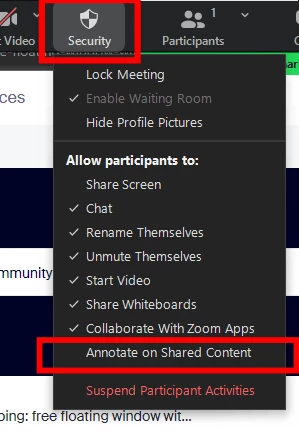
I have seen the screenshot you provided. This happens to be someone making disruptive marks on your shared content by using the "Annotate" function, so the first thing you need to do is to click the "Security" button in the Meeting Controls and uncheck the "Annotate on Shared Content" option in the drop-down menu as shown in the picture below. This disables participants from writing or drawing on the shared screens for this meeting. 


There are other actions you should consider taking for this matter. 


  1. The grey pop-up that you have circled in your screenshot is a feature of Zoom that shows the name of the participant who made marks on your screen. You can search for this name in the Participants list. If you are unfamiliar with the person, you can hover over their name and click the "More" and "Remove" buttons to remove them from the meeting. They cannot rejoin the meeting unless you enable it in your account settings. 
  2. Please report these abusive activities to Zoom through this form: https://zoom.us/trust-form
  3. Is the lesson open to the public? Or was the meeting information (such as IDs and passwords) shared publicly? You should share the meeting information by internal communications if the lesson is expected to have participants within your university or a specified group of students only. You may tell your students not to share meeting information with others without permission.
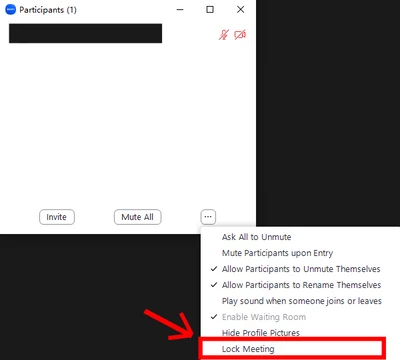
  4. You don't know when and how people from outside your class joined doesn't mean that it cannot happen. I suggest you turn on the waiting room to help you distinguish between your students and suspicious ones before letting them in. The disrupters of an online meeting often have a weird and meaningless name. You can also lock the meeting (shown in the picture below) if you think everyone is here. This will prevent disruptive people from entering or attempting to enter your meeting. 


I hope the above suggestions will help you deal with that. You can familiarise yourself with security options in Zoom so that you can have more confidence when you face similar situations in the future. 

1 reply

Wai-WENDY
Newcomer
Wai-WENDYAnswer
Newcomer
June 16, 2023

I have seen the screenshot you provided. This happens to be someone making disruptive marks on your shared content by using the "Annotate" function, so the first thing you need to do is to click the "Security" button in the Meeting Controls and uncheck the "Annotate on Shared Content" option in the drop-down menu as shown in the picture below. This disables participants from writing or drawing on the shared screens for this meeting. 


There are other actions you should consider taking for this matter. 


  1. The grey pop-up that you have circled in your screenshot is a feature of Zoom that shows the name of the participant who made marks on your screen. You can search for this name in the Participants list. If you are unfamiliar with the person, you can hover over their name and click the "More" and "Remove" buttons to remove them from the meeting. They cannot rejoin the meeting unless you enable it in your account settings. 
  2. Please report these abusive activities to Zoom through this form: https://zoom.us/trust-form
  3. Is the lesson open to the public? Or was the meeting information (such as IDs and passwords) shared publicly? You should share the meeting information by internal communications if the lesson is expected to have participants within your university or a specified group of students only. You may tell your students not to share meeting information with others without permission.
  4. You don't know when and how people from outside your class joined doesn't mean that it cannot happen. I suggest you turn on the waiting room to help you distinguish between your students and suspicious ones before letting them in. The disrupters of an online meeting often have a weird and meaningless name. You can also lock the meeting (shown in the picture below) if you think everyone is here. This will prevent disruptive people from entering or attempting to enter your meeting. 


I hope the above suggestions will help you deal with that. You can familiarise yourself with security options in Zoom so that you can have more confidence when you face similar situations in the future. 

smartgenAuthor
Newcomer
June 17, 2023

Appreciate your advice ! thanks