

Zoom scheduler gives the following error "Failed to get availability, please try again later." | Community
Skip to main content
Newcomer
July 18, 2023
Question

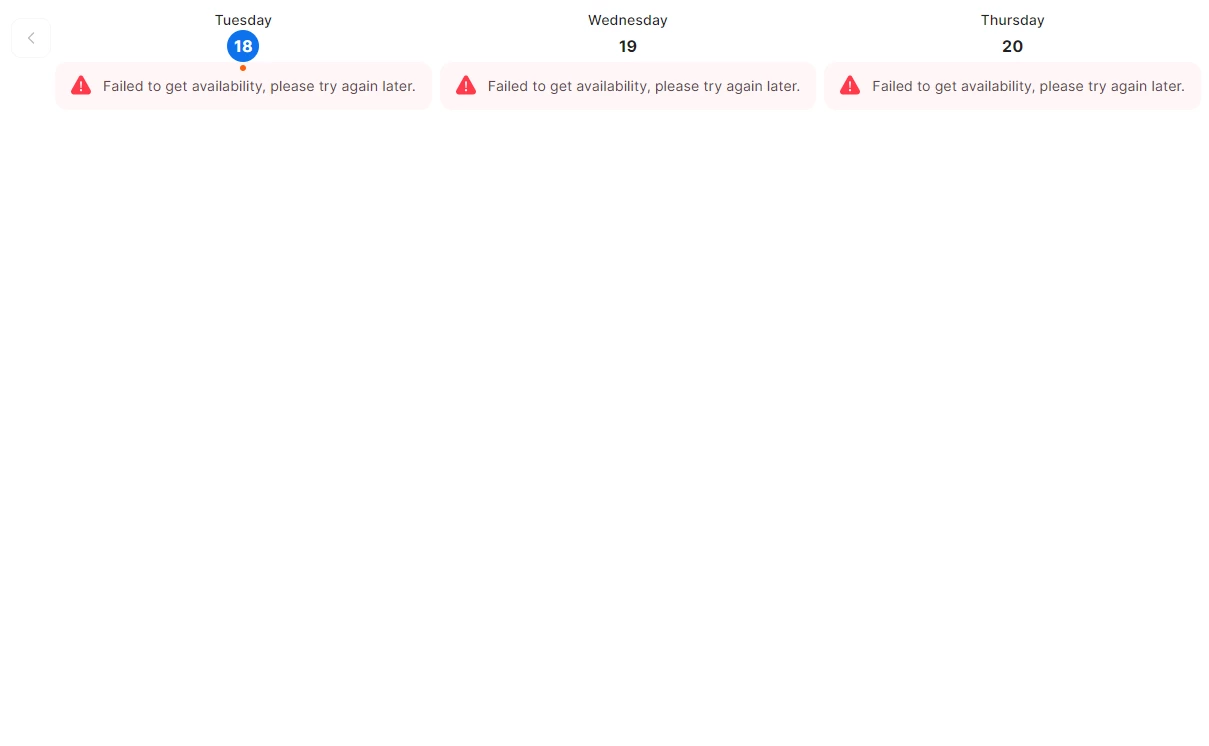
Zoom scheduler gives the following error "Failed to get availability, please try again later."

  • July 18, 2023
  • 4 replies
  • 1 view

Last week I set up the zoom scheduler for a recurring meeting for 2 weeks. Everything has been working fine until now. See attached image for the error. Can someone please let me know why its doing this and how to fix it?
 

4 replies

Newcomer
July 25, 2023

I'm having the same problem. Does anybody know why?

Newcomer
September 19, 2023

I'm also having the same issue, did either of you find a fix? Thanks

SourceIT
Partner
Partner
August 6, 2024

It sounds frustrating to see the "Failed to get availability, please try again later" error, especially when everything was working smoothly before! This issue could be due to temporary connectivity problems between Zoom and your calendar provider, or it might be related to a permissions issue with the calendar integration. First, I'd recommend checking your internet connection and ensuring that your calendar app (Google Calendar, Outlook, etc.) is syncing properly. Sometimes, simply signing out of Zoom and signing back in can refresh the connection. Also, double-check that the calendar permissions are set correctly to allow Zoom to access availability info. If the problem persists, a quick restart of the app or device might do the trick. Feel free to reach out to Zoom support if none of these solutions work. I hope this helps, and good luck!


SourceIT


Newcomer
January 31, 2025

I am now getting the message Calendar.Google.com: Schedule meeting failed. Please try again. I cannot schedule Zoom meetings in Google calendar anymore! Help


Newcomer
August 6, 2024

This error usually indicates a temporary issue with retrieving availability data. Try refreshing the page or checking back later.