Unable to be heard using an integrated microphone on a HP Envy laptop | Community
Skip to main content
Newcomer
September 19, 2021
Solved

Unable to be heard using an integrated microphone on a HP Envy laptop

  • September 19, 2021
  • 3 replies
  • 1 view

Hi Zoom community!! I am having a problem with my Microsoft Array integrated microphone on my HP Envy laptop.  For some reason when I join a Zoom call, people who are participating on the call can not hear me.  I have exhausted all of the standard microphone configuration questions.  I am wondering if anyone in Zoom land possibly have experienced this same or similar issue and could provide some guidance?? I'd really appreciated it. Thanks. 
    Best answer by ZoomVA

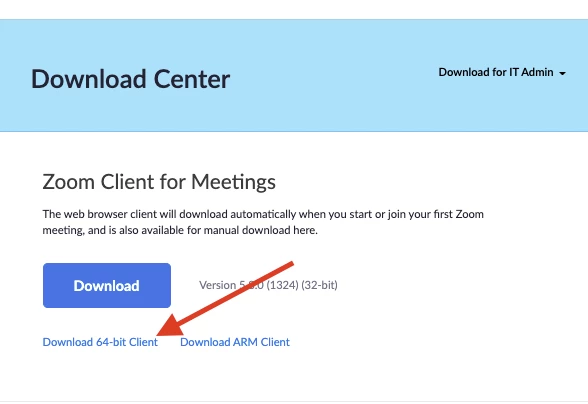
    Hi there @rscott415 I'm so sorry this continues to be an issue. Could you please confirm if you are using the 64bit version of Zoom client?


    If yes, could you please try enabling the "Original Audio​" in your Zoom desktop client audio settings?

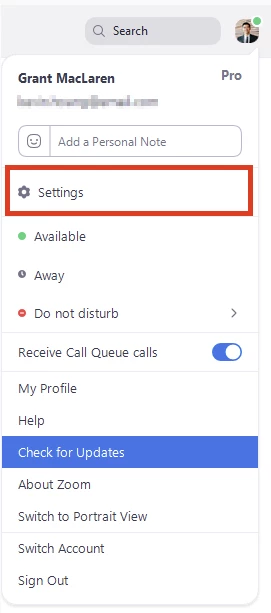
    Go to Settings


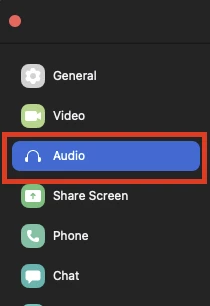
    Go to Audio.​


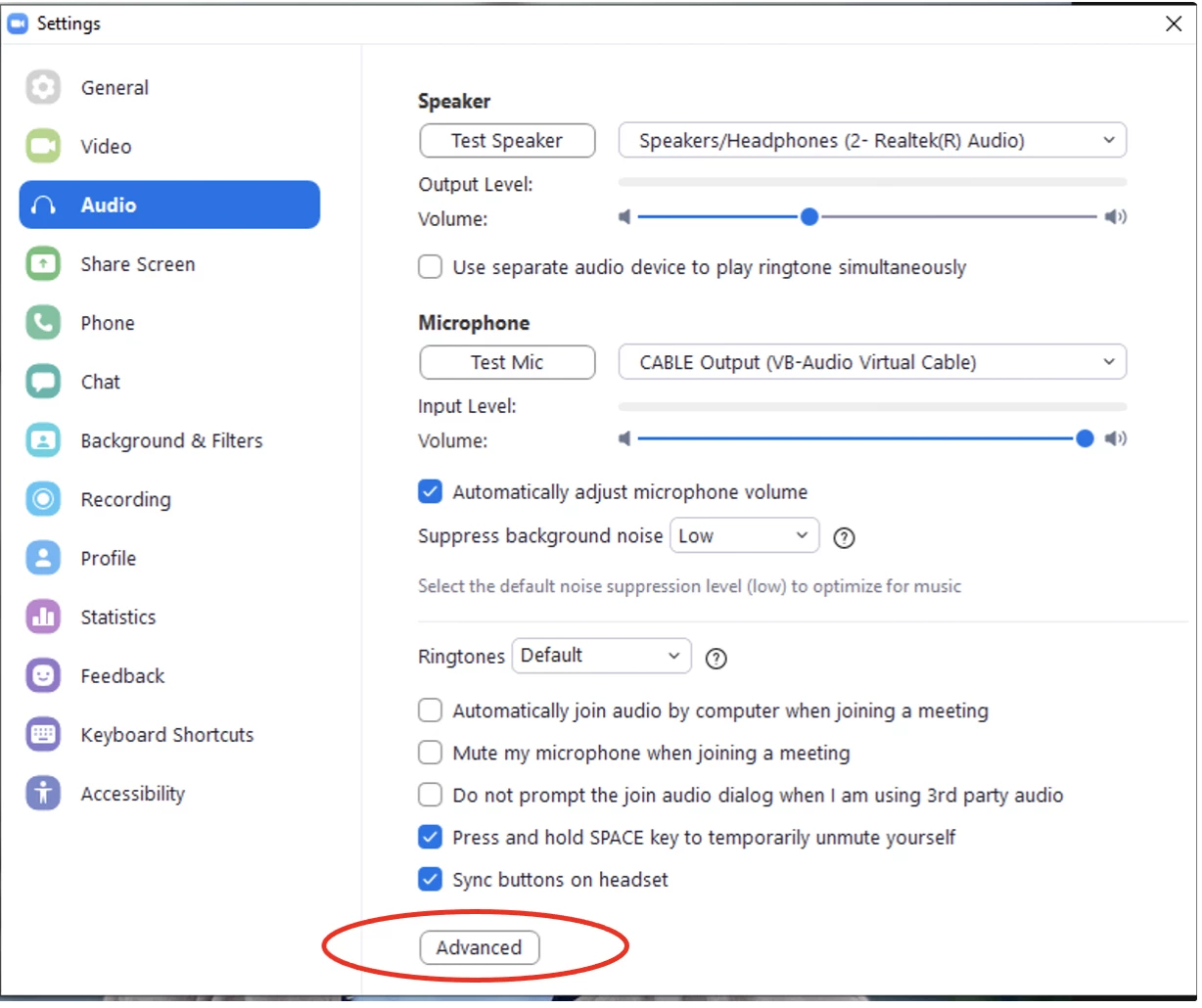
    Go to Advanced


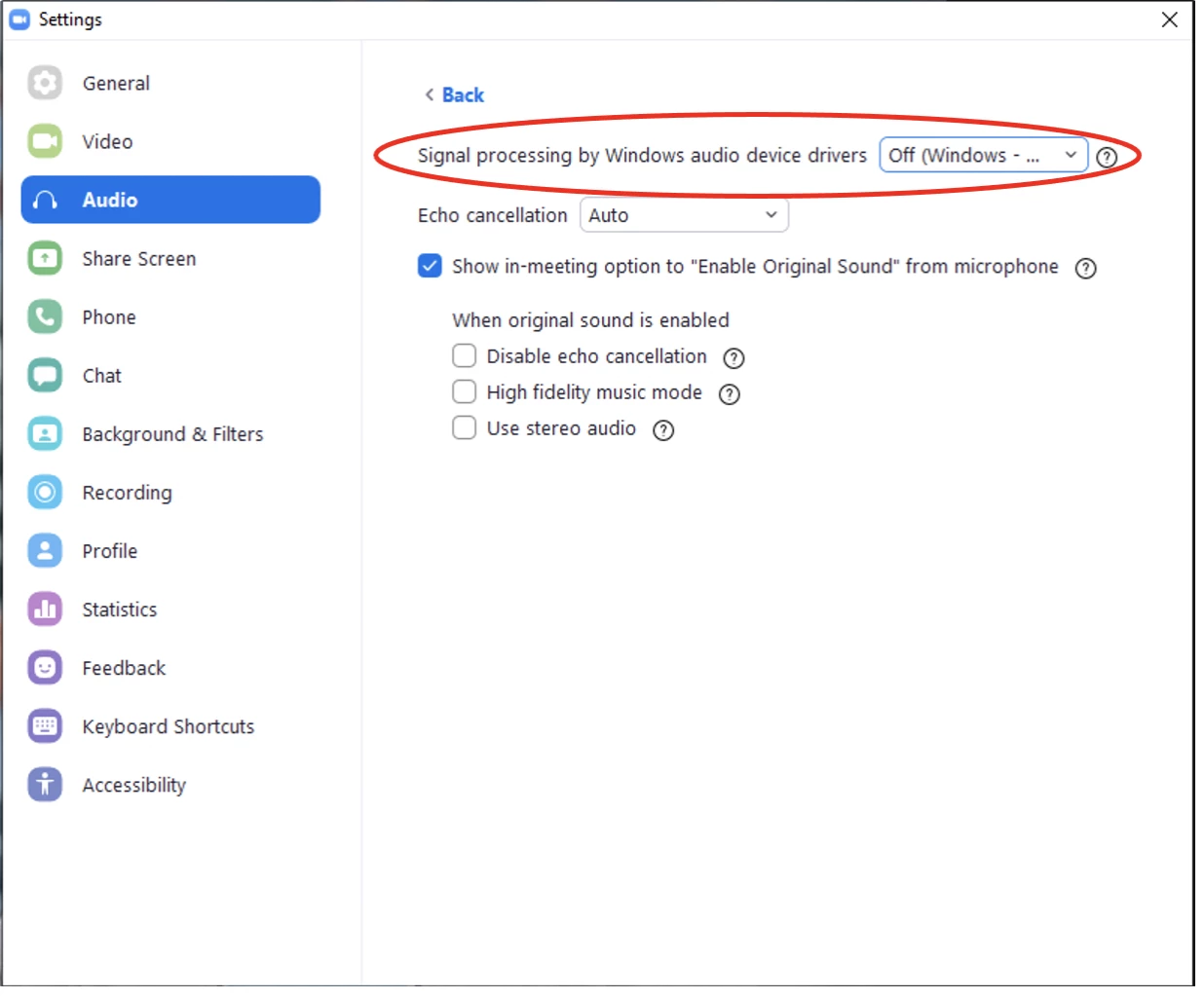
    Select “Signal processing by Windows audio device drivers” to “Off (Windows - Raw)”


    Once set, please try to start a new meeting and check if the microphone will work.

    3 replies

    Rupert
    Community Champion | Customer
    Community Champion | Customer
    September 19, 2021

    Hi @rscott415 


    Can you try and Test Meeting at https://zoom.us/test and post here what results you get.


    Rupert


    rscott415Author
    Newcomer
    September 19, 2021

    Hi Rupert, i did the test via Zoom and didn't hear anything out of the mic.

    ZoomVA
    Community Manager
    ZoomVAAnswer
    Community Manager
    October 7, 2021

    Hi there @rscott415 I'm so sorry this continues to be an issue. Could you please confirm if you are using the 64bit version of Zoom client?


    If yes, could you please try enabling the "Original Audio​" in your Zoom desktop client audio settings?

    Go to Settings


    Go to Audio.​


    Go to Advanced


    Select “Signal processing by Windows audio device drivers” to “Off (Windows - Raw)”


    Once set, please try to start a new meeting and check if the microphone will work.

    Newcomer
    May 17, 2023

    Perfect, thank you!