Hey, @dschneid2011 , @dschneid2010 , and @ExodusHealth :
If this is not solved for you, here are all the steps you need to go through -- every one of them -- to ensure that there is nothing "up the chain of settings" that is preventing you from turning off your Passcode.
Reminder: You MUST have at least one of these security options set: Passcode, Waiting Room, or Authentication:
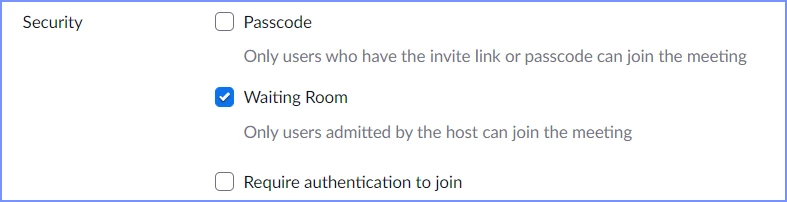
Step 1: Check the Admin Settings
If you are an admin, you can do this; if you are not the admin, ask your admin to verify this setting.
Go to the Admin -> Account Management -> Account Settings Menu:
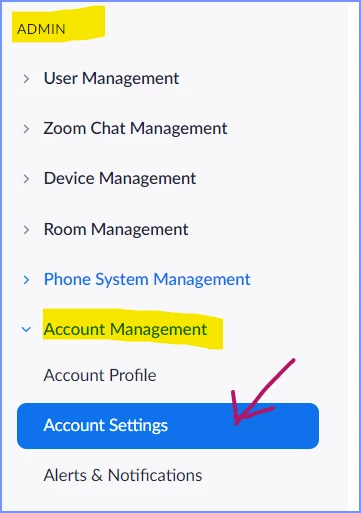
With the Meeting tab highlighted:

Scroll down to see Meeting Passcode:
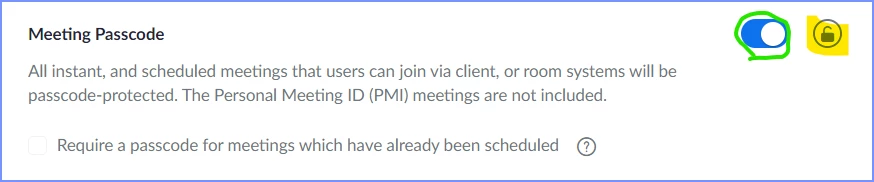
Check to make sure the yellow highlighted icon is UNLOCKED. This means that lower-level security settings can modify this value. The green-circled switch being ON means that the DEFAULT is set for Passcodes to be required. I recommend leaving this on, but you can set the default to not required.
Step 2: Check Your Group Settings
We'll go through the same basic process for your Group... but first, we have to determine if you are in a group, and if so, what group you are in.
Go to your Personal -> Profile screen:
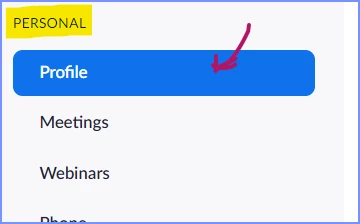
Scroll down to locate the Others menu heading where the User Group item is located:
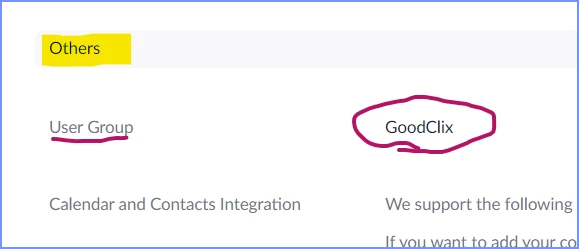
Note the group you are in; mine is GoodClix.
Now go to the Admin -> User Management -> Groups menu:
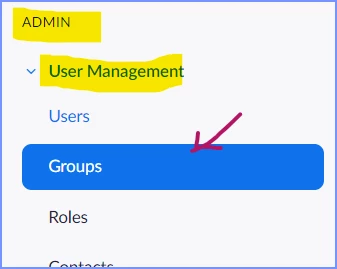
Locate your group in the list:
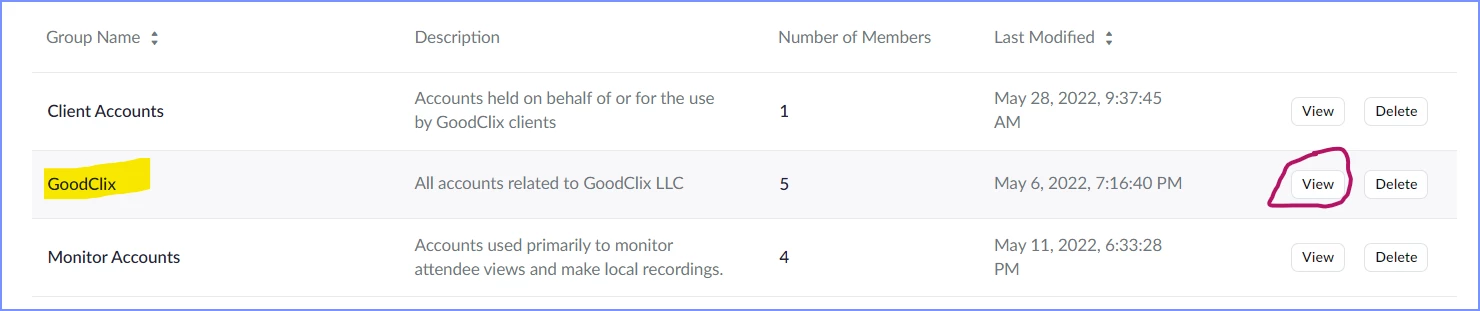
Click the View button to the right of your group. Click the Meeting tab:

Locate the Meeting Passcode section. Check that the lock icon is UNLOCKED:

Similar to the Account-level settings, the blue switch is set to ON, meaning that Passcodes will be set by default, but if all of the Passcode LOCKS are turned off, a Passcode should not be required.
Step 3: Check the User's Personal Settings
The truth is, this part doesn't matter. But for completeness in understanding how Zoom settings work -- whether you're a single-person organization, or managing thousands of users -- I'd like you do go through this.
Click on the Personal -> Settings menu item:

Ensure that the Meetings tab is selected:

Scroll down to Meeting Passcode:

Note that the text seems to imply that if this switch is turned on, Passcodes WILL be required. In fact, the switch is only setting the DEFAULT for the Passcode setting for new meetings. If you really don't want Passcode settings on your meetings (meaning you'll rely on Waiting Rooms and/or Authentication for security), then you can set this switch to OFF:

Step 4: Verify Passcode Not Required
Go to the Personal Meeting menu item:
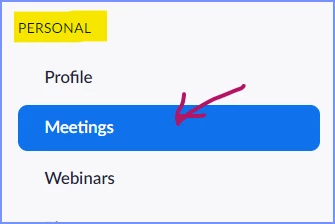
Click the Schedule a Meeting button to add a meeting:
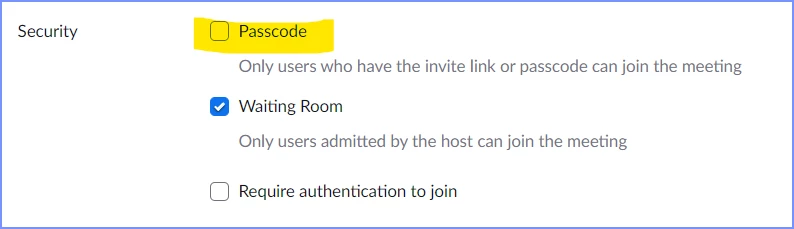
Scroll down to the Security section and verify that the Passcode checkbox is unchecked (the default if you unchecked the switch in step 4; if you left the default checked, you should be able to uncheck it here).
Summary
If you follow all of the steps above AND corrected any value that did not match the ones mentioned, and you still can't turn off Passcodes on a newly created meeting, then you're going to have to contact Zoom Staff for support. I'd recommend referencing this process I've laid out for you to indicate that you have checked all these values; if you're still stuck, it's something behind the scenes that the wizards are going to have to work with. I'm a volunteer, not a Zoom employee, and I don't have access to look at your account.
However, if you DID find something that wasn't the way I mentioned, please let me know what section you found different... I'd like to know where this sort of thing tends to lurk, so I can help the next person with this a little more quickly!
Good luck... please let me know how it turns out.

