

Livestreaming to Facebook GROUPS now requires Custom RTMP | Community
Skip to main content
Ray_Harwood
Community Super Champion | Customer
April 22, 2024
Question

Livestreaming to Facebook GROUPS now requires Custom RTMP

  • April 22, 2024
  • 19 replies
  • 15 views

Facebook has stopped live-streaming to Facebook Groups from any application as of today.  This includes Zoom's built-in  integration to livestream to Facebook.  Note: You should still be able to livestream to other Facebook endpoints -- just not to Groups.


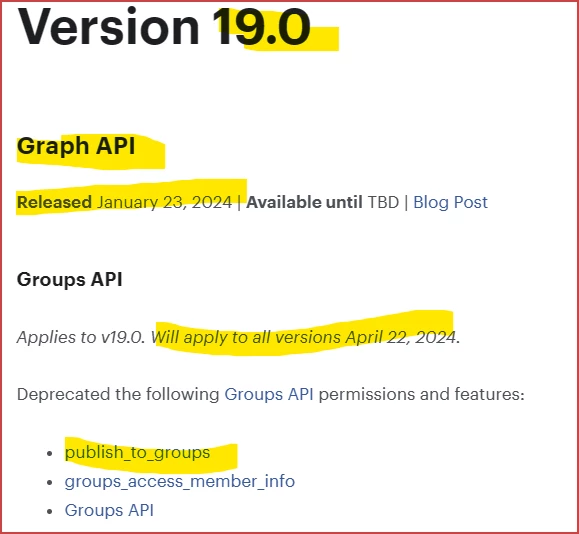
Zoom did not make this change; it was made by Meta/Facebook.  This change was made by the implementation of Version 19.0 of the Facebook Graph API, which was released January 23, 2024, and became effective today, April 22, 2024.  
 

To livestream to a Facebook Group, you must now use the Custom RTMP method of connecting a livestream.  See this Zoom Support article for information on how to do this from Zoom:

https://support.zoom.com/hc/en/article?id=zm_kb&sysparm_article=KB0064210


Unfortunately, this option requires a Licensed/paid account. Please note that I’m a Zoom Customer just like many of you. I don’t make the rules! If you’re a Basic user, your option to live-stream from Zoom to Facebook Groups at the moment is to upgrade to a Pro license. Consider streaming from OBS which is free and has the Custom RTMP capability built in without restriction. (info added here 25 April 2024)


References in Zoom documentation to being able to livestream to Facebook no longer include the ability to stream to Facebook Groups from the Zoom-Facebook integration.


Added 24 April 2024:

Watch this video to see how it can be done:

https://vimeo.com/938818658?share=zoomcommunity

19 replies

Newcomer
April 30, 2024

Thank you pour. cannot even find where to start 😞 


Newcomer
May 11, 2024

I have a question. It was possible to exit zoom after transferring host to someone else before. This way, anyone who doesn't have paid account could host livestream. Now is it still possible, or one who begins livestream has to stay to the end?

Ray_Harwood
Community Super Champion | Customer
May 11, 2024

Hi, @Takajo.


I think it's a fine line where you're probably crossing into violating Zoom's Terms of Service.


If you're in the business of helping people run their live-streaming using your Zoom account, you'd probably be okay, except "abandoning them to be on their own in your account" on a regular basis might really look like you're doing it just so they don't have to get a properly licensed account.  In cases like this, you'd meet them in their account and help them set it up, then leave them to run it in their own account.


If you really are just giving someone access to your properly licensed account so they don't have to get one to live-stream, then you really are in danger of having your account terminated if Zoom somehow finds out.


Think of it this way: You shouldn't get in your car, crank it up, drive out of the driveway, then get out and give your driver's license to someone that doesn't have one, and let them drive your car to the bank and back.  You might do that once in a dire emergency... but don't make a habit of it.

Newcomer
May 24, 2024

Thank you so much @Ray_Harwood  for this very helpful and informative tutorial. It's working fine for me now. Really appreciate you taking the time to record this for all of us and to answer further questions on this thread too. Many, many thanks. 


Partner
June 4, 2024

Thanks Ray. I had to change my default browser to Chrome. It kept opening my fb group in Edge and I prefer Chrome. However, either way, I don't see my live stream come up in my fb group while I'm doing it or even after it's done. I followed your instructions to the letter and at the top of the Zoom screen, it says it is livestreaming and a livestream tab comes up in Chrome. When I click on it, my fb group comes up. However, the Zoom is not streaming to it. At least not that I can find.

I did just look up the saved streaming info in Zoom and it has two things with X's on it, yet I do not have the boxes checked in the setup. See attached photo.

Any thoughts?

Ray_Harwood
Community Super Champion | Customer
June 4, 2024

@Caroline22: sent you a PM. 

Ray_Harwood
Community Super Champion | Customer
June 13, 2024

HOT TIPS!

Added June 13, 2024

I get contacted a lot with "I followed your instructions but it's not working for me!"  Here's some things to check if you still have problems.

In Facebook

  1. Always click the "Streaming Software" button.
  2. Click the caret on Advanced Settings to reveal them.
  3. ALWAYS turn on Persistent Stream Key.

In Zoom

  1. Make sure your settings have Custom RTMP enabled, and put something in the text box (doesn't matter what... I've just heard reports that not putting anything often makes it "not work"). Go to Settings and type "live" in the search box as seen here at the top to easily find the settings and save you from "scroll-cramping":
  2. I recommend to always schedule a separate meeting for live-streaming.  Do not use your PMI, don't use a "recurring with no fixed recurrence".  If you have a monthly/weekly live-stream, it's okay to schedule recurring with a fixed interval.
  3. The Live-Streaming menu generally lives in the More menu. Click on Live on Custom Live Streaming Service:


  4. On the pop-up Zoom web page for configuring the feed, never check the "Custom streaming service requires authentication to broadcast" for Facebook.  You should already be logged into Facebook -- that's authentication enough.

By the way... the green box/arrow is where your text from item 1 shows up.  See... it doesn't matter what you put there -- nobody will look at it!

One Final Note

I've had more than one person do all of this then look at the Facebook page and wonder what do to next.  "I only get two green dots... how do I get the third one??"  Click the Go Live button at the bottom of the screen!


Happy Streaming!

Newcomer
September 13, 2024

Thank you so much Ray... I was getting crazy with the live on Facebook group and with your video I understood I was missing one lat step... you saved me!


Newcomer
September 21, 2024

hi @Ray_Harwood many thanks for the guide! i have found it extremely helpful! however i recently tried to do another fb live and followed all the steps, and i have been successful last month, and unfortunately a pop up message comes up that says invalid parameters.


Ray_Harwood
Community Super Champion | Customer
September 22, 2024

Thanks for the kudos, @MGeorge.  That error normally indicates that the copy/pasted values were altered somehow in the process. Clear out all of the parameters and copy/paste again, ensuring you get all the text and don’t have any stray characters. Some systems are tolerant of additional spaces brought over, but most aren’t. 

If this continues to nag you, grab some screen shots, redact some of the “secret characters” for safety, and include a shot of the error message. I’ll see if I can spot the issue. 

JackBosma
Newcomer
Newcomer
April 30, 2025

Thanks.

Newcomer
October 20, 2025

My issue is with Zoom though... it doesn't pop up the screen you show on the video after clicking Live on Custom Live Streaming Service on Zoom ... It just goes to Zoom and shows this error: Invalid input parameters. (2). any suggestions on how to get that reset?