Welcome to the Zoom Community, @BATSImprov.
Sounds to me like you have the "Lock" button enabled at the Admin level.
Go back to the Admin -> Account Management -> Account Settings menu and type in Waiting Room in the search box at the top (this will save you time locating the option!).
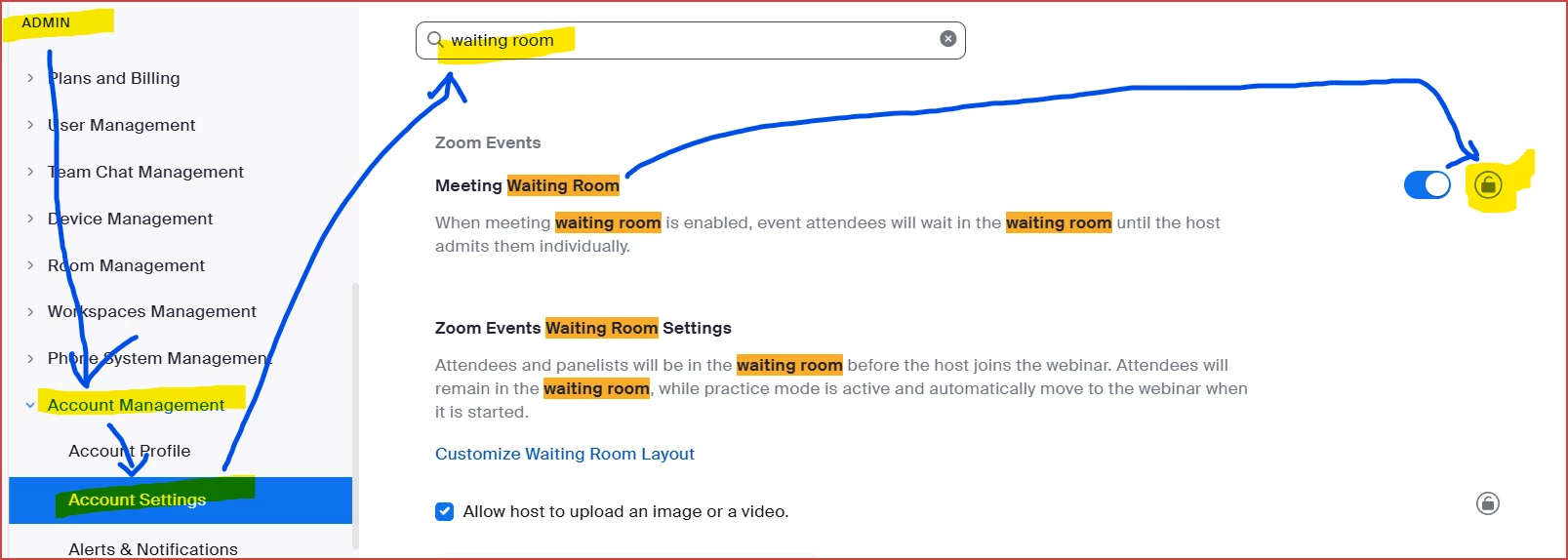
Then look on the Meeting Waiting Room line... first, verify that the switch is Enabled (blue, not grey). Then, over where the lock button is, make sure that the lock is UNLOCKED.
When the lock button is LOCKED, it FORCES the state of the enabled/disabled switch on all meetings.
When the lock button is UNLOCKED, it sets the initial state of every user's setting to the same setting as the enabled/disabled switch, but allows the user to change their default setting in the Personal settings area.
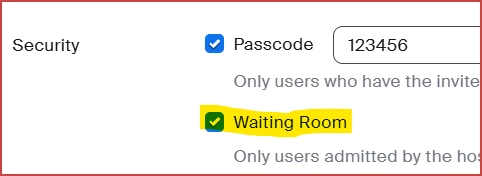
You can look at the Personal -> Settings in a similar way, by entering "waiting room" in the search box. Then your Meeting Waiting Room will likely be "enabled", which becomes the default setting for any new Meetings created:

Then, as you probably already figured out but can't actually do until the Admin setting is UNLOCKED, you can set each meeting's Waiting Room to enabled or disabled as desired -- noting that you can't set the Waiting Room to disabled if you do not have Passcodes enabled.