Can we no longer schedule in 15-minute increments? | Community
Skip to main content
Newcomer
November 17, 2022
Solved

Can we no longer schedule in 15-minute increments?

  • November 17, 2022
  • 5 replies
  • 1 view

After the most recent update, I had a user who was asking why we could no longer schedule in 15-minute increments. It seems we can only schedule in 30 minute increments.

(i.e. cannot choose 8:15 or 8:45 start time while scheduling a meeting. It must be 8:00 or 8:30). We can't even type in a time manually. We must choose a time


Is there any way to address this? Has the "minimum increment" become a setting or something?

    Best answer by Zacharyc

    As of February 21, 2024. It is still possible to schedule in weird increments, but the previously accepted solutions don't quite work anymore. I did some testing and added my own answer for your benefit.

    1. Type in a time manually into the start/end time, it will appear in a dropdown.
    2. Select the time from the dropdown (JUST pressing Tab and Enter will not work, you must select the time from the dropdown)
    3.
    Pro Tip: Be explicit with AM and PM (see below)*
    If you've done this correctly, It should stick. Unfortunately, my previous post  about simply typing in the properly formatted time and pressing "Enter" or "Tab" doesn't quite work anymore.

    *If you accidentally make an impossible meeting because zoom interpreted the wrong AM vs PM value, then you will get unexpected values.
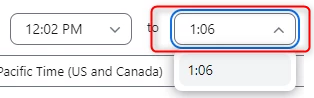
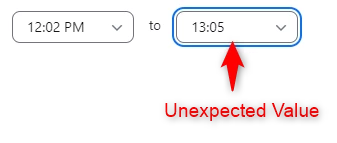
    Example shown. Zoom will interpret "1:06" (EVEN IF YOU SELECTED IT FROM THE DROPDOWN, AS INSTRUCTED ABOVE, as 1:06 AM, NOT the seemingly more sensical 1:06 PM). Since a meeting from 12:02 PM to 1:06 AM on the same day is impossible we get a weird value of 13:05, which kinda works, but it isn't what we were trying to do)
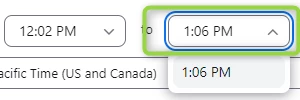
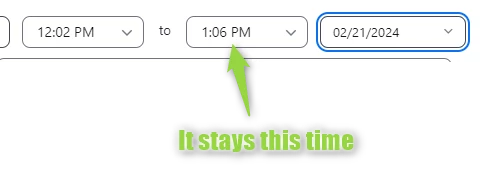
    By explicitly including the " PM" (include a space between the time and "AM"/"PM"), we avoid the "accidental misinterpretation of time which leads to impossible meeting which leads to unexpected values" issue


    5 replies

    ZoomTestKitchen
    Specialist
    Specialist
    November 18, 2022

    If you are using the Zoom client application to schedule a new meeting you can in fact create any start/end time you desire, but I will admit that the user experience the way that it is programmed will almost convince you that are limited to 30 min increments. And even when you realize that it is in face possible, you will still be angry with the user experience.

    When selecting a start time for example, we use our mouse to drop down the list and select a time (in 30 min increments). We then realize that we want to create a start time that is say 9:22 AM, so we use our mouse to click on the Start Time field again, only to have it drop down the list of 30 min increments. Therefore, leaving us convinced that we cannot be specific.


    Well... we can be specific in our times if... WE DON'T USE OUR MOUSE for to edit the time. I hate it, but I know this works. Try this... let's say you are wanting to schedule a meeting that starts at 10:17 AM.


    1. Click on the Start Time dropdown list and select 10:00 AM
    2. Then... DO NOT use your mouse, instead tap on the Backspace Key to erase the AM and 00 (Note/Warning: the dropdown list of times will appear again) ignore them, and just type 17 AM and press Tab. It will save your start time as 10:17 AM

    I'm not sure who decided to program these Start/End Time fields, but I have wondered if they still have a job, because as you'll find out, even while you're trying to move the cursor with the keyboard arrows and then start to type, they are constantly making programmatic choices of how to control your cursor.

    It is super frustrating... but, it is possible.


    If you find this information helpful, please click on "Accept as Solution".

    If you have further questions, please reply, we're happy to help.

    Newcomer
    January 6, 2023

    Jeff, I recently had an update to my zoom desktop scheduling app, and I have lost the ability to schedule in 15 minute increments without using the manual workaround you mention in your post.  But this is EXTREMELY frustrating to me.  Often times I am scheduling 6-8 back to back 45 minute meetings and this is going to slow me down a lot.  I can't believe a system that has as much complexity as zoom is missing the most basic feature of allowing the user to set the increments they wish to use for scheduling.  Is manually entering the times really the only solution?  I am pasting a copy of my updated "schedule a meeting" page on the desktop app in case it is helpful to see.

    ZoomTestKitchen
    Specialist
    Specialist
    January 21, 2023

    @hiroprotagonist 

    I'm running the latest version of the Zoom client on my Mac, version 5.13.6. I've recorded a very short video of my desktop while I created a new meeting. It displays 15 minute increments in the dropdown list, and I also show how to schedule a meeting with a very exact time.

    You can use the mouse to schedule 15 minute increments from the dropdown list without issue, but scheduling an exact time (my video schedules a meeting for 1:02 pm) it's a bit of a pain... you should only use the mouse to initially click into the time field, and then only use the keyboard arrow keys, backspace, and typing numbers to set the time.


    Demo Video

    I certainly agree that it's programmed behavior does not align well with the common user behavior.

    I hope you find this information helpful, please click on "Accept as Solution", if it is.

    If you have further questions, please reply, we're happy to help.


    Newcomer
    December 12, 2023

    Hi I am trying to do this with a webinar which will not allow me to schedule the webinar at 6:45PM-8:00PM.


    I tried backspacing and typing in military time.  Can you please direct me best on how to adjust the time in 15 minute increments for Webinars? Thanks!!

    Community Champion | Customer
    December 12, 2023

    Hello,


    I just tested this with a Webinar and was able to backspace and add a weird start time. Perhaps try another web browser?


     Regards

    If my reply helped, don't forget to click the accept as solution button!

    Newcomer
    March 22, 2024

    I have the same issue as Peters54 in trying to schedule a webinar at 15 minutes after the hour. I tried your suggestion but in both Google Chrome and MS Edge, whether I back space or just type in my own time, such as a start time of 11:15 and regardless of whether I hit enter or Tab, the system resets the start time to an on the hour or 30 minutes after starting time.  Anyone have any other suggestions?  

    ZacharycAuthorAnswer
    Newcomer
    February 21, 2024

    As of February 21, 2024. It is still possible to schedule in weird increments, but the previously accepted solutions don't quite work anymore. I did some testing and added my own answer for your benefit.

    1. Type in a time manually into the start/end time, it will appear in a dropdown.
    2. Select the time from the dropdown (JUST pressing Tab and Enter will not work, you must select the time from the dropdown)
    3.
    Pro Tip: Be explicit with AM and PM (see below)*
    If you've done this correctly, It should stick. Unfortunately, my previous post  about simply typing in the properly formatted time and pressing "Enter" or "Tab" doesn't quite work anymore.

    *If you accidentally make an impossible meeting because zoom interpreted the wrong AM vs PM value, then you will get unexpected values.
    Example shown. Zoom will interpret "1:06" (EVEN IF YOU SELECTED IT FROM THE DROPDOWN, AS INSTRUCTED ABOVE, as 1:06 AM, NOT the seemingly more sensical 1:06 PM). Since a meeting from 12:02 PM to 1:06 AM on the same day is impossible we get a weird value of 13:05, which kinda works, but it isn't what we were trying to do)

    By explicitly including the " PM" (include a space between the time and "AM"/"PM"), we avoid the "accidental misinterpretation of time which leads to impossible meeting which leads to unexpected values" issue



    Newcomer
    February 28, 2024

    is this on a basic/ free account? still not working for me....

    Newcomer
    February 22, 2024

    Thank you so much! This just worked for me! 👏
