

Can't Disable Blur as Default for Meetings | Community
Skip to main content
Newcomer
May 19, 2022
Question

Can't Disable Blur as Default for Meetings

  • May 19, 2022
  • 6 replies
  • 1 view

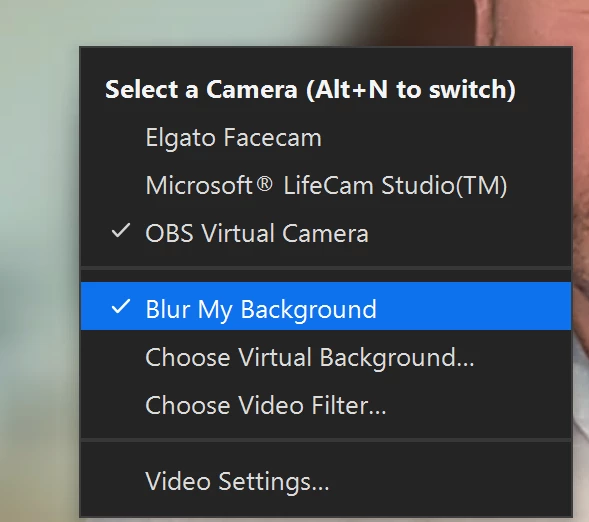
No matter what I do, my settings keep reverting to a blurred virtual background as the default for meetings. So every time I start a meeting my background is blurred.


I can set virtual background to "None" (or anything else) during a meeting, and even in settings, but upon going into a new meeting it STILL reverts to blurred.


It happens using the same Zoom account on other devices (PC/Windows, Mac, and iOS), but if I use a different Zoom account on the same devices they work fine (i.e. no virtual background). 


I KNOW the issue is specific to my main Zoom account and not the devices or Zoom clients on each.



    6 replies

    Newcomer
    May 26, 2022

    It's possible the account admin enabled and locked the following feature 'Require users to always use virtual background'. Do other users on the same account experience this issue?

    Newcomer
    May 17, 2023

    @JameHealy Did you ever figure out the solution? I have the same problem and it has been going on for a while. 

    Community Champion | Customer
    May 17, 2023

    Hello,


    Removing information stored in Zoom cache and cookies may help resolve a variety of issues including trouble when scheduling a meeting, enabling audio and video settings, or using other Zoom features.


    https://support.zoom.us/hc/en-us/articles/7970865190285-Clearing-Zoom-cache-and-cookies 


    Regards

    If my reply helped, don't forget to click the accept as solution button!

    Newcomer
    May 19, 2023

    @Frank_TB I tried that and it didn't work. Also uninstalled and reinstalled the Mac app and that didn't work either. I'm at a loss.

    Newcomer
    November 29, 2023
    Newcomer
    August 22, 2023

    Seems google was more helpful than zoom on this default background topic! Try finding settings here:

    Newcomer
    November 7, 2023

     I had the same problem of NOT being able to stop the blurring. I discovered that while i switched off the blur in the Zoom interface, I left the Portrait feature in another location for my facetime camera. It looks like a light green icon in my menu bar (I can't upload a picture).


    Here is a reference: https://arstechnica.com/gadgets/2023/09/macos-14-sonoma-the-ars-technica-review/13/


    I run a MacBook Pro with the new Sonoma 14.0 OS. 

    Newcomer
    July 22, 2024

    Bingo!  That worked.  Thank you!😊

    Newcomer
    November 13, 2025

    Find the portrait lighting and turn it off. I don't know what they're trying to do with that setting, but that was the key for me.