

Remove speaker box during screen-share presentation? | Community
Skip to main content
Newcomer
January 20, 2022
Solved

Remove speaker box during screen-share presentation?

  • January 20, 2022
  • 7 replies
  • 0 views
For those who regularly leads Zoom webinars, when the speaker is screen-sharing, it usually looks like this to the attendees... with the screen-shared material taking up most of the screen, and the speaker camera in the corner.
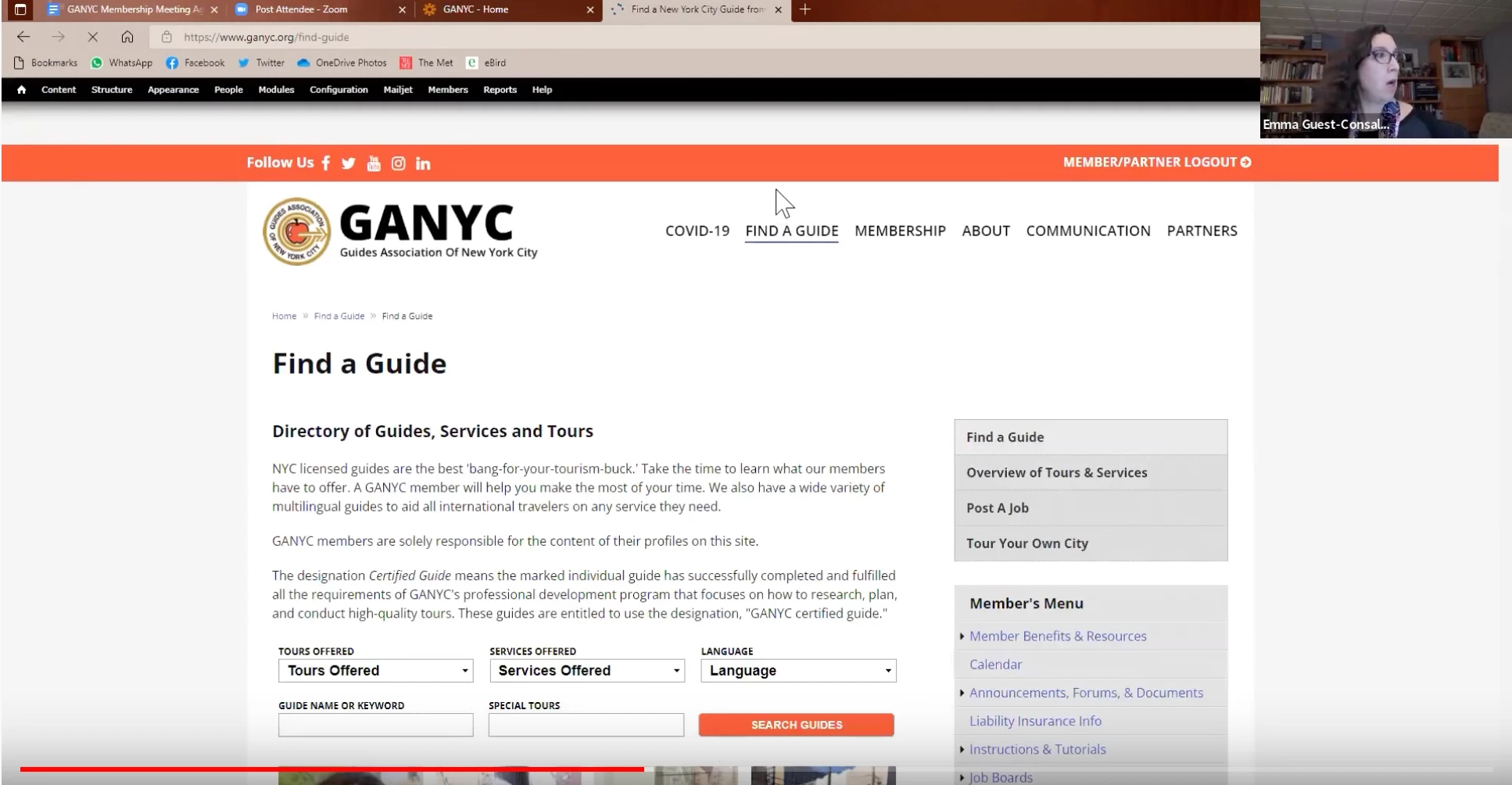
I believe there is a setting that the host can do to remove that box, and just have the entire screen be the screen-shared presentation.

Does anyone know what that setting is? Thank you!
    Best answer by nancyc

    Hi Ganyc,

    I found your setting.  If you would please test and let me know if it worked.  Please check out this documentation.  Managing-attendees-panelists-in-webinar   Look at the bottom of the doc under Attendee view controls.  Also, please checkout the screen shot attached.  By choosing standard view, the video panels of the Host and Participants should be removed from your screen share.  


    I hope this works for you.  If it does, please mark as solution accepted so others may benefit from it. 

    Thank you!

    7 replies

    nancyc
    Community Champion | Employee
    Community Champion | Employee
    January 20, 2022

    Hi Ganyc,

    Thank you for reaching out to the Zoom Community!  I believe you will find your answer in this support article:  Video-layout-options-while-screen-sharing 

    If this helps please consider marking as solution accepted so others can find their answers quickly. 

    Thank you,

    GANYCAuthor
    Newcomer
    January 20, 2022

    Hi. Unless I did it wrong, nothing on that page worked.

    These settings on that page seem to be about how the speakers appear when addressing a webinar.

    To clarify, I will be the host of a webinar. I want to screen-share a recorded video. I want to make my box (showing me/my camera) disappear for all attendees, so that only the screen-shared video is visible on the full screen.

    Can you please clarify the exact step I need for that?

    Thank you.

    nancyc
    Community Champion | Employee
    nancycAnswer
    Community Champion | Employee
    January 21, 2022

    Hi Ganyc,

    I found your setting.  If you would please test and let me know if it worked.  Please check out this documentation.  Managing-attendees-panelists-in-webinar   Look at the bottom of the doc under Attendee view controls.  Also, please checkout the screen shot attached.  By choosing standard view, the video panels of the Host and Participants should be removed from your screen share.  


    I hope this works for you.  If it does, please mark as solution accepted so others may benefit from it. 

    Thank you!

    Newcomer
    February 9, 2022

    Apologies for bringing this up. I am looking for the solution of exactly the same problem. When sheering screen during my webinar, I want speaker's window completely disappear from all participants' screens. I went through all the documentation and advises.  But the option 'standard view' is not available to me. And when I am sharing the screen (when the 'standard view' option should appear, as far as I understand), I am unable to select View options as this menu is not available anywhere. Any help is dully appreciated. Please, see screenshots.

    nancyc
    Community Champion | Employee
    Community Champion | Employee
    February 11, 2022

    Hi TomRichtrF1,

    Thanks for reaching out.  Apologies for the delay in my response....

    A few things....the Standard option (as I've tested) only appears when you mute your video as the Host that is sharing.   So, mute video, share screen, "view" button with standard as chosen in the drop down should show your sharing only.  Also, it does help if you are in Fullscreen.   Now, the View button may be hidden if you are using one screen, or if you have two screens and choose the "enable dual screens" option in your Client settings.  Would you please check through these and let me know how it goes? 

    Thank you,

    Newcomer
    February 17, 2022

    Thanks for the reply.


    Unfortunatelly, it doesn't work the way you describe. Because, when I mute my video and start sharing, I no longer can choose they way attendee is watching, because the option simply is not there - please, see attached image. And with my video muted, the attendee still sees the static thumbnail image of the speaker. 

    nancyc
    Community Champion | Employee
    Community Champion | Employee
    February 24, 2022

    Hi TomRichtrF1,

    My apologies that you are still having issues with this option.  My next suggestion would be to open a ticket with our Support team.  They may be able to assist you further. 

    Thank you,

    Newcomer
    April 16, 2022

    Was this ever resolved. I am seeing the same issue.

    Newcomer
    April 21, 2022

    Regrettably not. Unless Zoom will implement a feature 'Hide presenter's and hosts' thumbnails during sharing', this will continue to be a problem.

    Newcomer
    November 13, 2022

    howdy, I found this to be the process:

    Go to your settings where you set up your profile in the app. Go to "Share Screen" and uncheck the "side-by-side Mode."  Your video next to the presentation will no longer show. See photo

    Newcomer
    June 22, 2023

    I just tested this & it worked for me:

    Shared screen or window only (no participant videos included)

    This layout captures only the screen or window that is being shared, with no view of any participants’ video.

    This requires any participant to share their screen and the participant who is recording to have the Record video during screen sharing client setting disabled.

    *Note, this is in the Desktop's Settings: Recording -> deselect "Record video during screen sharing".