
How to Hide Co-Host and Panelist's Profile Boxes? | Community
Skip to main content
Newcomer
October 11, 2022
Solved

How to Hide Co-Host and Panelist's Profile Boxes?

  • October 11, 2022
  • 3 replies
  • 2 views

We don't want our Co-Hosts or Panelists to ever be on camera or mic, nor do we want their profile boxes to be visible to attendees. We only want the Host's box to be visible. Can this be done? 

    Best answer by ZoomTestKitchen

    I've provided a screenshot of where to find.
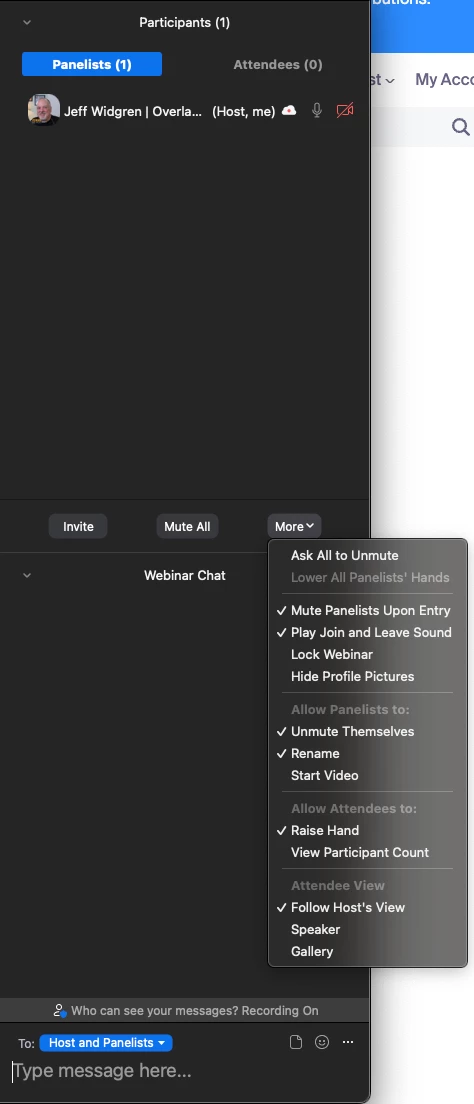


    If you find this information helpful, please click on "Accept as Solution".

    If you have further questions, please reply, we're happy to help.

    3 replies

    Ray_Harwood
    Community Super Champion | Customer
    Community Super Champion | Customer
    October 11, 2022

    Hi, @Heidi_Love,


    I have to ask: Why do you have Panelists who should never be seen?  You don’t have to answer… I’m just curious about the use case for such a setup. 


    It can be done: the Host must set the Attendee View to be Speaker Only, and always Spotlight themself and never anyone else. 

    To prevent anyone else from coming off of mute, disable the Panelists ability to unmute themselves, and mute them all. I’d have to test this, but I don’t think there’sa way to prevent Co-Hosts from unmuting. 

    Newcomer
    October 11, 2022

    Thank you Ray! The reason we asked this is because Zoom Webinars doesn't have a Moderator role, and we need chat box moderators (who only moderate in the chat box). Since there is no Moderator role, we thought we could use either the Co-Host role or the Panelist role, but we don't want them to be visible. They would be only "behind the scenes" moderators.


    However, I'm just discovering that there is no feature that allows us to actually moderate the chat box anyway (ie: it seems we can't delete specific comments in the chat box, if they are offensive). 


    I must say, I'm shocked that Zoom Webinars doesn't have a Moderator role or chat box moderation functions. Unless we're just not seeing them?


    In either case, thank you for your help.

    ZoomTestKitchen
    Specialist
    Specialist
    October 11, 2022

    Zoom Webinar by default does not show host, co-host, or panelists that have their cameras turned-off. Then, as Ray described the practice of spotlighting or even Active Speaker mode will only display who is speaking or who you wish them to see.


    The ability to DELETE individual chat messages in a Zoom Meeting or Webinar is a feature that can be enabled in Zoom. I've included a screenshot of the Web Portal setting that needs to be enabled. NOTE: One needs to be host or co-host in order to have the ability to delete chat messages.

    Depending on the size of the webinar, chat may or may not be the right tool to use. It can get unruly at times in bigger meetings. Often Zoom Webinar Q&A is the chosen tool instead due to its ability to truly manage the questions and answers. It even lets the audience "Vote" on questions so you can gain a sense of popularity and then prioritize those questions.


    If you find this information helpful, please click on "Accept as Solution".

    If you have further questions, please reply, we're happy to help.

    ZoomTestKitchen
    Specialist
    Specialist
    October 12, 2022

    Ok... I have confirmed that the "Allow users to delete messages in-meeting chat" feature does need to be requested from Zoom Support to be enabled. All paid accounts are eligible for this feature.


    Sorry for the confusion.


    If you find this information helpful, please click on "Accept as Solution".

    If you have further questions, please reply, we're happy to help.

    Newcomer
    October 13, 2022

    Yes, we requested Zoom Support to enable the "Allow users to delete messages in-meeting chat" feature yesterday and by this morning they had responded so we now have this ability. Yay!


    This seems to be a new enough feature that Zoom Support first told me it didn't exist. It was only after I posted about it here in the Zoom Community where Ray and Jeff informed me about it that Zoom Support finally acknowledged that it does exist, and that you have to submit a request to them asking for it to be enabled in your account.


    Thanks again to Ray and Jeff for help with all my recent questions! You guys have been super helpful!

    Newcomer
    October 18, 2022

    Hi Jeff and Ray, you guys have been sooooo helpful to me while I figure out our new Zoom Webinars feature. Thank you so much! I have a couple more questions related to this thread's topic.


    I found the settings for panelists and attendees (thanks to your screenshot, Jeff) but is there a way I can change the defaults settings so I don’t have to adjust them every time we start a new practice session before going live? Many of the default settings are the opposite of what we want. And because our webinar will be a recurring weekly webinar, it will be a pain in the butt to have to change the settings every week. 


    For example, see the screenshot pasted below. The ones circled in red are defaulted to the opposite of what we need. I can’t find where I can permanently change them for this recurring webinar. They keep switching back to these defaults every time we start a new practice session (in the same recurring webinar). Does this mean it’s not possible to change these default settings and we'll just have to get used to changing them every week for this recurring webinar?