

How to enable in meeting collaboration on whiteboards
If participants in a meeting are unable to collaborate on a shared whiteboard, it might the result of an account setting limiting sharing to only users in the same organization. There was an issue recently where Zoom Pro accounts defaulted off external sharing. Meeting participants from outside your account or who are not signed in are considered external users and cannot collaborate on whiteboards unless the sharing setting is "Allow sharing with users in the same organization and outside your organization."
Follow these steps to enable external and un-signed in user collaboration in and out of meetings:
- Open a web browser and navigate to https://zoom.us/account/setting (NOTE: This page requires account permission. If you cannot access it, then you will need help from your account owner or admin to adjust this setting.)
-
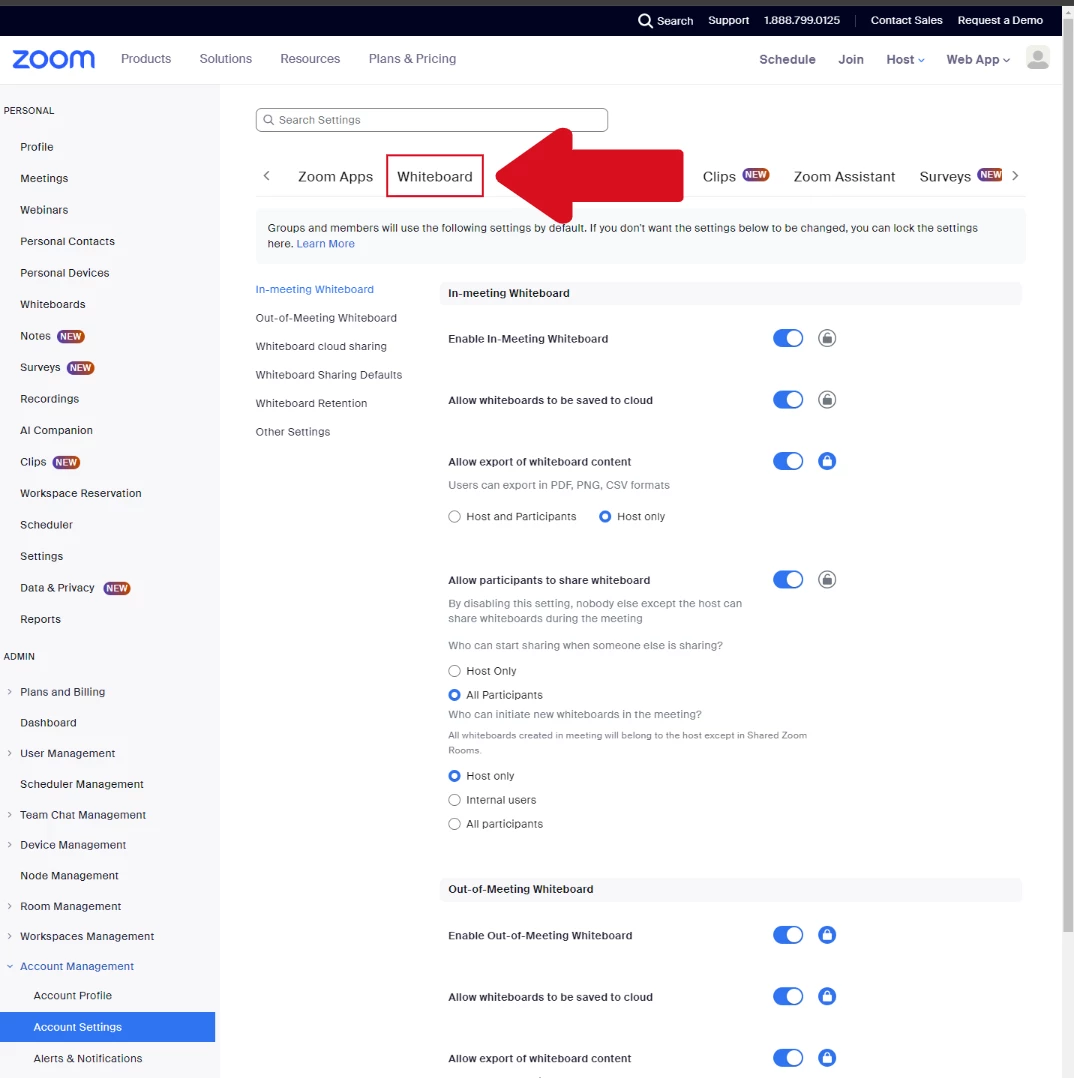
Navigate to the Whiteboard Tab
-
Under "Whiteboard Cloud Sharing", enable "Sharing" and pick the option "Allow sharing with users in the same organization and outside your organization"
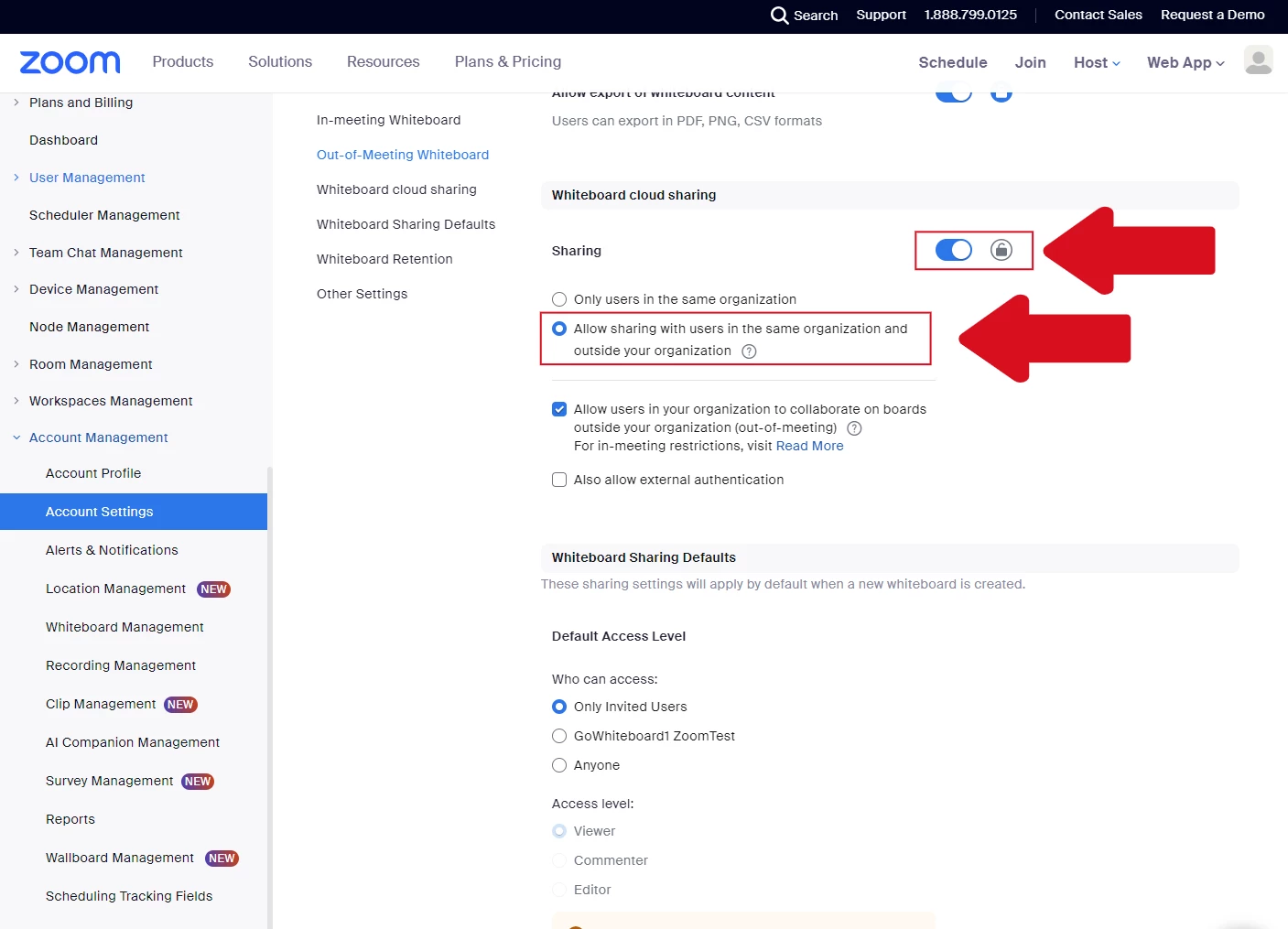
This setting controls who can collaborate on whiteboards shared in and outside a meeting.