community name | Community
Skip to main content
Newcomer
January 19, 2025
Solved

community name

  • January 19, 2025
  • 2 replies
  • 8 views

Hello,  I am trying to change my community name because it is incorrectly spelled. Does anyone know if it can be changed and if so the steps to do so?  I have been looking and there isn;t a place on the profile page to change the community name.  Thank you in advance for your help.
    Best answer by bstrelko

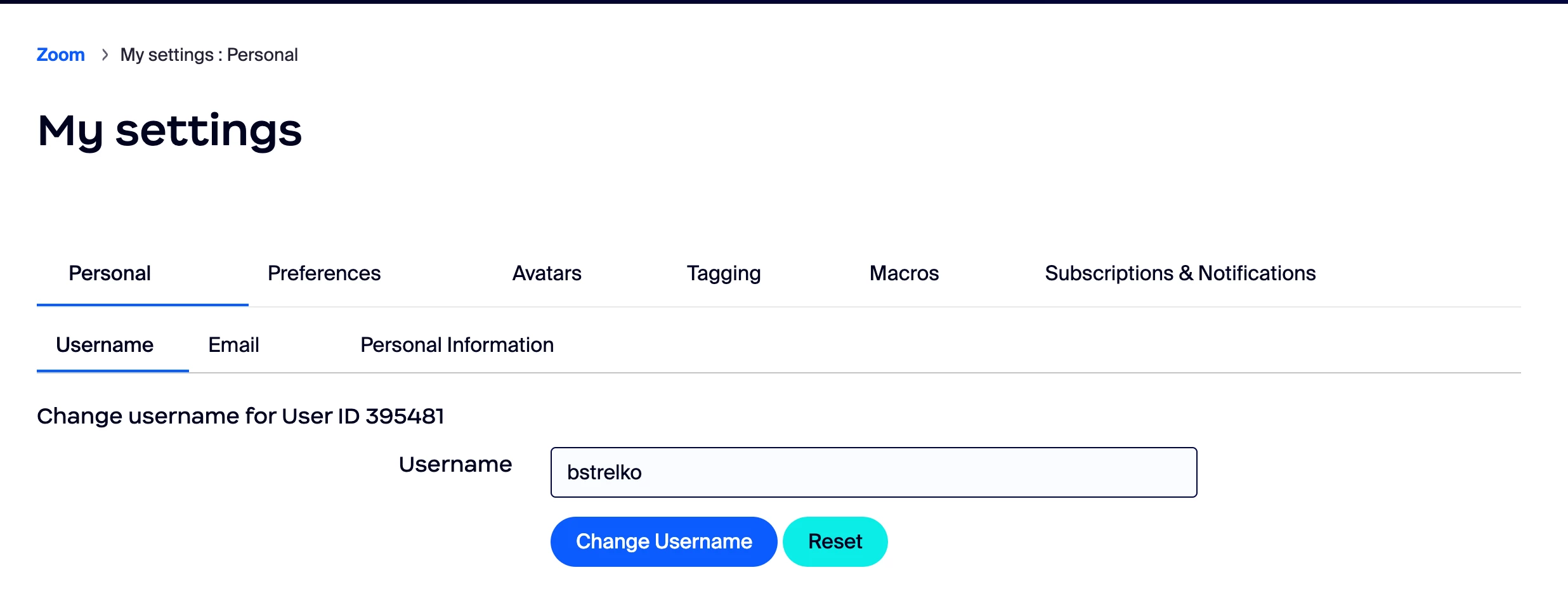
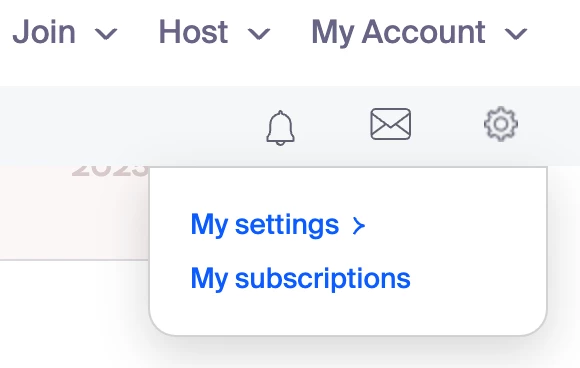
    Navigate to the settings cog in the upper-right corner of the community and select "My Settings".


    From there, you'll land on a page which should allow you to change your username.


    2 replies

    bstrelko
    Community Champion | Customer
    bstrelkoAnswer
    Community Champion | Customer
    January 21, 2025

    Navigate to the settings cog in the upper-right corner of the community and select "My Settings".


    From there, you'll land on a page which should allow you to change your username.


    Newcomer
    April 8, 2025

    Changing Your Display Name:

    1. Before Joining a Meeting:

      • Open the Zoom app.

      • Click on "Join a Meeting."

      • Enter the Meeting ID.

      • In the "Your Name" field, type in your preferred display name.

      • Ensure the "Remember my name for future meetings" box is checked if you want Zoom to save this name.

      • Click "Join."

    2. During a Meeting:

      • Click the "Participants" button at the bottom of the Zoom window.

      • In the participant list, hover over your name, click "More," and select "Rename."

      • Enter your desired name and click "Change."

    Note: If your Zoom account is managed by an organization (e.g., a company or school), your display name might be linked to your organization’s directory, in which case you may need to update your name in their system or ask the admin for help.

    Changing Meeting or Webinar Names:

    • Personal Meeting ID (PMI):

      • Sign in to Zoom on the web.

      • Click on "Profile" in the navigation menu.

      • Click "Edit" next to your PMI.

      • Enter a new 10-digit number and click "Save."

    • Scheduled Meetings and Webinars:

      • Sign in to the Zoom web portal.

      • Click "Meetings" or "Webinars."

      • Find the meeting or webinar you want to edit, click its topic.

      • Click "Edit" and change the meeting or webinar details.

      • Click "Save" to apply the changes.

    If you're part of an organization, you might need to contact your admin to make these changes.