

No Chat icon | Community
Skip to main content
Newcomer
July 16, 2021
Question

No Chat icon

  • July 16, 2021
  • 2 replies
  • 63 views

Good day,


lately Zoom is behaving in strange ways (MacBook Pro 2018).

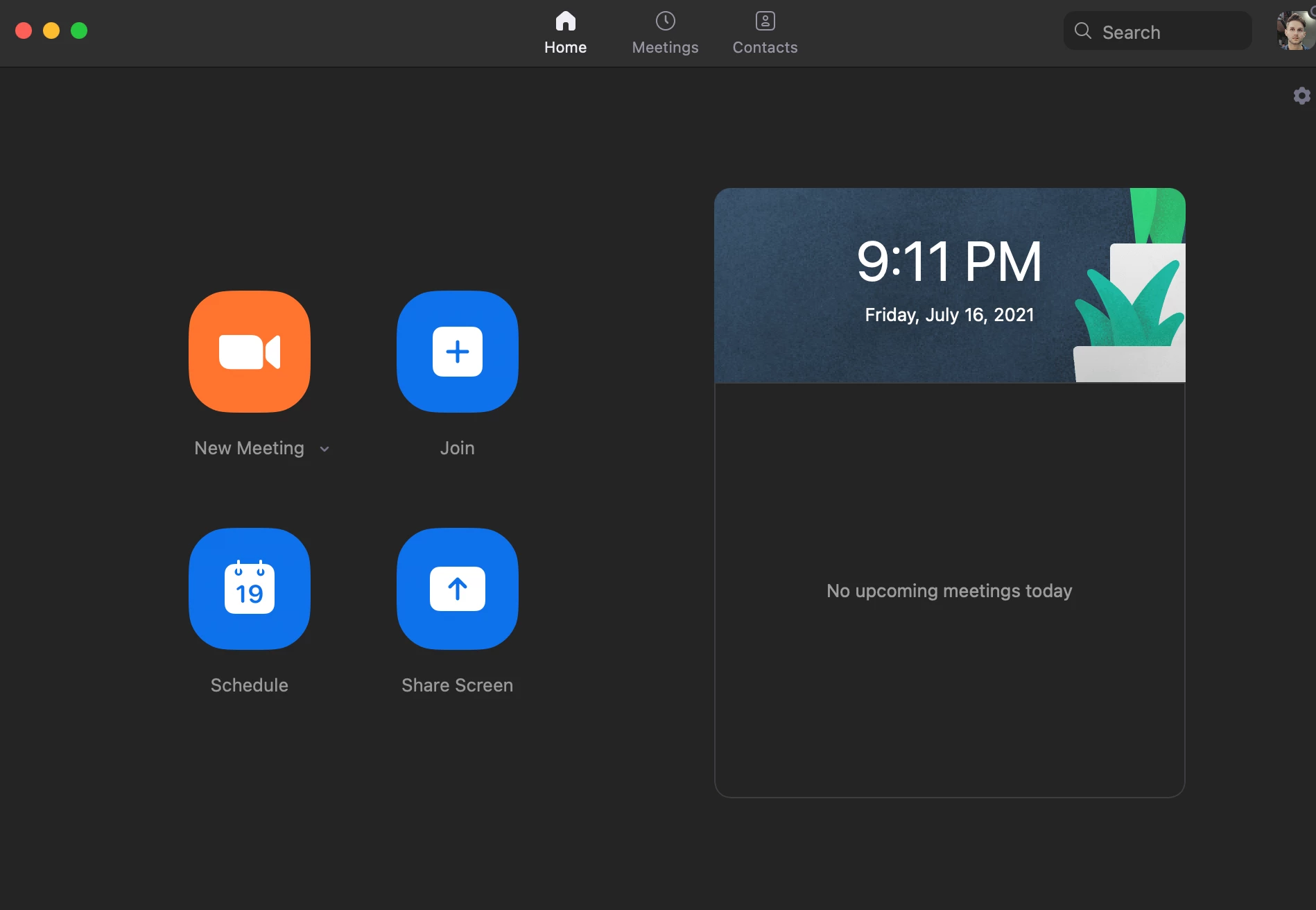
The 'Chat' Icon is missing between 'Home' and 'Meetings' (see screenshot).
Can't receive messages, friend requests also my status is 'offline'. I already reinstalled and everything is up to date including security settings - didn't help.  When I'm accessing a zoom meeting via a link through safari it works. I can't receive any calls and other also don't receive my direct calls

Interestingly, it works fine on my iPad and iPhone where I then receive everything - chat messages, friend requests etc.

Does anyone have ta similar problem?

Thanks a lot

    2 replies

    Community Manager
    July 19, 2021

    Hello,


    Curious if you are logged into the same account on your iPhone and iPad as you are on your mac?


    You can check this setting in your account: "Allow users to chat with others" found here https://zoom.us/account/im/setting

    I
    f you enable that and then log out and log back in you should see the chat.


    Hope this helps

    Dustin

    Newcomer
    September 22, 2022

    hey! 

    i am experiencing similar problems on my school chromebook.

    i can see that people from my contacts are active, but i cannot chat them.

    please get back to me asap.


    keira

    zazazoomzaza
    Newcomer
    Newcomer
    July 20, 2021

    I have a couple of suggestions.


    #1 - Make sure you are signing in using the correct method for your institution. I have users who run into issue like this when they don't use our institutions SSO.


    2# - Make sure there are not any restrictions on the Zoom install package itself. Looks like you are using a Mac client; you may want to check that your admin has not disabled IM in the Mac client via a system like JAMF.


    #3 - Delete / Remove the Zoom Client from your mac AND delete the preference file(s). Then re-install the most recent client by downloading directly from Zoom.


    Hope this helps!


    🙂