

Find the Perfect Meeting Times Every Time with Zoom Scheduler Availability Polls
Did you know that aside from the regular schedule booking on Zoom Scheduler, it also has a poll feature where you can gather availability information from participants for a new meeting? Yes, you read it right! Zoom Scheduler has the Availability Poll feature which is designed to simplify the process of finding a suitable meeting time that works for everyone on your invite list.
Zoom Scheduler’s Availability Poll can help you eliminate the back-and-forth emails typically involved in scheduling meetings as it can find your meeting participant’s available time, and provide you a visual representation of their preferred date and time, making it easier for you as the host, to find a common ground for your meetings and also gives people on your invite list a voice in scheduling.
So how does this work?
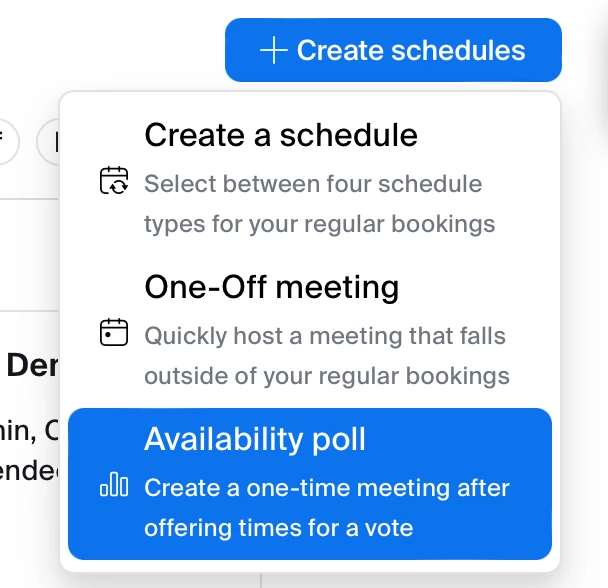
1. Create an Availability Poll: On the Zoom Scheduler, click on “Create Schedules”, and choose "Availability Poll".
2. Set Meeting Details: Fill in details like meeting topic, duration, and hosts. Then, on the calendar, select multiple date and time windows or specific times you're available.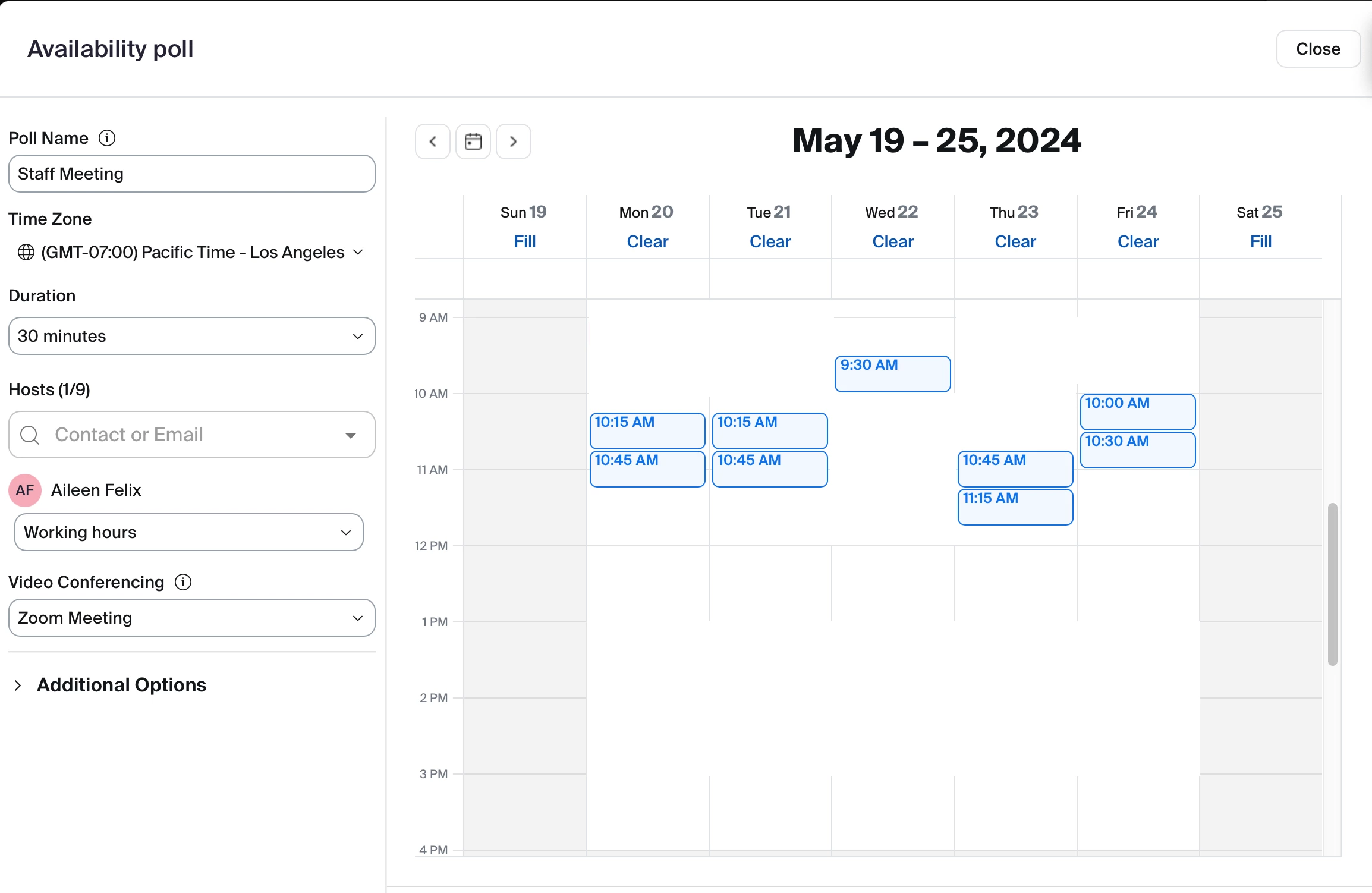
3. Share the Poll: Once details are set, you can click on the “Publish” button, and share the link to your invitees. You do have the option to allow poll participants to see each other’s names and votes.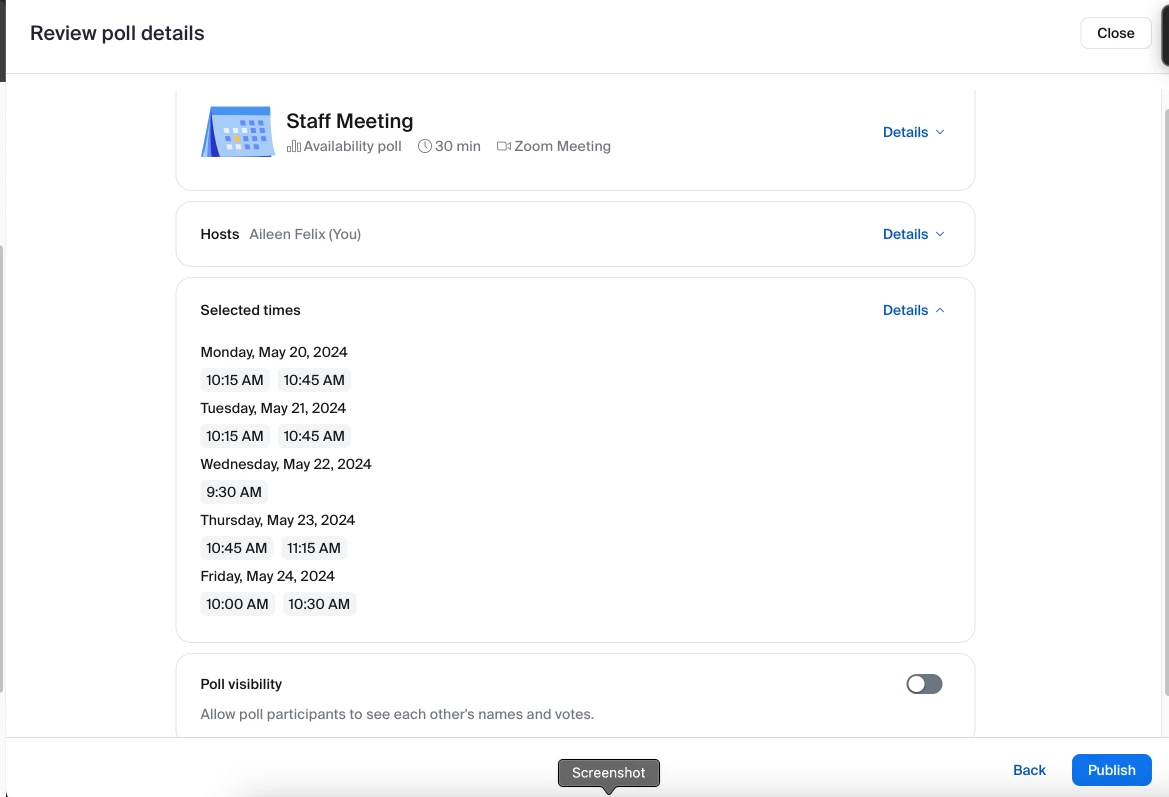
4. Attendees Vote: Attendees then receives a link to the poll and can select their available time slots from the options provided. They can also select multiple date and time that they're available.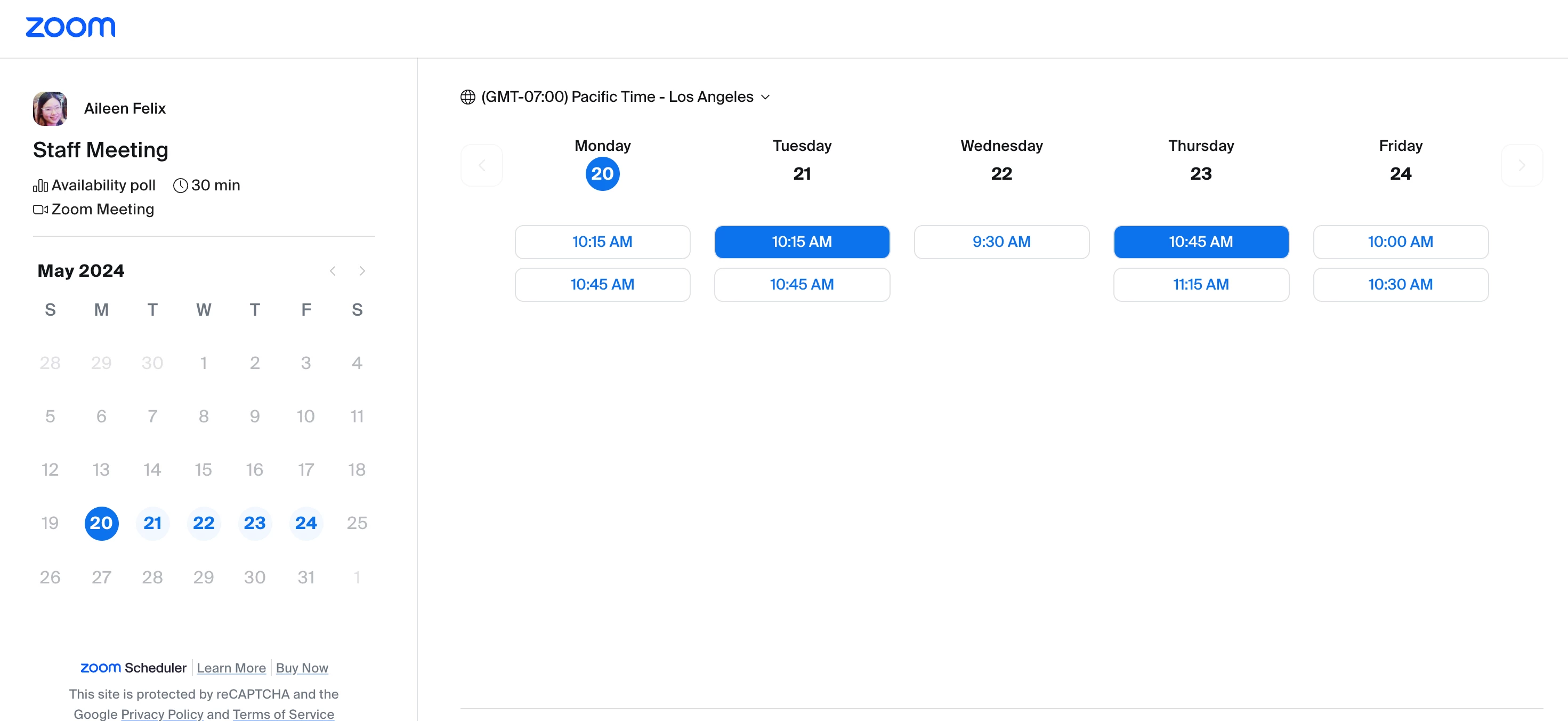
5. Availability Poll Results Overview: You'll see a clear overview of everyone's availability through email. Based on the results, you can then choose the time that works best for the most attendees and proceed in scheduling the meeting.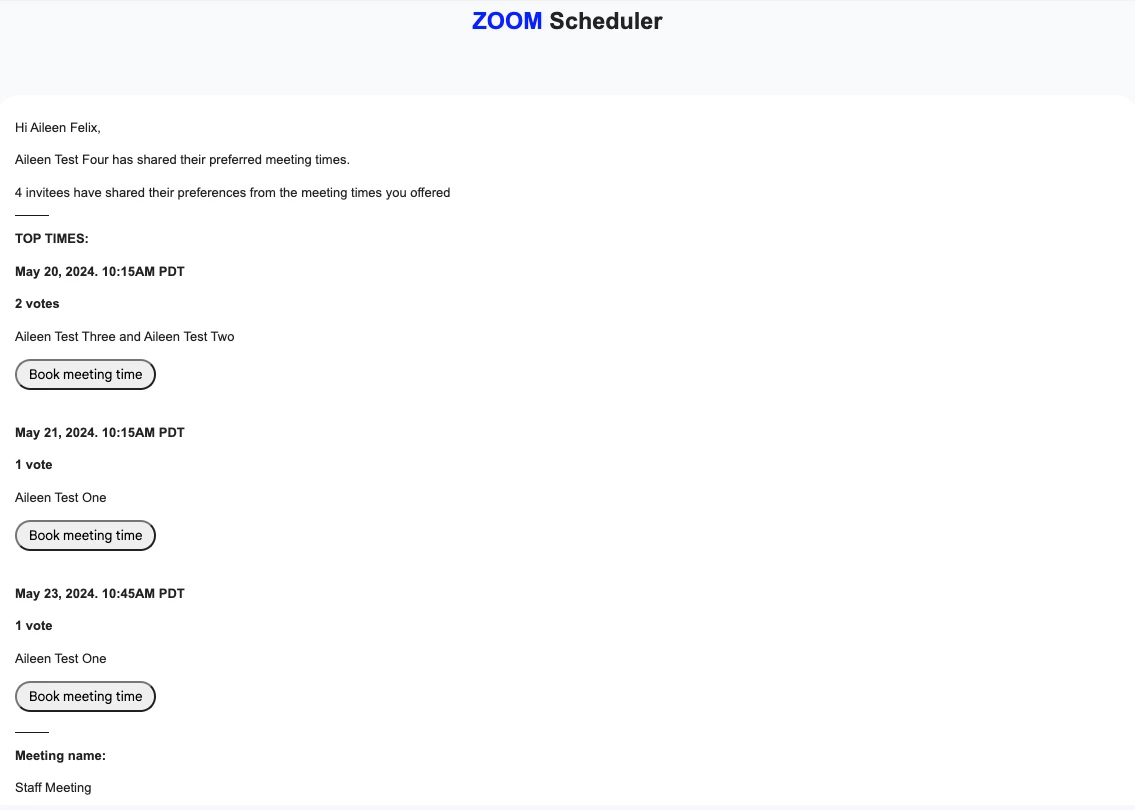
Availability Poll is best used on all meetings where you’d need to find a common time, but the below are additional scenarios where you can use Availability Poll.
Internal / External Meetings: If you want to find a new time slot for a meeting that better accommodates everyone's schedules, you can send a Scheduler Poll with various time options across different days to check your team’s preferences.
Sales Calls / Demo Calls: If you are a sales specialist, you can schedule a call for a group of potential customers and use Scheduler Poll with various time slots to accommodate the schedules of multiple attendees, allowing the your customers to choose a convenient time within their busy schedule to ensure a high attendance rate.
Webinar for a Big Team: If you need to conduct a webinar for a big team, you can send a Scheduler Poll to check their availability across different time zones and choose a time that maximizes majority's participation.
Team Building / Team Activity: If you are a planning a meetup or an activity for your team members, you can use a Scheduler Poll to identify a time slot that accommodates the schedules of your team members.
With Availability Poll, you can say goodbye to scheduling frustration. Just send a simple poll with your available date and time, and identify the sweet spot that works best for you and your attendees so you can maximize attendance and participation, and also minimize schedule conflicts.