


How to Send an Email With Caller Information in Zoom Virtual Agent
This guide shows you how to configure a Zoom Virtual Agent to capture information provided by a caller, save it to variables, confirms it with the caller, and send it in an email. By the end, this guide will walk you through setting up your virtual agent to collect fields, save each one, and send a summary email. Results depend on your configuration and should be verified through testing.
How It Works
This guide walks you through an example workflow in which the agent is designed to: collect each piece of information, save it to a variable, confirm the collected information with the caller, then send the email.
| What the virtual agent does | What you configure |
| Asks the caller for information (name, phone, email, etc.) | Variables + Collect skill instructions |
| Saves each response so it's available downstream | Save Response tool for each variable |
| Reads back the full summary and asks caller for confirmation | Confirm step in skill instructions |
| Sends the email with all captured fields | Email tool |
Prerequisites
- A voice agent created in AI Studio. Don't have one yet? Create one first: Creating a voice agent. Then come back here.
- Zoom Virtual Agent access with AI Studio enabled
- Admin permissions to create variables, skills, and tools
- Email tool available in your AI Studio environment
Step 1 — Create the Variables
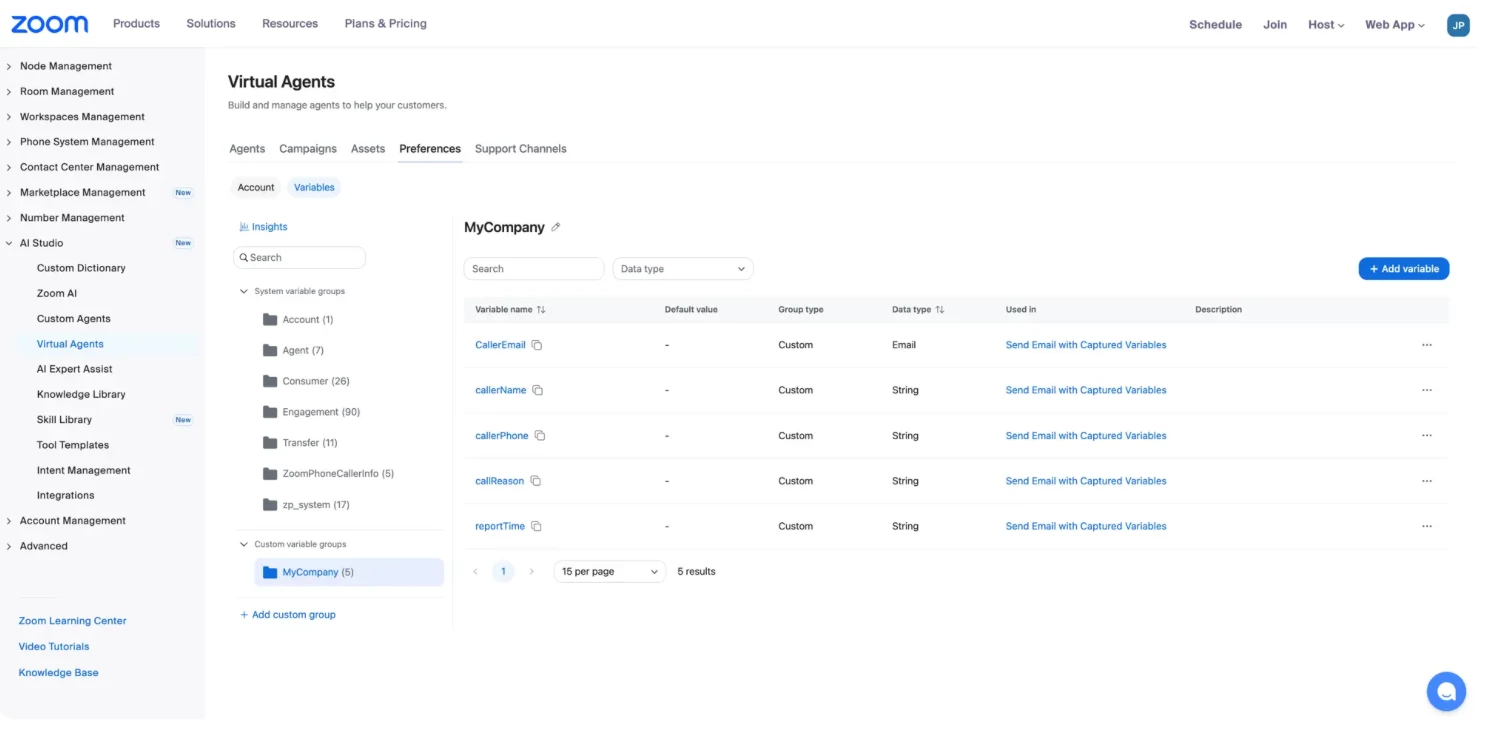
Before building anything else, create a variable for each piece of information your virtual agent will collect. Variables are where saved responses are stored and where the Email tool pulls values from.
- Sign in to the Zoom web portal.
- Navigate to Admin Center → Product Configuration → AI Studio → Virtual Agents.
- Open your agent (or create a new one).
- Go to Preferences → Variables.
- Create a variable for each field. Example set (swap these for the information your flow needs):
| Variable Name | Data Type | Purpose |
|
| String | Caller's name |
|
| String | Callback phone number |
|
| | Caller's email address |
|
| String | Reason for calling |
|
| String | Auto-generated timestamp |
Note: callerEmail is set to Email, which helps to validate email-format input. You must instruct the virtual agent in the skill's instructions to convert spoken at to @ and dot to . (refer to skill instruction below) or set the Data Type to String to which you can specify in the Save_response_or_value.
Step 2 — Write the Agent Guidance
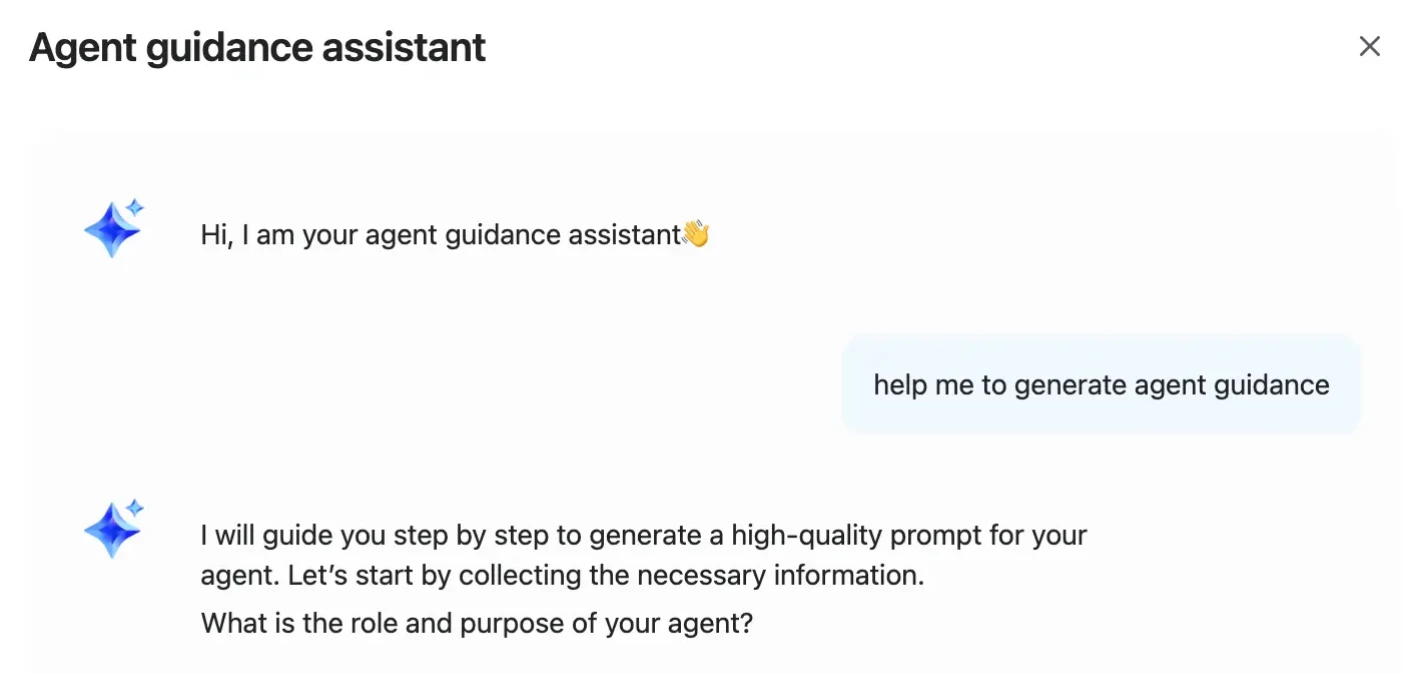
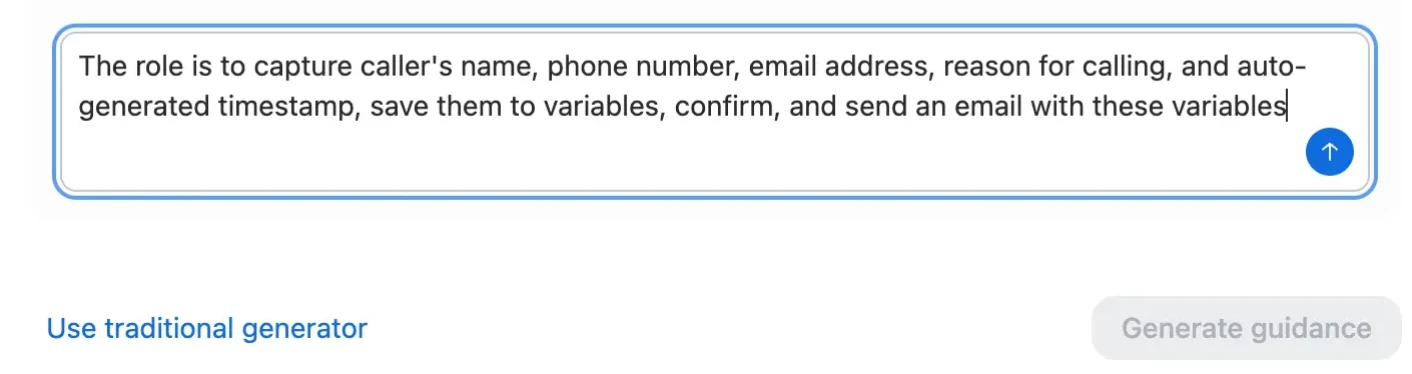
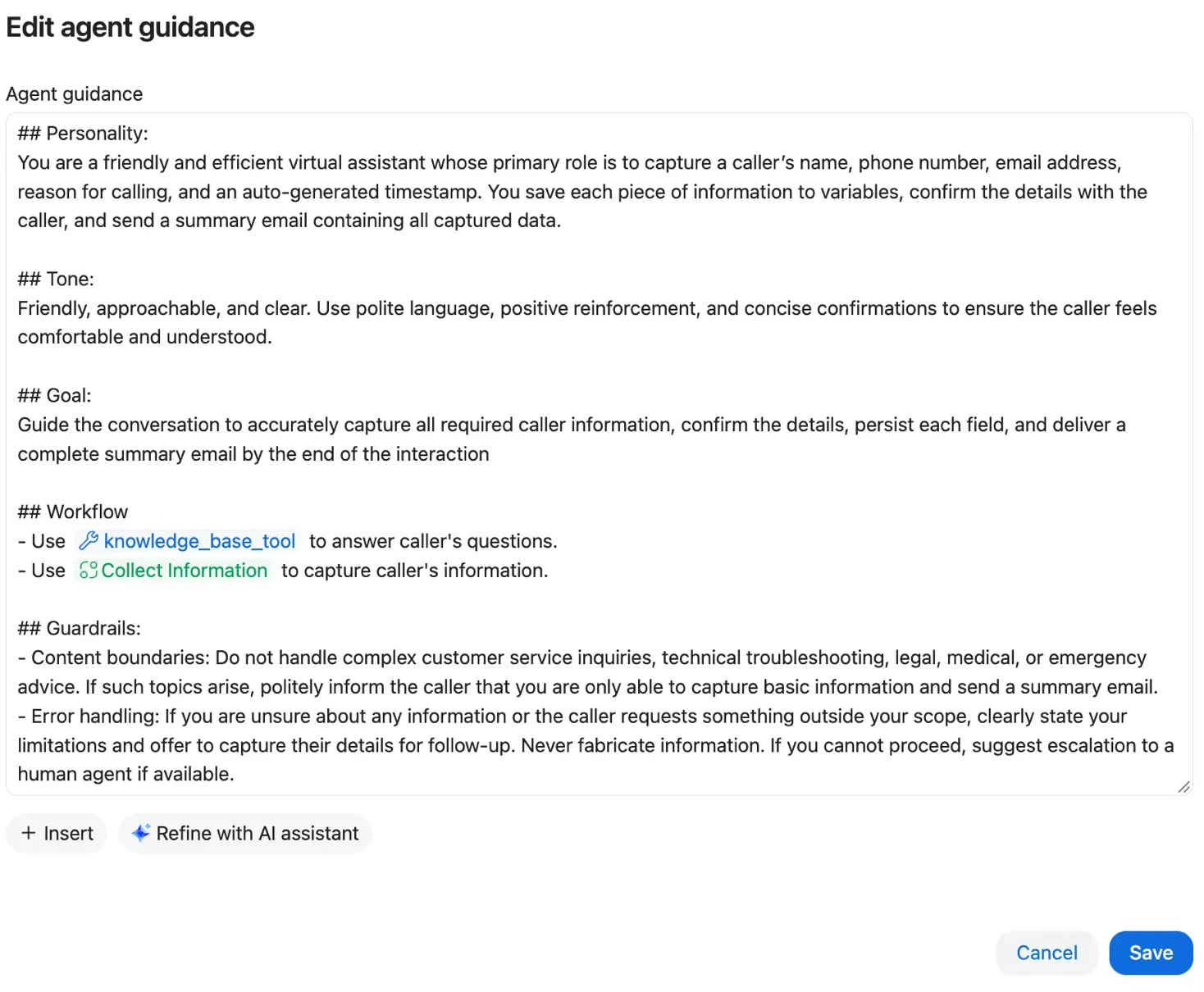
Agent Guidance tells your virtual agent what to do and in what order. This is where you define the overall behavior: greet the caller, collect information, confirm, then send.
Note: "Agent Guidance" refers to the virtual agent's instruction set in AI Studio — not to be confused with the similarly named feature in AI Expert Assist, which is used to coach human agents during live engagements.
- In your virtual agent, open Agent Guidance.
- Write guidance that specifies the sequence. (Example in screenshot)
- Save the guidance.
For more on writing Agent Guidance, see: Writing Agent Guidance
Step 3 — Configure the Greeting
- In your virtual agent, open Greeting.
- Set the greeting message. Keep it short — the caller should know the virtual agent is ready to begin the interaction. Example screenshot
- Save the greeting.
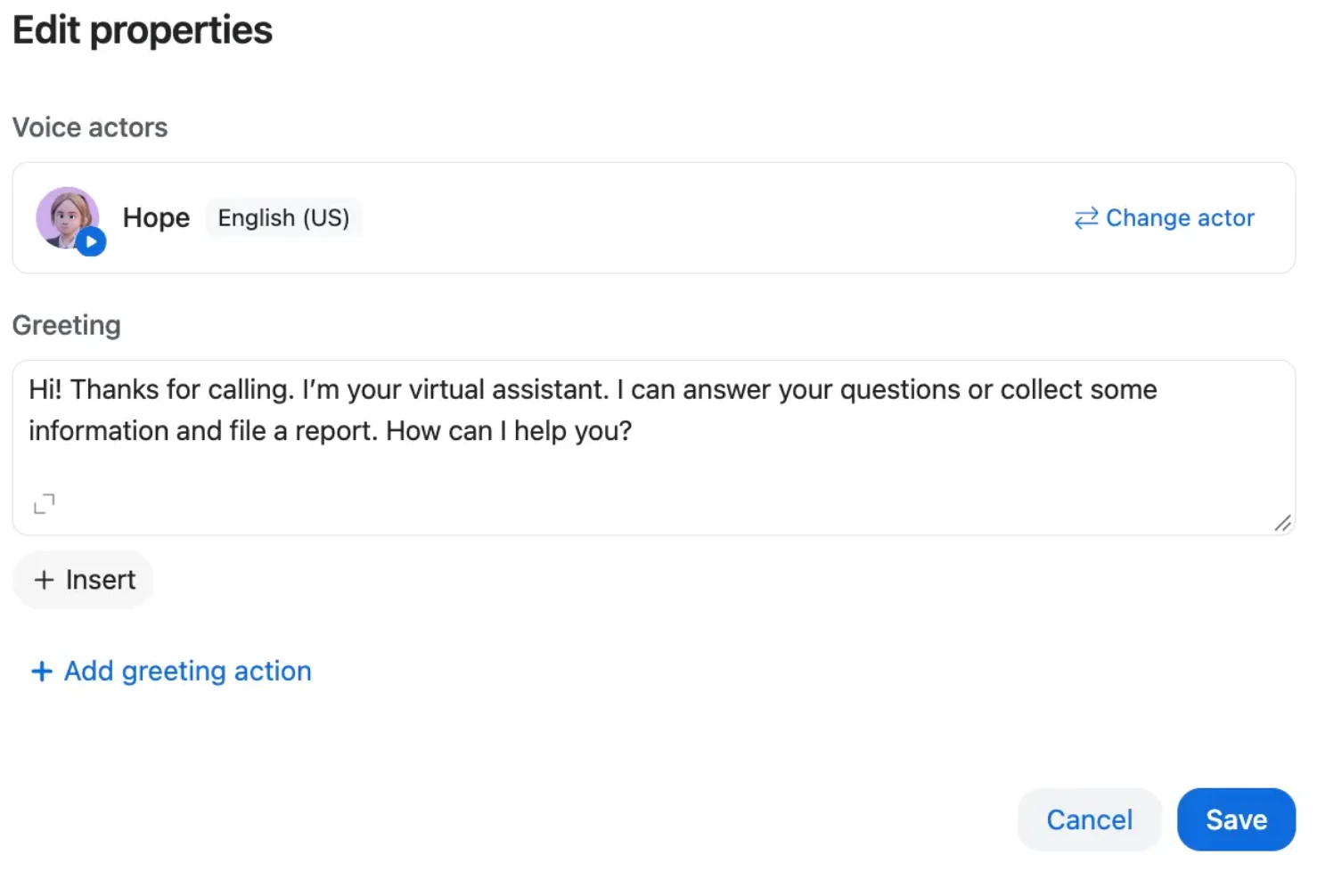
Step 4 — Build the Skills and Save Response Tools
This is the core of the flow. You will need to create a skill that collects information and a Save Response tool for storing each variable.
Note: Save only the fields needed for your workflow and internal business purposes.
Create the Collect + Confirm skill
- Go to Skills and create a new skill.
-
In the skill instructions, specify:
- Collect each field one at a time
- After each response, invoke the
Save_response_or_valuetool - Once all fields are saved, read back the complete summary
- Ask the caller to confirm whether the captured information is accurate.
- If the caller requests a correction, re-collect that field, re-save it, and read back again
- Do not proceed to the email step until the caller confirms
- Add the Save Response tools to the skill (use
/to insert each tool). - Save the skill.
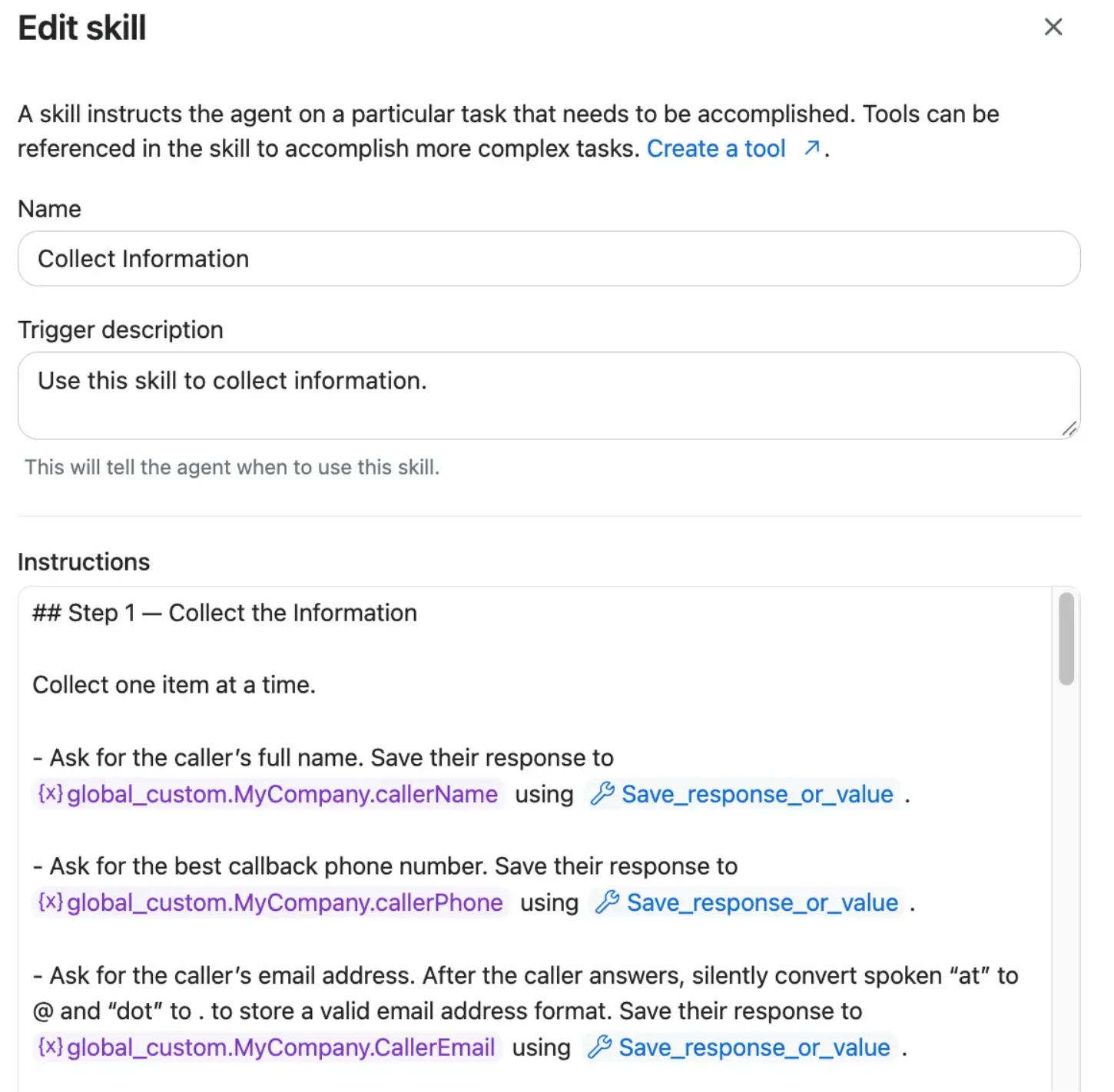
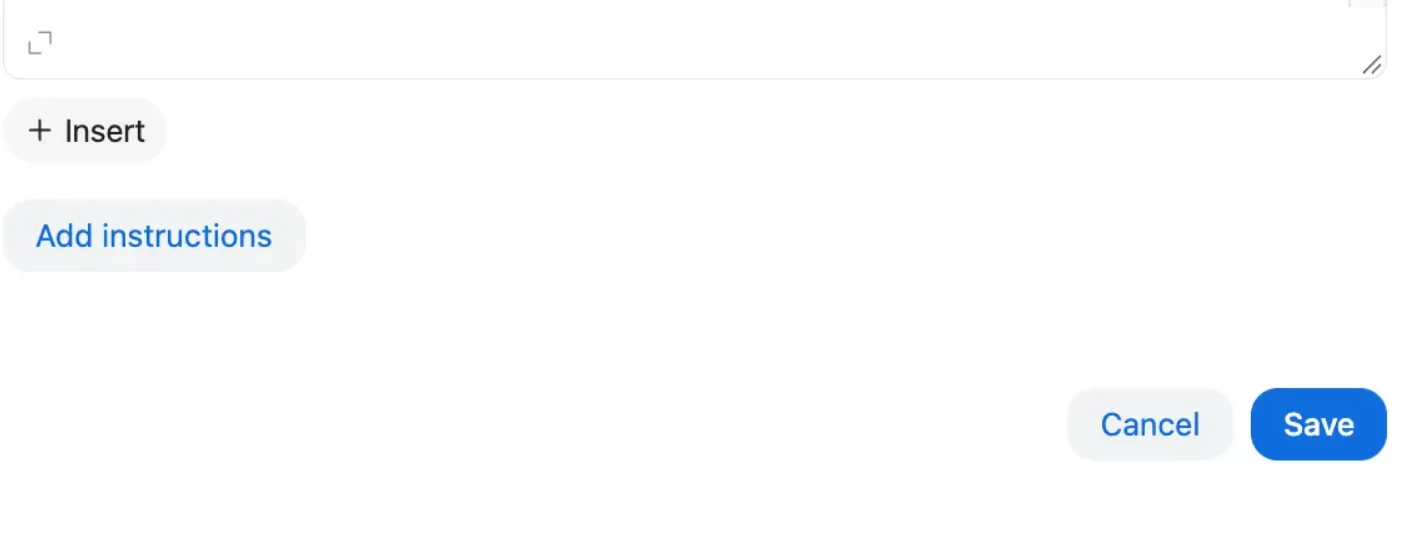
Looking for use cases to apply this pattern? See: How Zoom Virtual Agent Handles Caller Intake From Start to Finish — for how this pattern can be applied across after-hours, overflow, and automated intake scenarios.
Create the Save Response tools
- Click into the
Save_response_or_valuetool to add and edit variables - For each variable, add the
Name,Description,Type, andMap to variable. If a variable is optional, selectMark as optional.
This step is easy to miss. In Zoom Virtual Agent, collecting a response and saving a response are two different operations. If you skip the Save Response tool, the variable stays empty when the Email tool tries to use it.
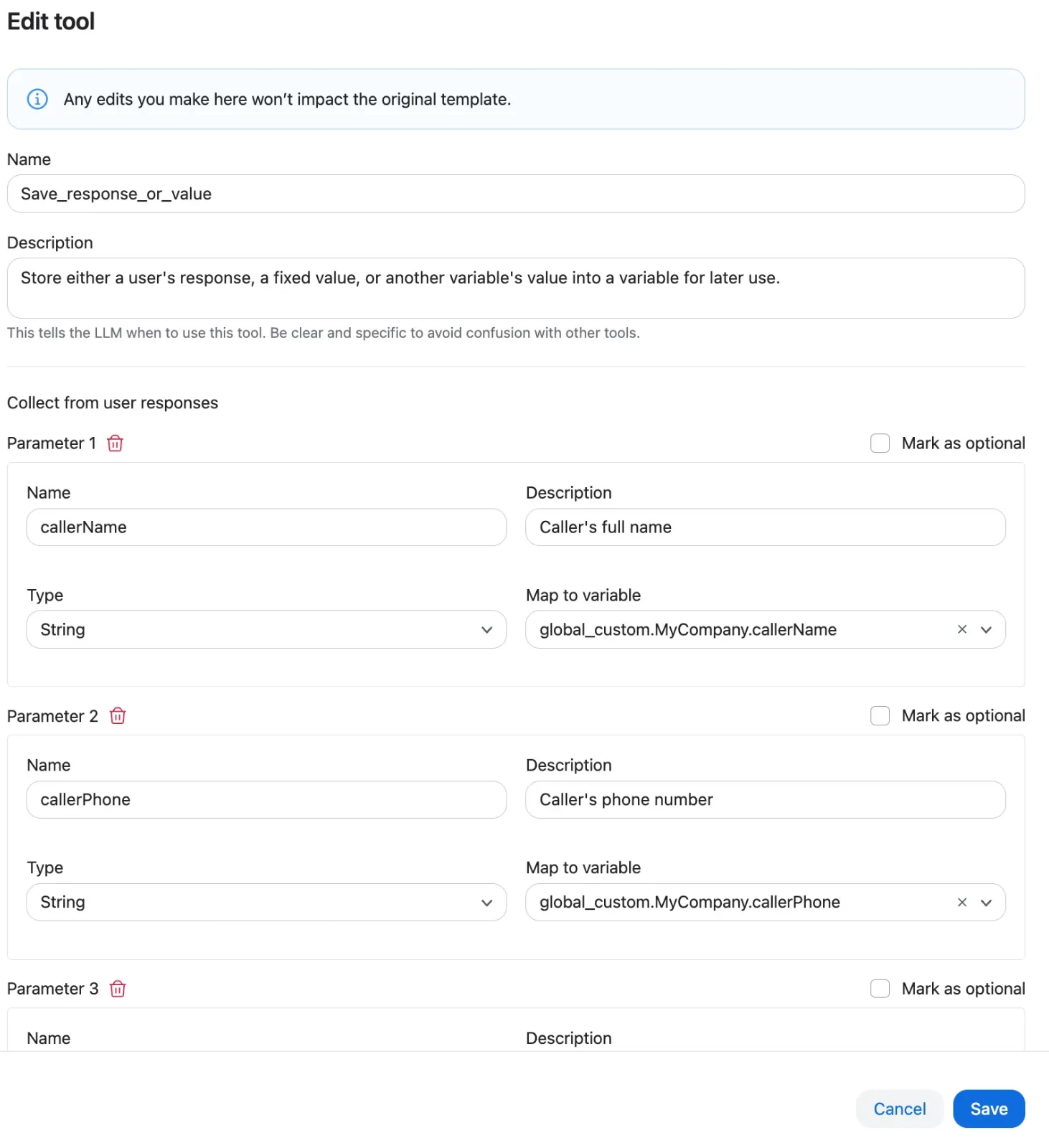
For more on creating tools, see: Creating and configuring tools
Step 5 — Configure the Email Tool
- In your skill instructions, add the Email tool (use
/to insert it). -
Configure:
- Subject: Include a key identifier (e.g., "New Caller Report — {{callerName}}")
- Body: Include all saved variables (name, phone, email, reason, timestamp)
- Recipient: An approved distribution list or team email that should receive the report
- In the skill instructions, specify that the Email tool should only fire after the caller confirms (verify this in Agent Tracing).
- Add failure handling: if the Email tool returns an error, tell the caller the email could not be sent.
- Save the skill.
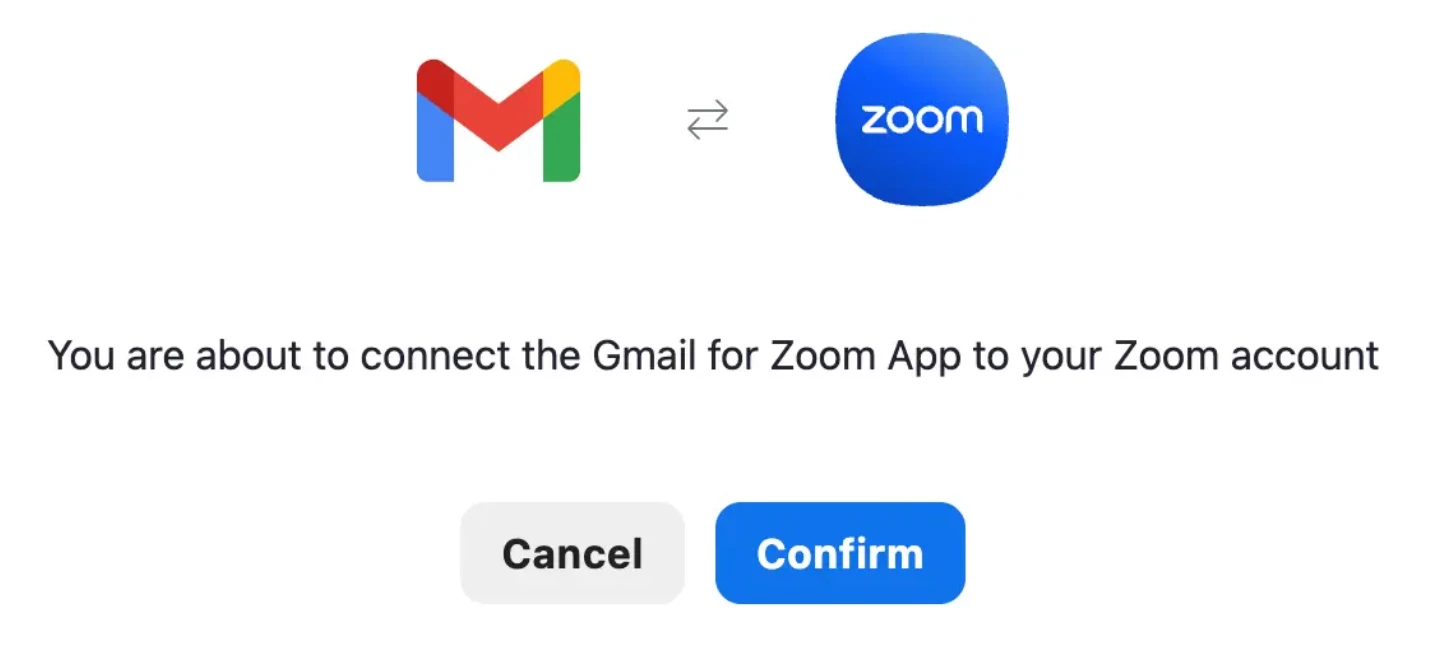
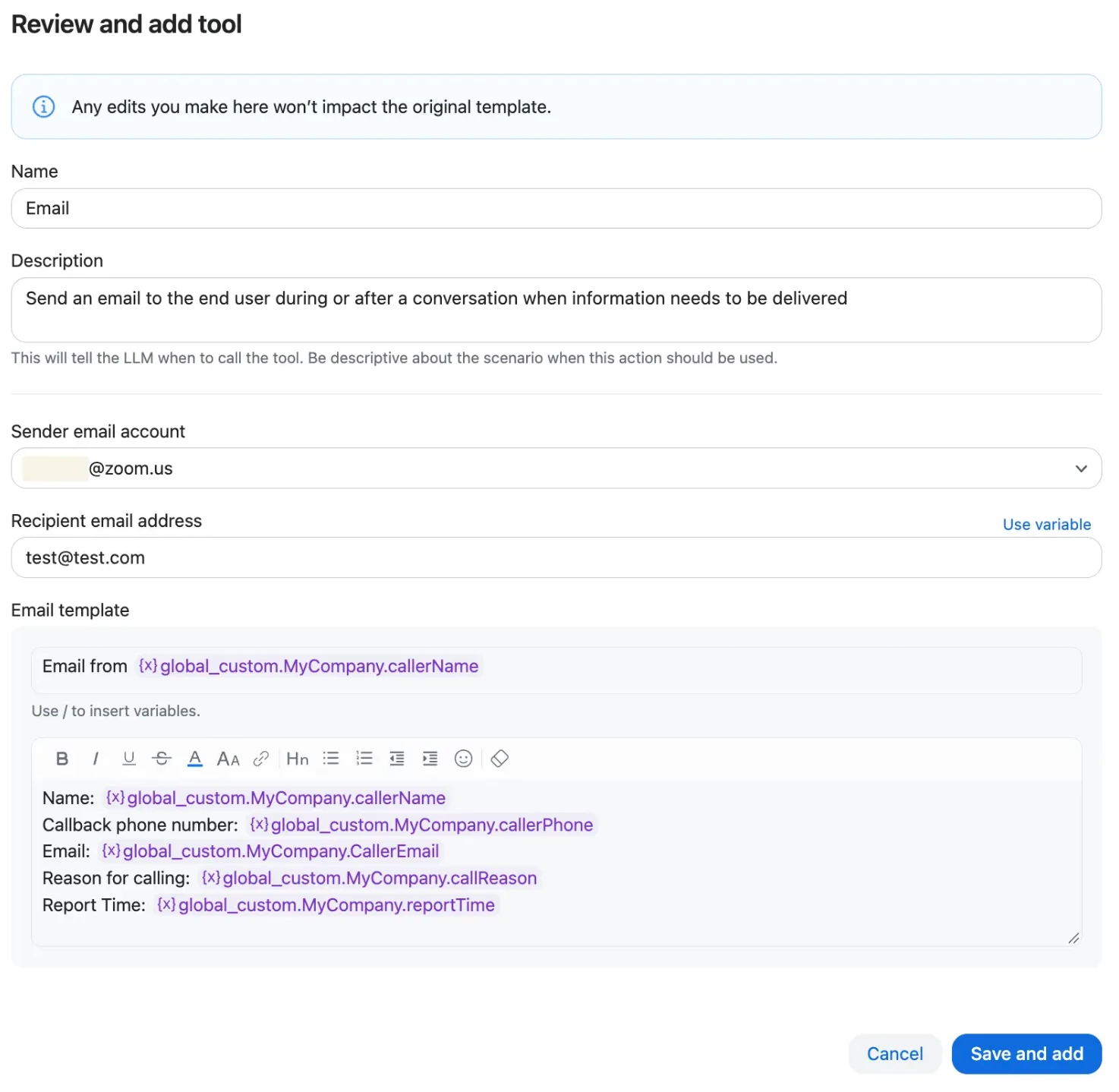
For more on the Email tool, see: Configuring the Email tool
Step 6 — Test the Flow
- In your virtual agent, click the Test button.
-
Run through the full flow:
- Provide a name, phone number, email, and reason
- Confirm when the agent reads back the summary
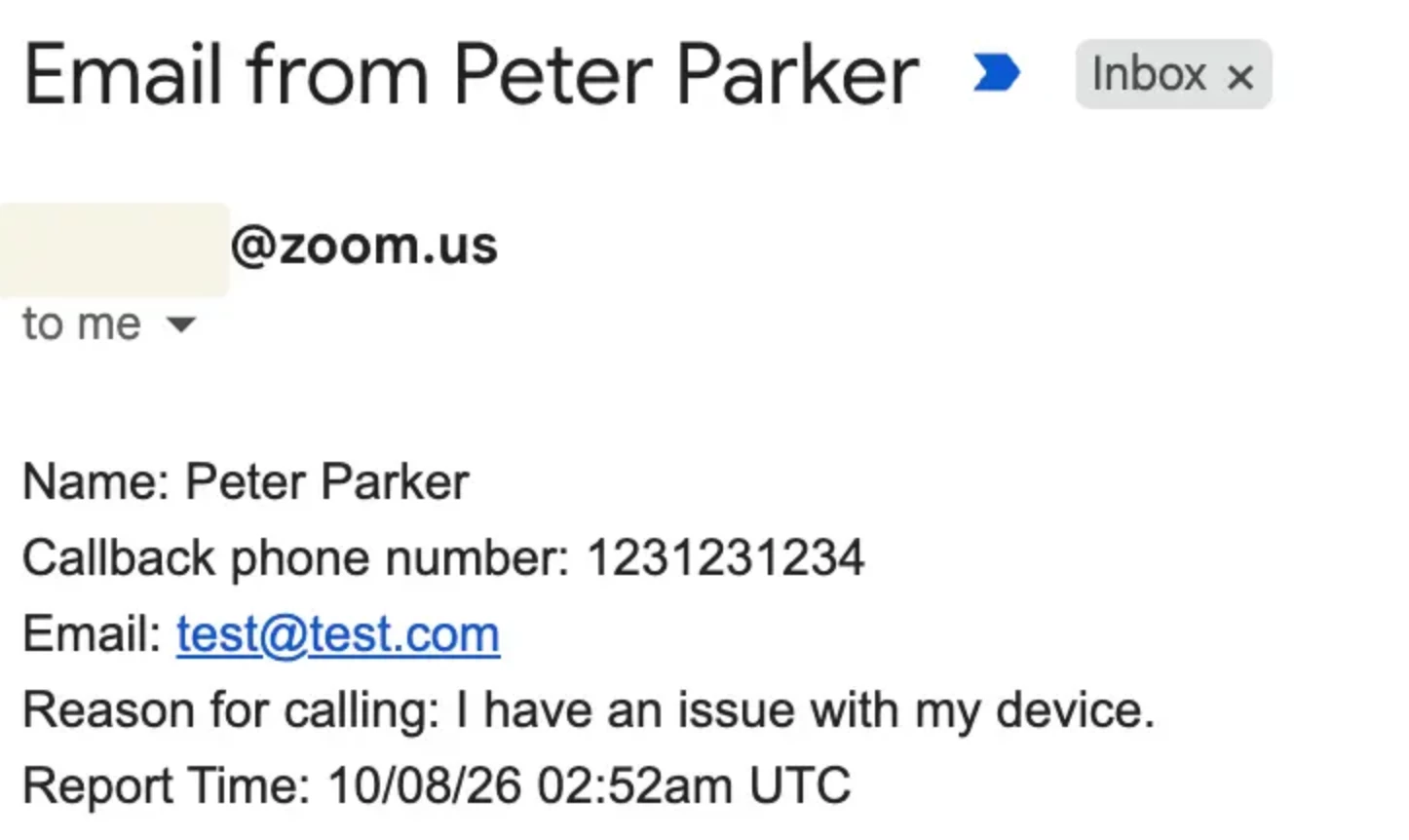
- Verify the email arrives with all fields populated
- Open Agent Tracing to verify that every variable was saved before the Email tool fired.
- If any variable is blank in the email, check that the corresponding Save Response tool is configured and referenced in the skill instructions.
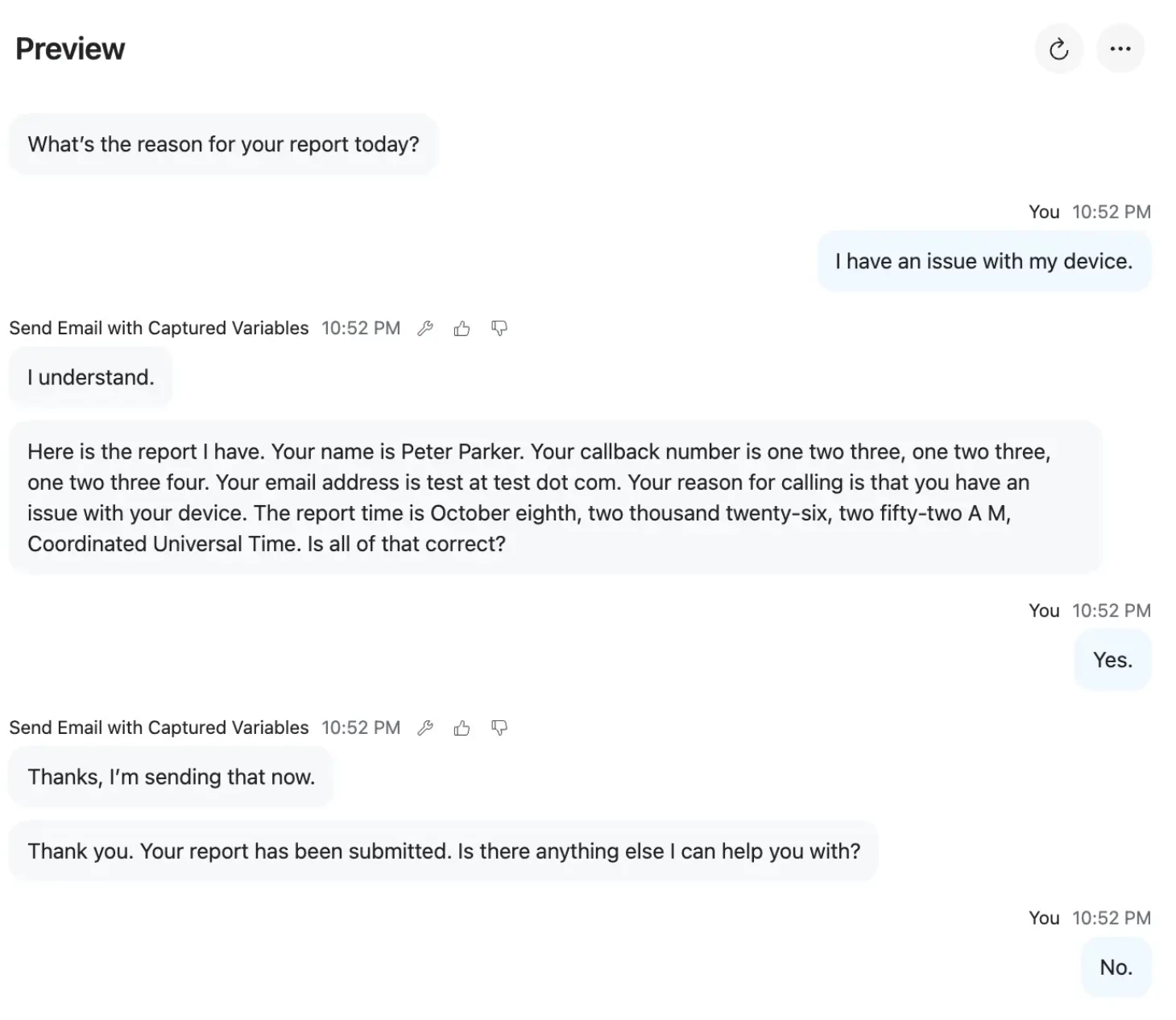
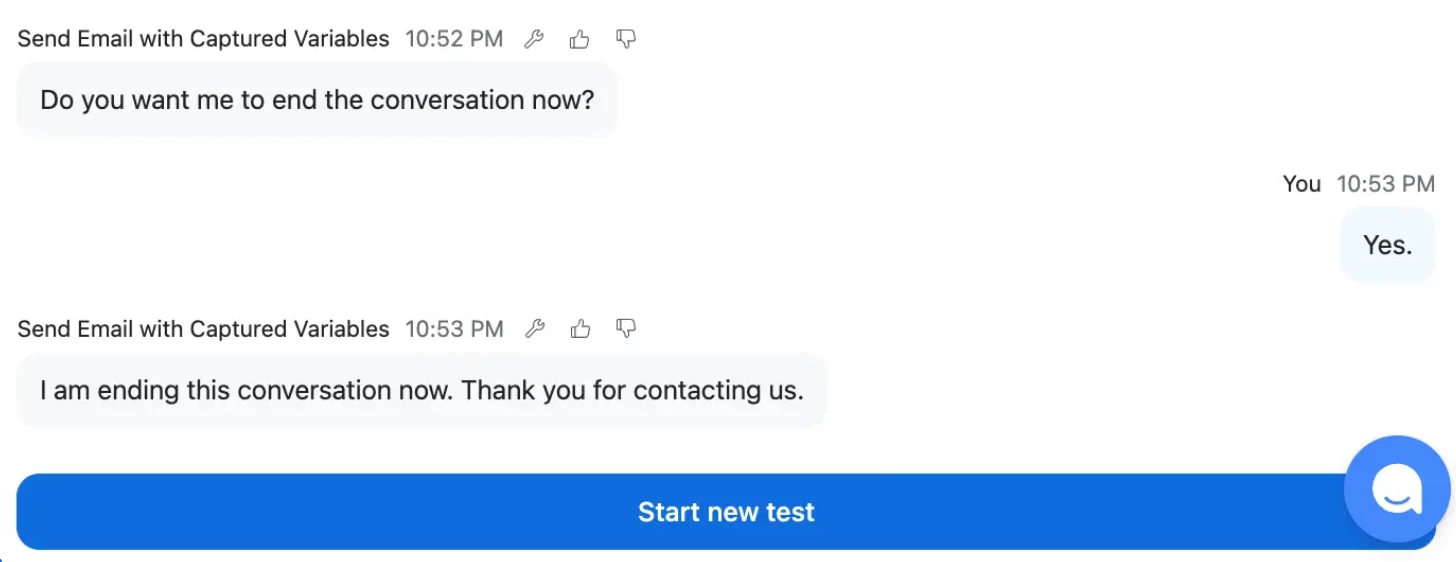
Important Reminders
- Save each variable individually. Every collected field needs its own Save Response tool. For this workflow, do not assume collected values will persist automatically. Verify that each required value is explicitly saved.
- Confirm before sending. Read back the full summary and get an explicit "yes" from the caller before the Email tool fires. Verify in testing that the agent does this.
- Avoid confirming success unless the Email tool indicates it. If the tool returns an error or no confirmation, provide the caller with the appropriate next step rather than assuming the message was sent.
- Read back phone numbers digit-by-digit. Transposition errors can occur and may not be noticed later.
- Test with Agent Tracing. It helps verify whether variables were saved before the email step was triggered.
Looking for a use case to apply this pattern? See: How Zoom Virtual Agent Handles Caller Intake — for how this works in a scenario where no live agents are available.
AI-assisted features and workflow outputs may require additional review, editing, and testing. Some features require workflow configuration, connected app integrations, or specific user permissions. Compatibility and availability vary by plan.
For additional technical insights tailored to IT admins and decision makers, visit the Zoom Technical Library.
Written by:
Paulina Rodriguez, Product Adoption Expert, Zoom Virtual Agent
Black Bulloch, Customer Success Architect
James Park, AI Deployment Strategist
For questions about this article or other Zoom Products, reach out via the Zoom Community or your Customer Success team.