

Use Case Walkthrough: Setting Up Zoom Workspace Reservation & Visitor Management for Your Hybrid Office
Introduction
If your organization is navigating hybrid work, you've likely faced the challenge of managing shared desks, meeting rooms, and visitor flows — often with disconnected tools that create friction for employees and admins alike. Zoom Workspace Reservation and Visitor Management solve this by bringing workspace management directly into the platform your teams already use for meetings, chat, and phone.
This walkthrough takes you from initial setup to a fully operational hybrid office — covering interactive floor maps, AI-powered desk booking, visitor check-in kiosks, and the latest features from the March–May 2026 releases. Whether you're deploying for 50 people or 5,000, this guide gives you a clear path to a seamless smart office experience.
Who This Is For
- IT Admins deploying Workspace Reservation for the first time or expanding to new floors/buildings
- Facilities Managers looking to optimize space utilization and streamline visitor flows
- Zoom Admins who want to activate AI Companion for workspace intelligence
- CSMs and Partners guiding customers through hybrid workspace adoption
Step 1: Upload Your Floor Plans (Now with Native CAD Support)
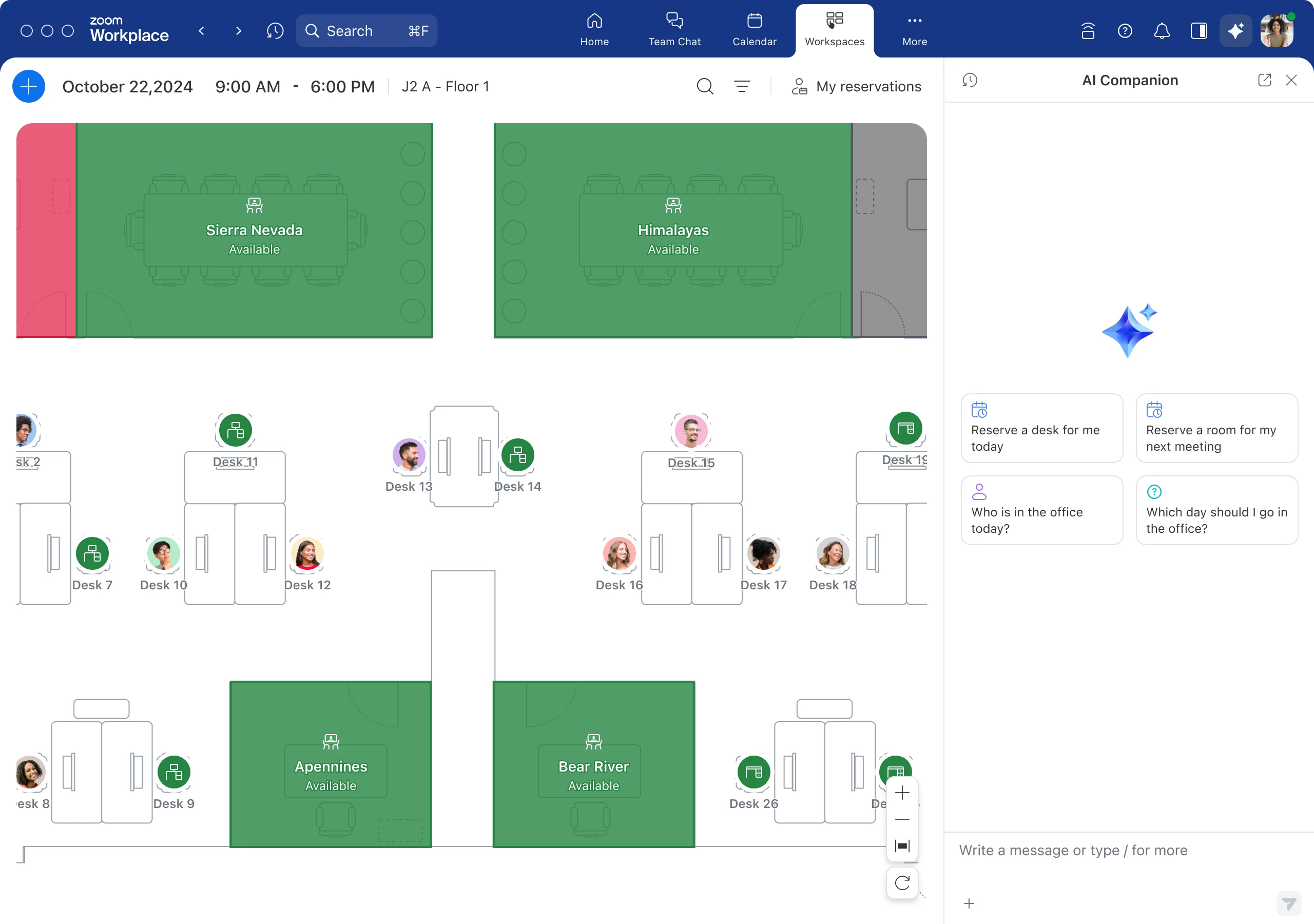
The foundation of Workspace Reservation is your interactive floor map. As of the April 2026 release, you no longer need to manually convert CAD files to PNG — Zoom now supports native CAD file import directly.
How to do it:
- Navigate to Admin Portal → Workspace Management → Maps
- Click Upload Map and select your CAD file (DWG, DXF) or PDF floor plan
- Zoom processes the file and renders it as an interactive map
- Place desk pins, room markers, and asset indicators on the map
💡 Best Practice: Upload source CAD files rather than screenshots or exports. This preserves scale accuracy and helps maps align correctly across multiple floors. The API upload option is also available for bulk deployments.
"You shouldn't have to flatten your floor plans just to use them. Upload the source file — we'll handle the rest."
Step 2: Configure Desks, Rooms, and Assets
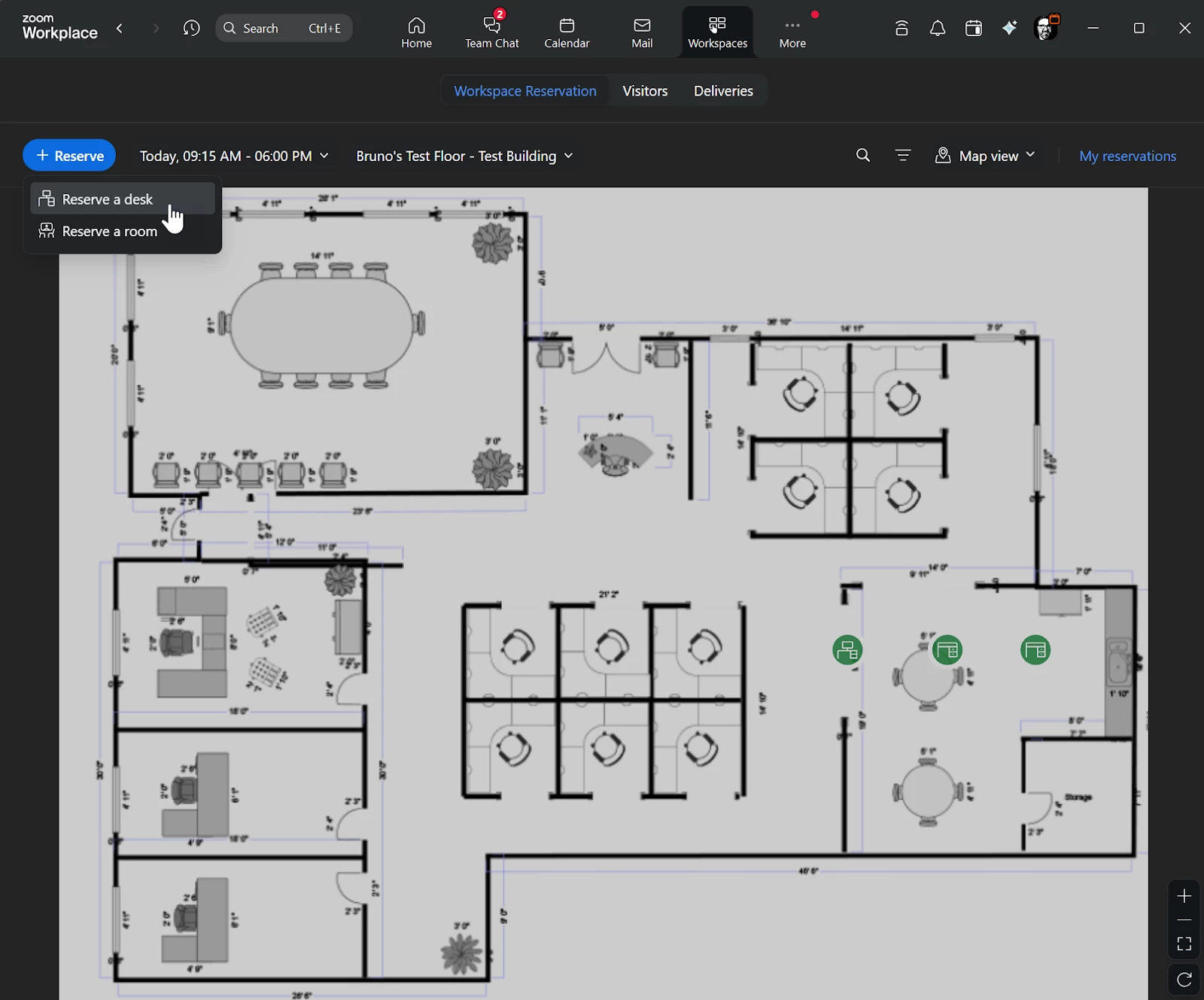
Once your map is live, define what's bookable:
- Desks — Mark as hot desks (open to all), assigned desks, or neighborhood-restricted
- Rooms — Link to Zoom Rooms for one-click meeting joins; set capacity and equipment tags
- Assets — Tag desks with monitors, standing desk capability, docking stations, or accessibility features
New in April 2026 — Optional Display Names on CSV Import: When bulk-importing desks, you can now predefine clean, readable desk names (e.g., "Window Desk 3A" instead of "DSK-00347") during the import process. No more renaming hundreds of desks one by one.
💡 Best Practice: Use the AI-Assisted Bulk Upload feature (released April 2026) to import workspace data in any format — CSV, TXT, or Excel. AI Companion parses your file, recognizes fields, highlights errors, and lets you fix issues with natural language prompts like "fill all blank locations with HQ-3."
Step 3: Set Up Smart Questionnaires for Booking Workflows
The Enhanced Questionnaires feature (March/April 2026) transforms simple desk bookings into intelligent workflows:
What you can configure:
- Custom Recipients via Email — Auto-route survey results to specific teams (catering, facilities, A/V) without requiring admin permissions
- Multi-Select + AND/OR Skip Logic — Build conditional questions that branch based on combined answers
- Multiple Questionnaires per Room/Desk — Attach different surveys for different contexts (A/V setup, catering request, cleaning schedule)
- Hyperlinks in Questions — Link directly to group ordering portals, booking policies, or event information
- Editable Submissions — Users can correct mistakes on submitted surveys instead of being locked out
Example Use Case — Conference Room Booking:
- User books a 20-person conference room
- Questionnaire triggers: "Will you need catering?" → Yes
- Skip logic shows: "How many attendees need meals?" + link to catering portal
- Results auto-route to catering@company.com
- Facilities team receives a separate notification about room setup needs
💡 Best Practice: Use Bulk Import/Export + Location Propagation to manage questionnaires across rooms via CSV and apply changes to specific locations at scale.
Step 4: Enable AI Companion for Workspace Intelligence (AIC 3.0)
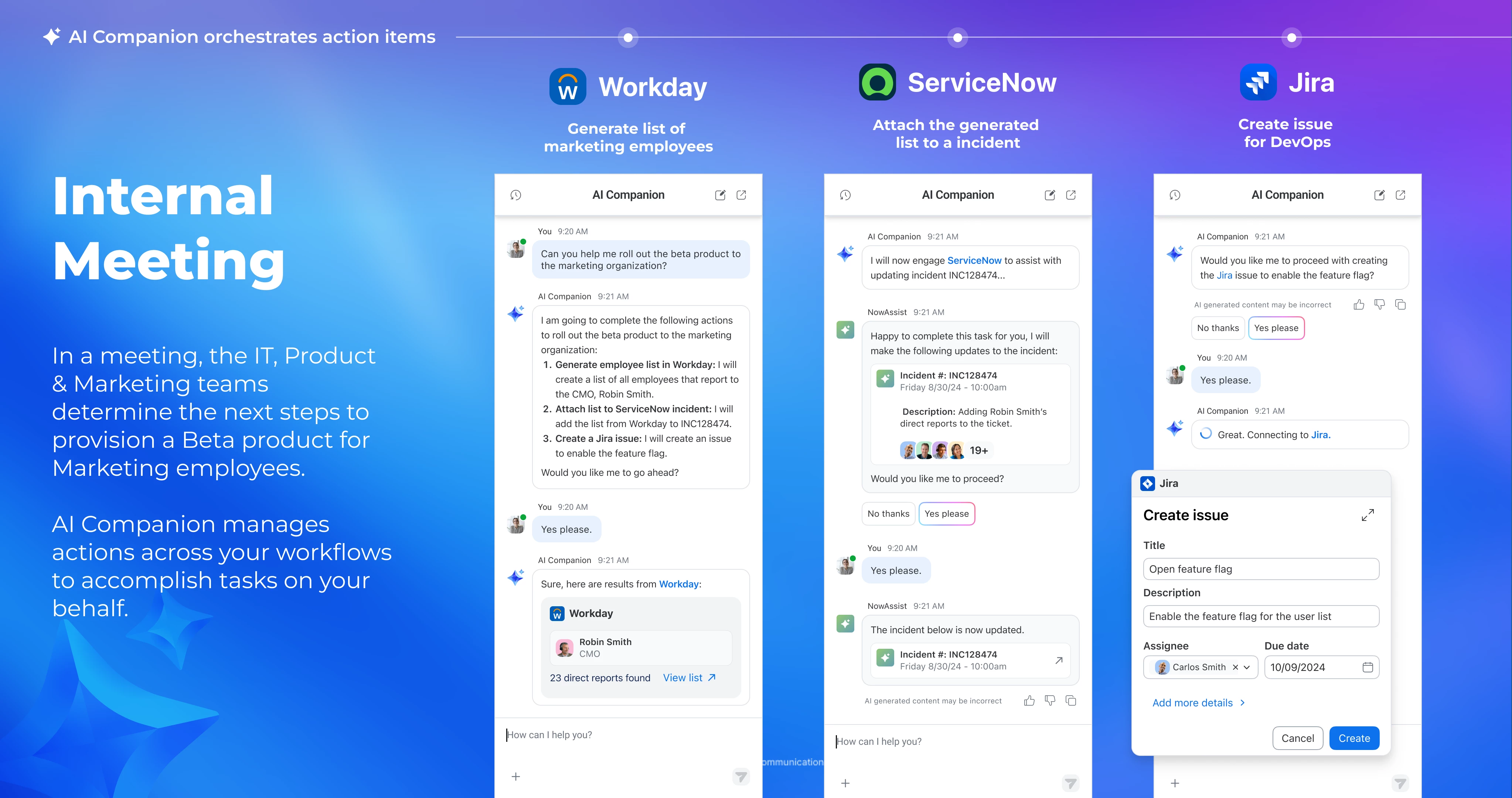
The AI Companion 3.0 upgrade (April 2026) dramatically expands what AI can do inside Workspaces. Enable it in your Admin Portal under AI Companion settings for Workspace Reservation.
New prompts unlocked in AIC 3.0:
| What You Can Ask | Example Prompt |
| Reserve a desk near a coworker | "Book me a desk near Sarah on Tuesday" |
| Reserve a desk with specific assets | "Find me a standing desk with dual monitors" |
| Reserve your usual desk | "Book my regular desk for tomorrow" |
| Reserve a room for a meeting | "Reserve a room for 8 people with a whiteboard Thursday at 2pm" |
| Show available desks by criteria | "Show me all available desks on Floor 3 with docking stations" |
| Get proactive office day suggestions | AI Companion recommends optimal days based on your meetings and colleague schedules |
💡 Best Practice: Encourage employees to use natural language with AI Companion on both desktop and mobile (mobile support launched February 2026). The system retains building/floor context across navigation, so users don't need to re-specify their location each time.
Step 5: Deploy Visitor Management — The 5-Step Seamless Experience
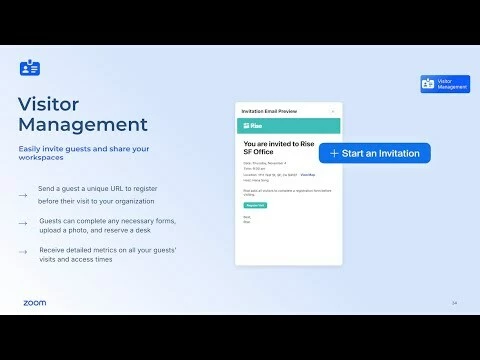
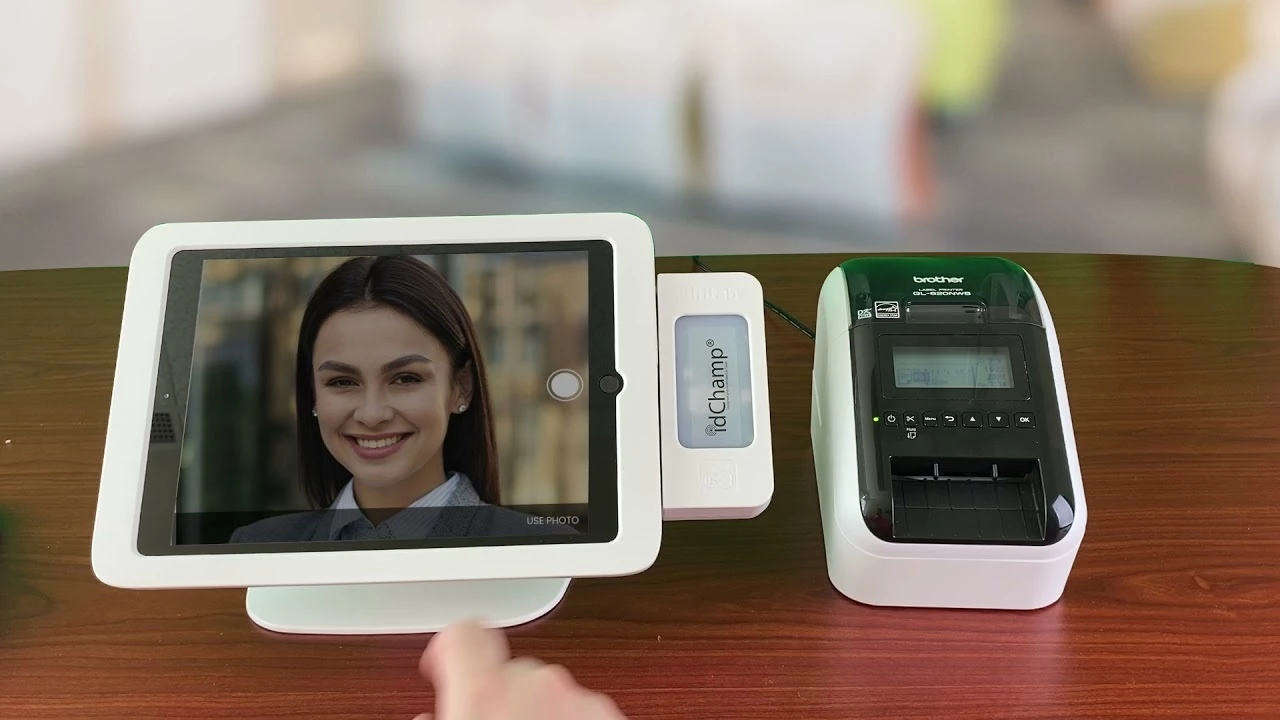
Zoom Visitor Management enables a professional, secure visitor flow without the need for additional vendors:
The Visitor Journey:
- Invite Guests — Hosts send invitations with pre-arrival details directly from Zoom
- Pre-arrival Forms — Visitors complete health screenings, NDAs, or compliance forms before arriving
- Kiosk Check-in — Visitors check in at a photo kiosk (touchscreen or QR code)
- Badge Printing — Automatic badge generation with visitor photo, host name, and access level
- Host Notification — Hosts receive instant chat or email notification when their guest arrives
New in May 2026 — Smart AI Upload for Bulk Visitor Upload: For large events or conferences, bulk-load visitor lists and let AI auto-recognize fields (name, email, company, visit date), validate data, and suggest corrections.
Security Feature — Be On Look Out (BOLO) List: Flag visitors of concern in the system. When a flagged individual checks in, hosts and security receive immediate alerts.
💡 Best Practice: Integrate Visitor Management with your calendar system so visitor invitations sync automatically. Use the Mailroom Notifications feature to auto-notify users when packages arrive — scanned by admins, delivered via chat or email.
Step 6: Activate Check-In and Utilization Tracking
Accurate utilization data is the key to optimizing your real estate investment:
Check-in methods available:
- QR Code — Digital or printed codes at each desk/room
- Wi-Fi Check-In — Automatic detection when users connect to office Wi-Fi (consolidated UI as of April 2026)
- USB-C / Logi Dock Flex — Plug in and you're checked in
- Manual — One-tap check-in from the Zoom app
What you can track:
- Reservations vs. actual usage (no-show detection)
- Peak utilization times by floor, building, or neighborhood
- Up to 6 months of historical data for trend analysis
- Multi-floor and multi-building comparisons
💡 Best Practice: Use auto-release policies for no-shows (e.g., release desk after 30 minutes if not checked in). Review utilization dashboards monthly to identify underused areas and inform real estate decisions. Organizations using desk booking platforms typically see utilization jump from ~45% to ~75% within six months (source: industry research).
Step 7: Enhance with Zoom Rooms Intelligence
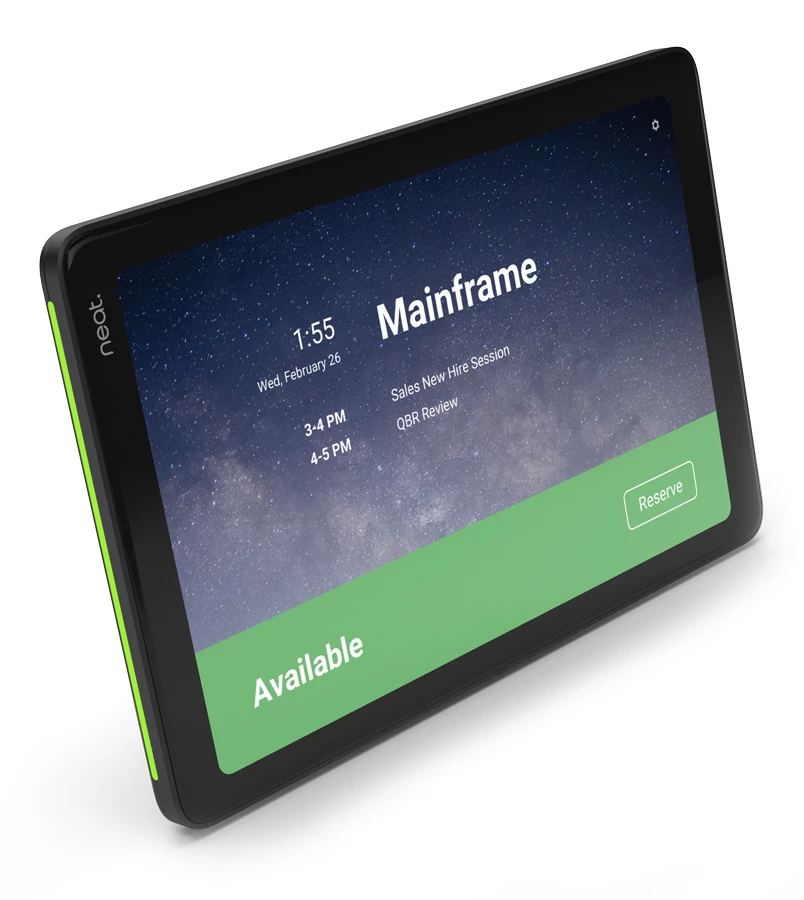

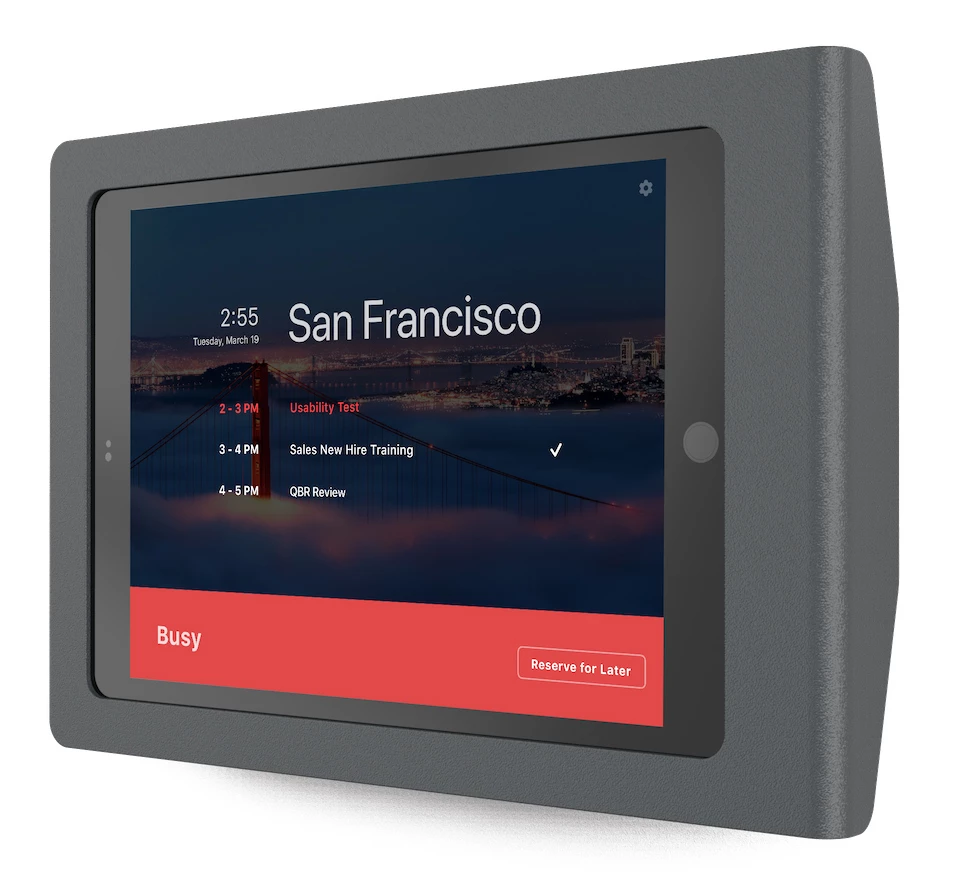
If you have Zoom Rooms deployed, Workspace Reservation integrates natively to create a complete smart office:
- Scheduling Displays — Included with Zoom Rooms license (up to 10 displays per room); show real-time availability outside each room
- Digital Signage — Unlimited capabilities at no additional cost; turn idle displays into dynamic communication boards
- Voice Commands — "Hey Zoomie" — check in, start meetings, adjust settings hands-free
- Smart Name Tags — AI applies name tags to in-room participants on video
- Intelligent Director — Multi-camera AI gives every in-room participant meeting equity
- Smart Gallery — AI creates up to 3 unique video streams from a single camera
Measurable Outcomes & Best Practice Results
Organizations that deploy Zoom Workspace Reservation and Visitor Management report*:
| Outcome | Impact |
| Space efficiency gains | 30–40% improvement in real estate utilization |
| Utilization improvement | From ~45% average to 75%+ within 6 months |
| Platform adoption lift | Natural cross-adoption across Meetings, Phone, and Rooms |
| Admin time savings | AI bulk upload minimizes manual CSV formatting and cell-by-cell editing |
| Visitor processing speed | Digital check-in reduces lobby wait times by 60–80% |
*Information from internal Zoom [report/study/data] for [2025].
Quick-Start Checklist
- Upload floor plans (CAD/PDF supported natively)
- Configure desks, rooms, and assets with bulk import
- Set up questionnaires for booking workflows
- Enable AI Companion 3.0 for workspace prompts
- Deploy visitor management kiosks and pre-arrival forms
- Activate check-in methods (Wi-Fi, QR, USB-C)
- Review utilization dashboards after 30 days
- Share AI Companion prompts with employees to drive adoption
Resources
- Zoom Workspace Reservation Field Guide
- AI Companion for Workspace Reservation — Support Article
- Workspace Reservation Admin Setup Guide
- Zoom Workspace Reservation — Getting Started
Final Thought
The hybrid office doesn't have to mean fragmented tools and frustrated employees. With Zoom Workspace Reservation and Visitor Management, everything lives in one platform — from booking a desk near your teammate to welcoming a visitor with a printed badge. The latest AI-powered features (bulk upload, smart prompts, proactive suggestions) remove the friction that historically slowed adoption. Start with one floor, prove the value with utilization data, and expand from there.
Have questions or want to share your deployment experience? Drop a comment below — we'd love to hear how your team is using Zoom Spaces! 👇
For additional technical insights tailored to IT admins and decision makers, visit the Zoom Technical Library.
Written by Greg Venier, Product Adoption Expert, Zoom Spaces & AI Companion. For questions about this article or other Zoom Products, reach out via the Zoom Community or your Customer Success team.