


Zoom Phone: 3 Need-to-Knows to Get the Most Out of Your Phone Experience
Whether you're managing a global support desk or just looking to simplify team communications, Zoom Phone helps you stay connected, streamline workflows, and turn every call into meaningful action. Here are three essential features to help you unlock its full potential.
1️⃣ AI Companion — Turn Every Call Into Action
What It Does: AI Companion for Zoom Phone automatically summarizes calls, prioritizes voicemails, and creates follow‑up tasks — so you can keep track of what matters most.
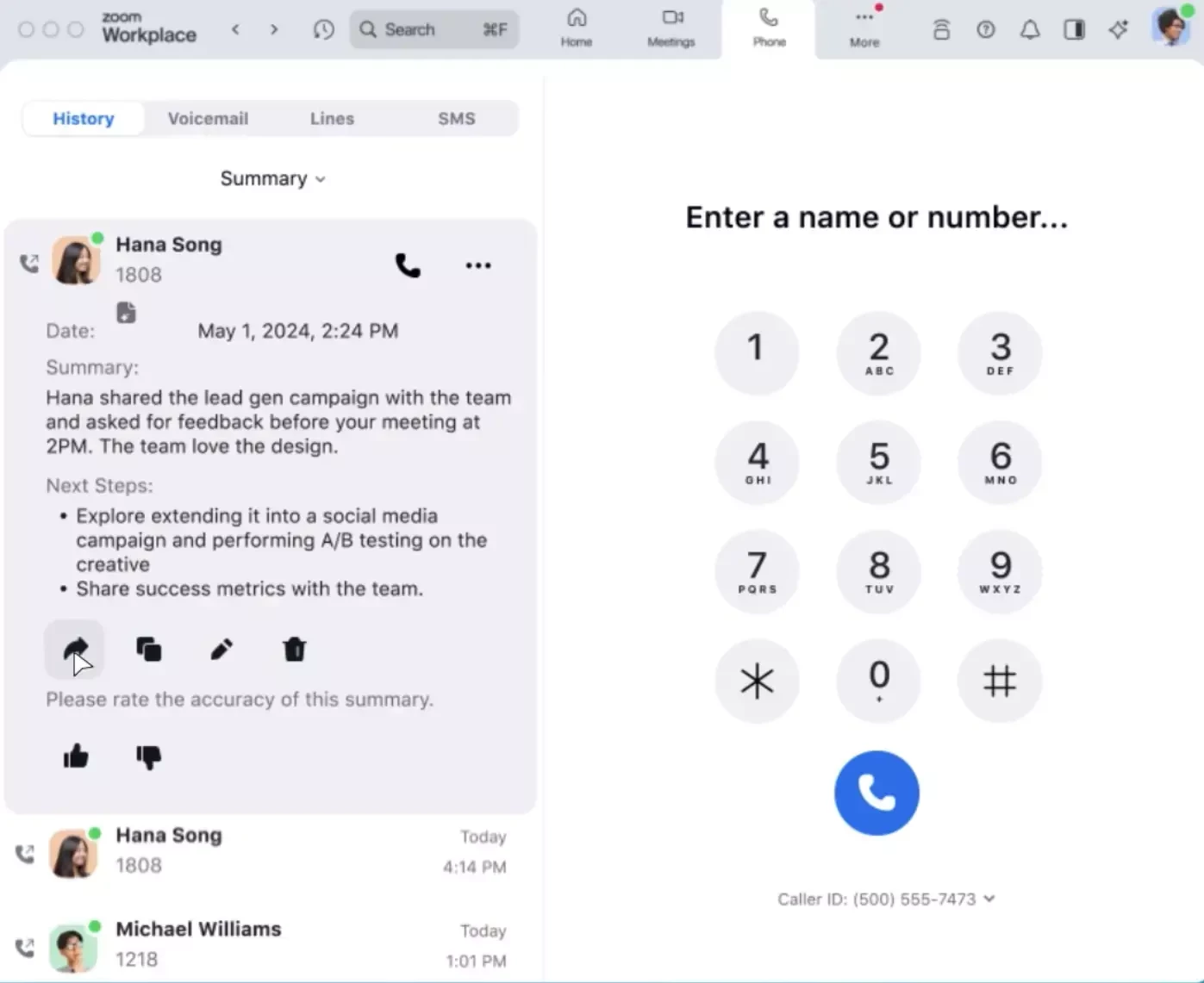
Why It Matters: No more manual note‑taking or missed follow‑ups.
How to Enable: Admins can turn on AI Companion in Account Settings → Zoom Phone → AI Companion.
💡 Pro Tip: Encourage users to share AI summaries in Zoom Chat to keep everyone informed and create a searchable record of key discussions.
2️⃣ Customer Engagement Pack — Smarter Call Routing and Visibility
Once your calls are being captured and summarized, the next step is optimizing how those calls are routed and managed.
What It Does: Customer Engagement Pack (formerly known as PowerPack) equips admins with advanced tools like Call Queues, Auto‑Receptionists, and Real‑Time Analytics Dashboards — all of which are designed to manage high‑volume call flows efficiently.
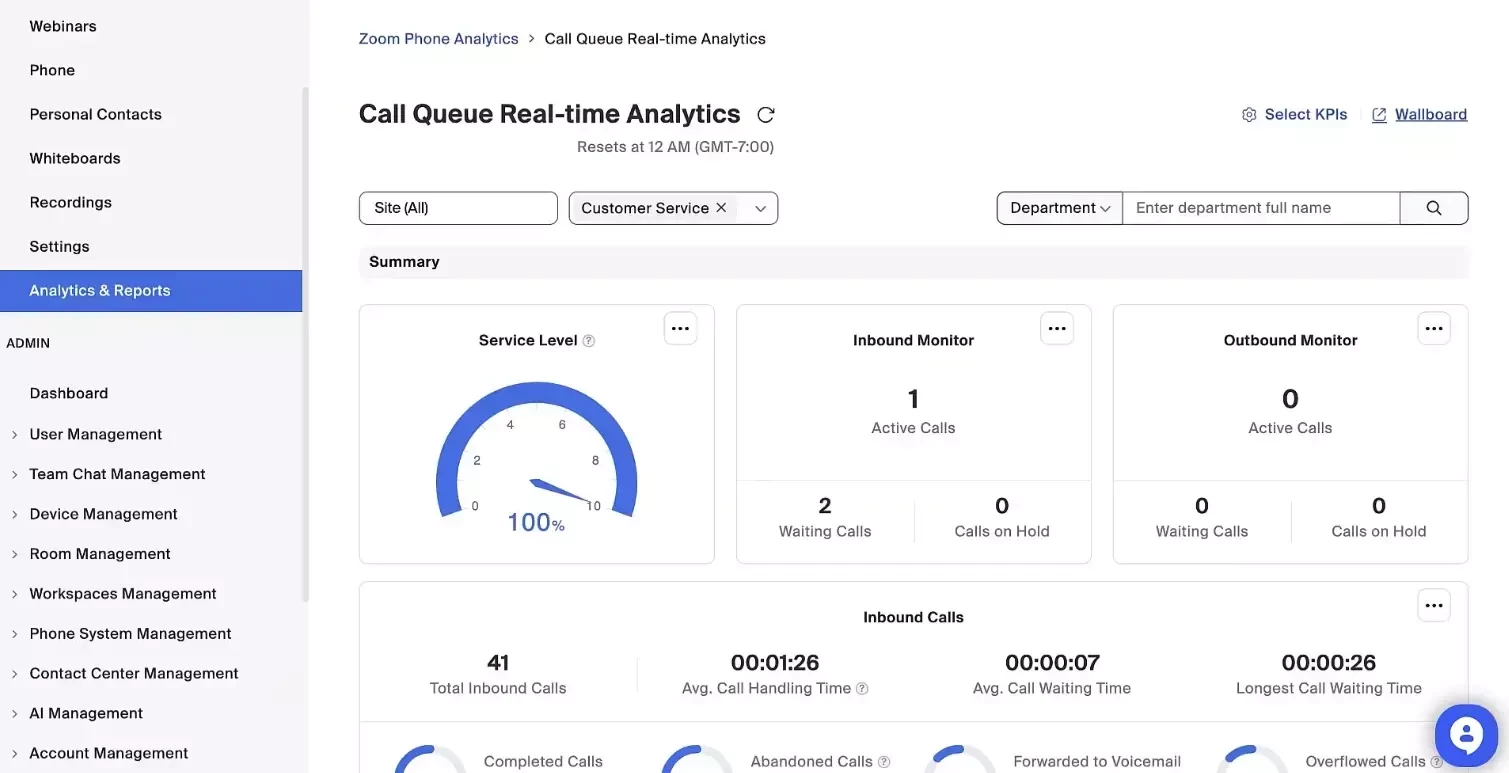
Why It Matters: These features help ensure every caller reaches the right person quickly, improving both customer satisfaction and internal efficiency.
How to Configure:
- Go to Phone System Management → Call Queues to assign teams.
- Add an Auto‑Receptionist greeting and routing logic.
- Review performance in Analytics & Reports → Zoom Phone.
💡 Pro Tip: Use analytics trends to identify peak call times and adjust queue assignments dynamically to balance workloads. If you haven't explored Customer Engagement Pack yet, this is your sign to give it a try.
3️⃣ Integrations — Keep Your Workflows Connected
After your routing and analytics are set, integrations connect those insights directly into the tools your team uses every day.
What It Does: Zoom Phone integrates with Salesforce, HubSpot, Microsoft Teams, and Google Workspace, allowing users to call, log, and track interactions right within their daily workflow.
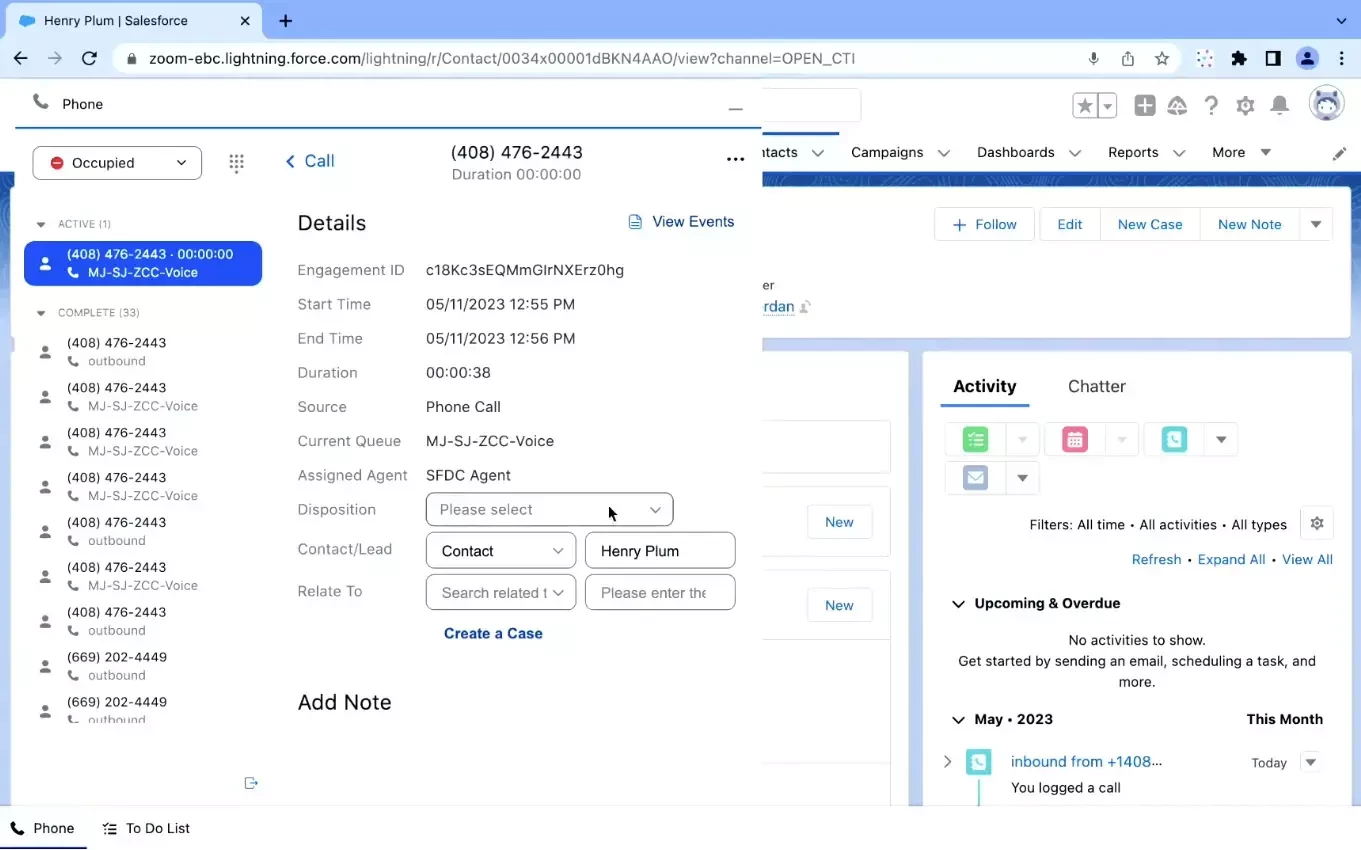
Why It Matters: Integrations reduce context switching and enable accurate data capture, giving teams a complete view of customer interactions. Many organizations find that connecting Zoom Phone to their CRM improves reporting accuracy and saves measurable time per call.
How to Get Started:
- Visit the Zoom App Marketplace → Zoom Phone Integrations.
- Select your CRM or productivity suite and follow the setup instructions.
💡 Pro Tip: Enable automatic call logging to maintain complete customer histories and keep consistent data across systems.
📊 Quick Reference
| Feature | Primary Benefit | Setup Path |
| AI Companion | Summarizes calls & creates follow‑ups | Web Portal → AI Companion Settings |
| Customer Engagement Pack | Optimizes call routing & analytics | Admin Dashboard → Call Queues / Reports |
| CRM Integrations | Streamlines workflows in daily tools | Zoom App Marketplace → Integrations |
🔗 Resources & Next Steps
🎯 Key Takeaway: Ready to see the difference? Activate these three features in your account today and start turning every call into measurable impact.
For additional technical insights tailored to IT admins and decision makers, visit the Zoom Technical Library.
Written by Matthew Baker, Product Adoption Expert, Zoom Contact Center & Zoom Phone. For questions about this article or other Zoom Products, reach out via the Zoom Community or your Customer Success team.