

Your Business Never Sleeps: Setting Up an AI Receptionist in Minutes
It's 2 AM. A potential customer calls your business. Nobody picks up. They hang up, contact your competitor, and you never hear from them again.
Sound familiar? It doesn't have to be your story anymore.
I work with Zoom Phone customers on adoption every day, and the AI Receptionist is one of those features that consistently gets a "wait — we can do that?" reaction. It's been available for a while now, and it's still one of the most underutilized features in the Zoom Phone lineup. That gap is what this article is here to close.
Zoom's AI Receptionist — built into AI Studio — gives your business a voice that never clocks out, never calls in sick, and never puts a caller on hold to "check with someone." It answers questions, routes calls intelligently, and can even book appointments. No code required.
Here's how to get one running in under 10 minutes.
What Is the AI Receptionist?
The AI Receptionist is a voice-powered virtual agent that lives inside Zoom Phone. Think of it as a front desk employee with fast recall of your FAQs, who knows every extension in the building, and never leaves for lunch.
It's built using Zoom AI Studio and powered by Zoom Virtual Agent (ZVA) technology. Once published, it connects to your Auto Receptionist through a Zoom Phone number — meaning real callers dial a real number and get real answers from AI Receptionist.
Here's what it does out of the box:
- Greet callers naturally with a customizable voice and personality
- Answer frequently asked questions by pulling from your knowledge base — website, PDFs, or uploaded documents
- Route calls intelligently to the right person, department, or call queue based on what the caller actually says
- Transfer by name — a caller says "I need to speak with Sarah in accounting" and the system connects them
- Schedule appointments using Zoom Scheduler integration
- Hand off to a live agent when the conversation needs a human touch
No scripting. No decision trees. No "press 1 for sales, press 2 for support." Just a natural voice conversation.
Why This Matters for Your Business
Every missed call is a missed opportunity. Whether you're a five-person dental office, a growing e-commerce brand, or a multi-location services company, the problem is the same: you can't be everywhere at once.
Here's what actually changes when you turn this on:
After-hours coverage stops being a gap. Nights, weekends, holidays — callers can get answers instead of being forwarded to voicemail. That alone is worth the setup time for most businesses.
Your team gets time back. Routine calls ("What are your hours?" "Where are you located?" "Can I book an appointment?") be handled automatically. That's real time returned to your staff for the interactions that actually need them.
Callers stop getting bounced around. The AI understands intent and routes to the right place with context — not just the closest match. It's a meaningfully better experience than a traditional phone tree.
Appointments get confirmed in real time. The AI can check availability and book — no email tag, no callback required.
Setting It Up: A Step-by-Step Walkthrough
The setup is approachable even if you've never touched AI Studio before. Here's the full process.
What You'll Need Before You Start
- A Zoom account (Pro, Business, Education, or Enterprise)
- A Zoom Phone license
- A Zoom Virtual Agent (voice) license
- Admin or account owner access with Virtual Agent permissions
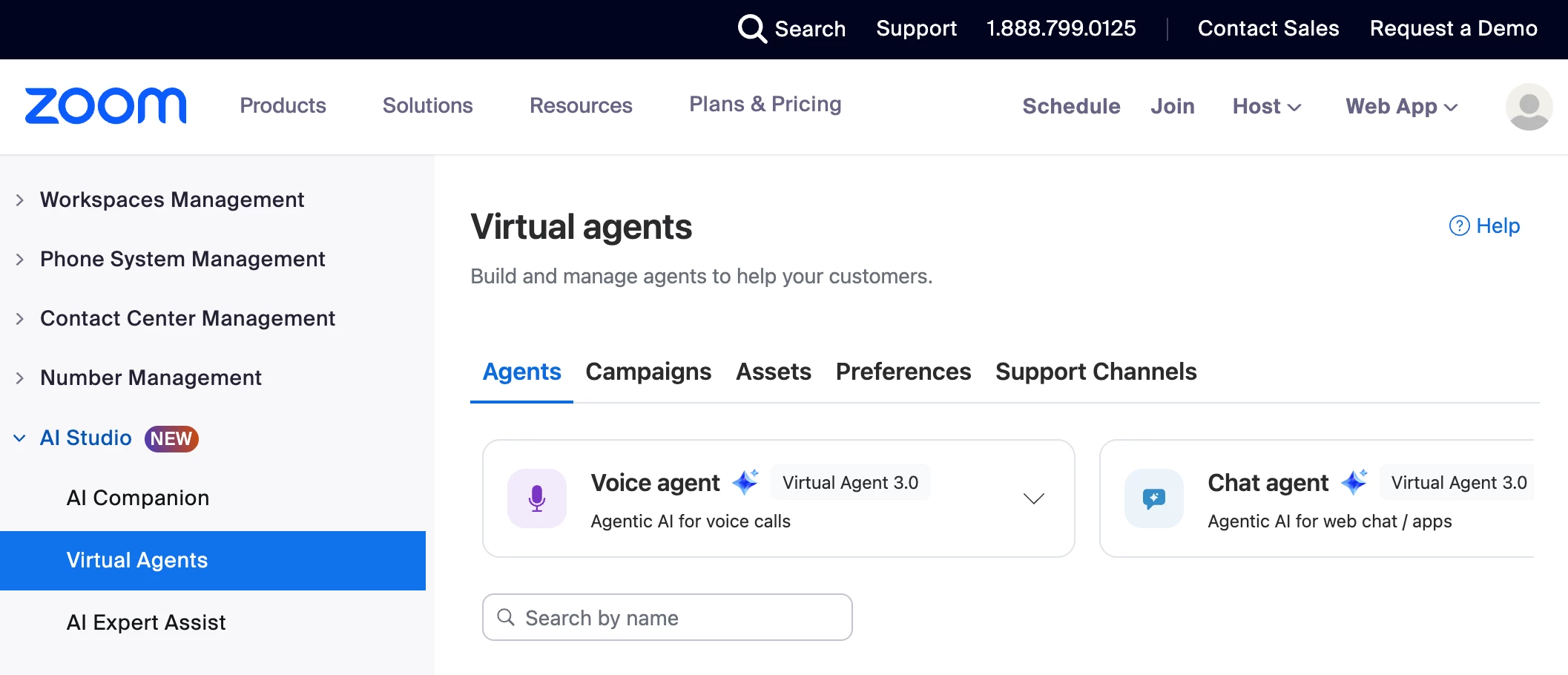
Step 1: Open AI Studio
Sign in to the Zoom web portal and navigate to AI Studio → Virtual Agents. Click Voice agent, then select Receptionist.
This is your home base for everything — building, configuring, and managing your receptionist all happens here.
Step 2: Name It and Choose a Voice
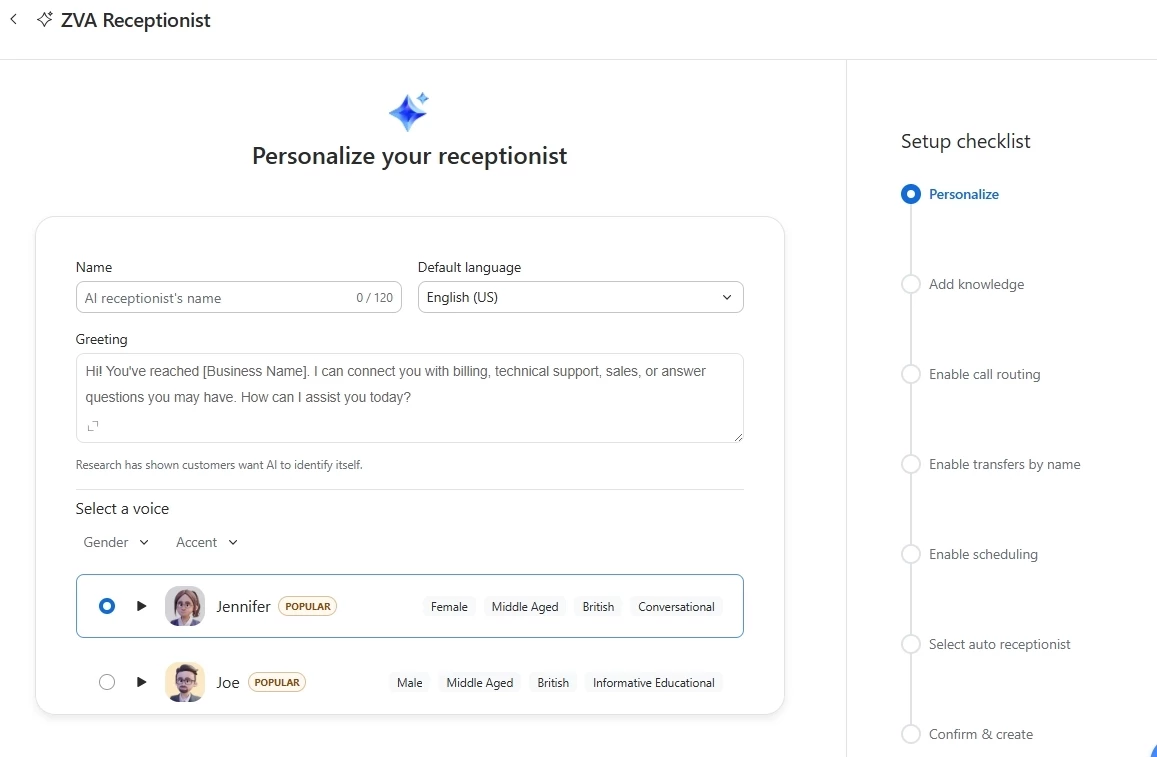
Give your receptionist a name (internal only — callers won't hear it). Then choose:
- Language — Zoom Virtual Agent supports English, Spanish, French, Portuguese, Traditional Chinese, Cantonese, Russian, Malay, and more
- Voice actor — Neural voices that sound natural, not robotic
Pick a voice that fits your brand. A legal office and a dental practice shouldn't sound identical.
Step 3: Write Your Greeting
Craft the first thing callers hear. Keep it warm, brief, and clear about what the AI can do. Something like:
"Hi, thanks for calling [Your Company]. I can help you with questions, connect you to someone on our team, or schedule an appointment. What can I help you with today?"
Don't overthink this one — you can always update it after launch.
Step 4: Add Your Knowledge Base
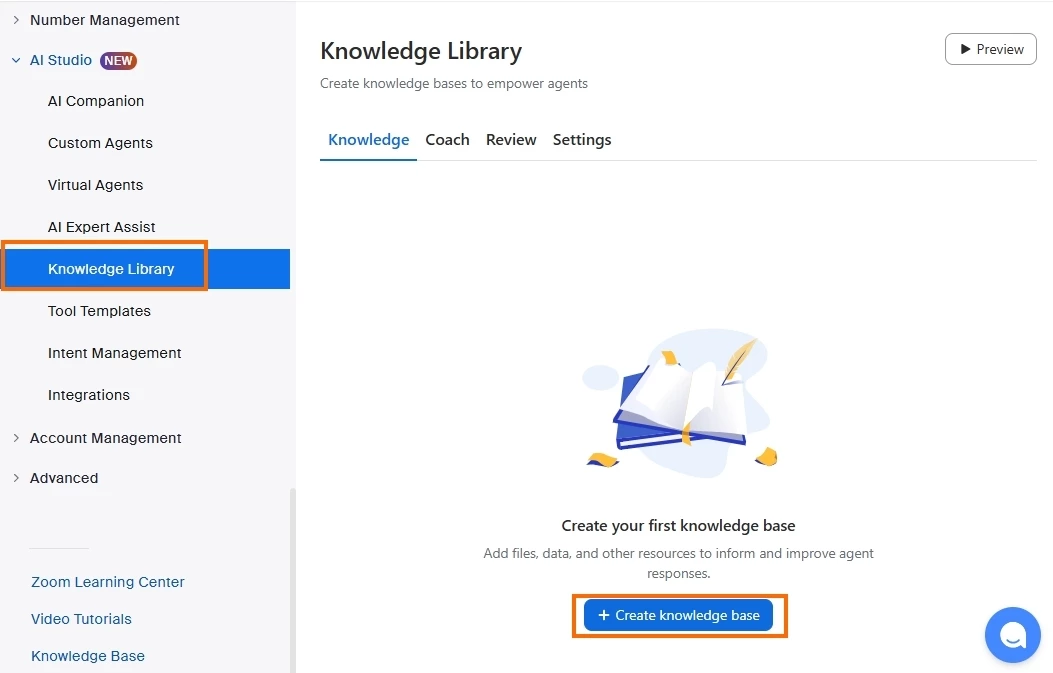
This is the most important step. Upload the information your receptionist needs to actually answer questions:
- Website URL or sitemap — The AI crawls your site and learns your content
- PDF or document uploads — FAQ sheets, service descriptions, pricing guides, policy documents
Here's something I see trip people up regularly: uploading one generic FAQ document and calling it done. Your knowledge base needs to match what callers actually ask. If you have voicemail transcripts or call logs, pull the recurring questions from there and build your knowledge base around those. It makes a significant difference in how well the AI handles real conversations.
Step 5: Configure Call Routing (Optional but Powerful)
Set up routing rules so your receptionist knows where to send callers:
- Define topics (e.g., "billing," "technical support," "new orders") and map them to specific extensions, call queues, or shared lines
- Enable Transfer by name so callers can ask for a specific person and get connected directly
This is also where you set your fallback — what happens when the AI can't help. Don't skip that part. A smooth handoff to a live person or voicemail is just as important as everything before it.
Step 6: Enable Appointment Scheduling (Optional)
If you use Zoom Scheduler, paste your booking link into the scheduling configuration. Your receptionist can then check availability and confirm appointments in real time.
One honest limitation here: canceling or rescheduling via the AI isn't currently supported. Callers will need to use the link from their confirmation to make changes. Worth setting that expectation in your greeting if appointments are a primary use case.
Step 7: Connect to Zoom Phone and Publish
This is where it all comes together:
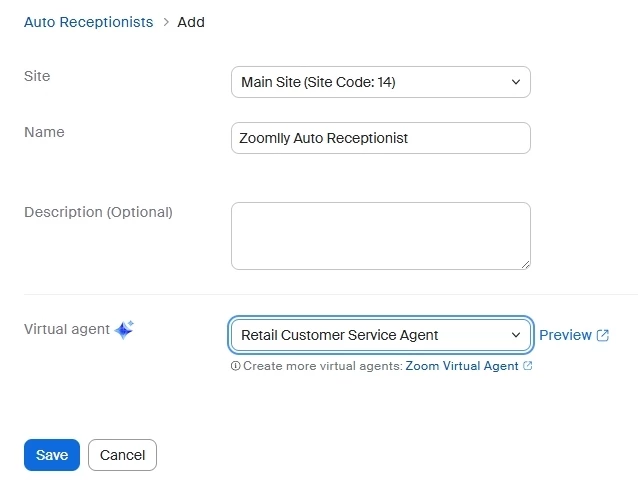
- Create or select an existing Auto Receptionist in your Zoom Phone system
- Assign a phone number to it
- Back in AI Studio, click Publish on your voice agent
- Navigate to Add agent to channel → Zoom Phone and configure your site settings — business hours, holiday schedules, and fallback routing
Your AI Receptionist is live. Real callers, a real number, real answers.
Keeping an Eye on Performance
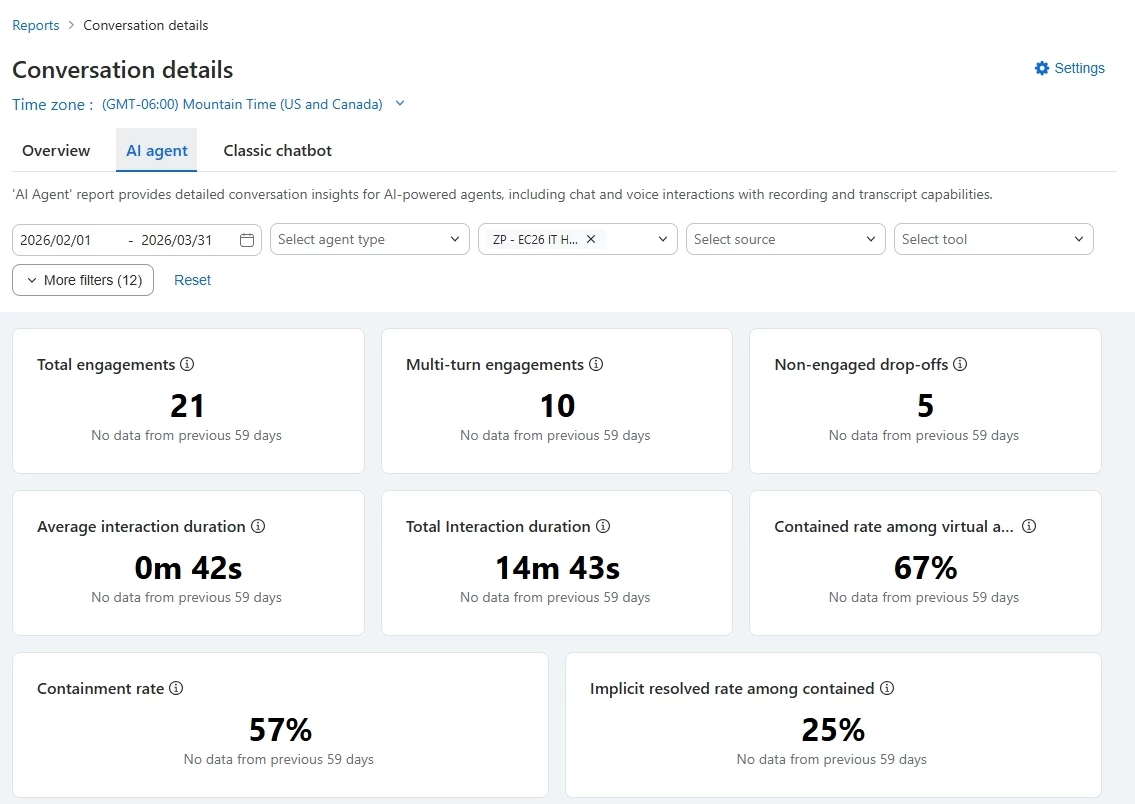
Once it's running, you're not guessing at what's working. Zoom's built-in analytics give you a clear picture:
- Containment rate — How many calls the AI resolves without a human
- Topic performance — Which questions come up most and how well they're being answered
- Knowledge gaps — Where callers are asking things your knowledge base doesn't cover yet
- Call volume and duration — Traffic patterns across business hours, after hours, and holidays
- Query insights — Popular topics, solved vs. escalated queries, and caller feedback trends
The knowledge gaps report is the one I tell people to check first. It shows you exactly what callers want to know that you haven't taught the AI yet — and it turns improvement from guesswork into a checklist.
Tips for Getting the Most Out of It
Your first version won't be perfect — and that's fine. Launch it, let real callers interact with it, and use the analytics to sharpen it. Trying to get it perfect before going live is how this feature stays on the to-do list forever.
Build your knowledge base from real call patterns. Generic FAQ content is a starting point, not a finish line. Use actual caller questions to drive what you add. The more specific your knowledge base, the better the experience.
Update it when things change. New hours, menu updates, a new service — the AI is only as current as the information you give it. This isn't a set-and-forget setup.
Set a clear fallback for everything the AI can't handle. Don't leave callers stranded. Whether that's a call queue, a specific extension, or voicemail — plan it deliberately.
Match the voice to who you actually are. The greeting and voice should feel like an extension of your brand, not a generic phone system. Spend a few extra minutes here. Callers notice.
Who Is This For?
The AI Receptionist is a fit for any organization on Zoom Phone that wants to improve caller experience without adding headcount:
- Small businesses that can't staff a full-time receptionist but can't afford to miss calls
- Multi-location companies that need consistent call handling across every site
- Professional services firms — legal, medical, financial — where after-hours availability directly affects client trust
- Growing teams where call volume is starting to outpace staff capacity
- Any business with predictable FAQ patterns — if callers keep asking the same five questions, let AI handle them
The Bottom Line
The AI Receptionist isn't coming soon — it's in Zoom AI Studio right now, and the setup takes less time than onboarding a new hire to your phone system. It handles calls, routes intelligently, books appointments, and learns from your own content. No code, no overhaul, just your existing Zoom Phone number doing more.
If you've been sitting on this one, this is your nudge.
Drop a comment below if you have questions about the setup or run into anything unexpected — happy to help troubleshoot or point you in the right direction.
Helpful Resources
- AI Receptionist: 24/7 Intelligent Phone Support — Book a Demo or Start a Free Trial
- Setting Up Zoom Virtual Agent Receptionist — Official step-by-step setup guide
- Managing Zoom Virtual Agent for Zoom Phone — Publishing and channel configuration
- Zoom Virtual Agent Overview — General capabilities and AI Studio navigation
- Zoom Virtual Agent Analytics Dashboard — Understanding your performance metrics
- Zoom Virtual Agent Built-in Tools (Routing, Scheduling) — Advanced configuration options
- Zoom Virtual Agent Product Page — Feature overview and use cases
- Never Miss a Customer with AI Receptionist (Zoom Blog) — Benefits and real-world scenarios
For additional technical insights tailored to IT admins and decision makers, visit the Zoom Technical Library.
Written by Matthew Baker, Product Adoption Expert, Zoom Phone & Zoom Contact Center. For questions about this article or Zoom Scheduler, reach out via the Zoom Community or your Customer Success team.