

Digital Signage Only | Community
Skip to main content
Newcomer
May 23, 2022
Question

Digital Signage Only

  • May 23, 2022
  • 2 replies
  • 7 views

Good Day -


I'm sure that I have overlooked something but I can not seem to find the answer in Support or the Community Forums. I'm interested in the Digital Signage capabilities but when I attempt to create a Digital Signage Only room type, it is not an option. (see below)
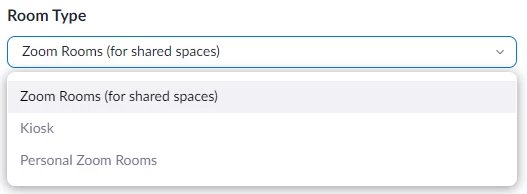
Do I first have to create a Zoom Room or is there something in the settings I've overlooked?


Many Thanks
Joe


    2 replies

    Newcomer
    May 23, 2022

    Hey Joe, from what I can tell it appears you haven't enabled Digital Signage yet.
    From the admin portal, select Zoom Rooms, Account Settings, Digital Signage. Then scroll down to the very bottom and enable Digital Signage. Hope that helps! 🙌

    Ohkawa
    Community Champion | Customer
    Community Champion | Customer
    May 28, 2022

    Hi, JDB

    In order to use digital signage, one or more paid Rooms (Zoom Rooms(sfor share spaces) or kiosk) must be created.

    Each paid Room created will be allocated 1GB of signage video file space.
    Note that this is not the number of Rooms licenses you have purchased.

    Ohkawa
    Community Champion | Customer
    Community Champion | Customer
    May 29, 2022

    Hi, JDB

    Please see below for a list of issues with using a Windows PC as a signage device.
    ■Device: When we contacted Zoom, they recommended Corei7 to take full advantage of Rooms' functions, but a Celeron N4000 or higher CPU will work fine, although Rooms does play videos, still images, URLs, and view webinars. Within that range, a Celeron N4000 or higher will work fine.

    Fanless is good for quietness.
    For example, we use the PC linked below.

    Amazon.co.jp: Mini PC, Quieter2Q Celeron J4125, 8GB Memory, 128GB eMMC Processor, Windows 11 Pro, High Speed Wi-Fi, BT4.2, Type-C, USB 3.0 x 4, HDMI x 2 Gigabit Ethernet, No Fan, Quiet Mini PC : Computers


    ■ Update: If you connect to the Internet via WiFi, you may want to turn off "Automatically install Windows updates" and register from the Device Management menu so that updates are limited to critical patches. This is because Windows updates frequently and WiFi connections are often lost after an update.


    ■Autologon: In some cases, the automatic logon setting does not follow the Zoom manual. In such cases, you can use the application provided by Microsoft for automatic logon settings.

    Autologon - Windows Sysinternals | Microsoft Docs