

Zoom/Google Calendar think I'm on a Basic plan but I have a paid plan | Community
Skip to main content
Newcomer
December 12, 2022
Solved

Zoom/Google Calendar think I'm on a Basic plan but I have a paid plan

  • December 12, 2022
  • 3 replies
  • 9 views

A couple weeks ago, when creating a Zoom meeting through Google calendar, a warning popped up alerting me that I am on a basic plan and can only hold meetings of 40 minutes or less for three or more people. However, when I log into Zoom, it tells me that I'm licensed to host a meeting of 300 people, and when I click on "upgrade plan" in Google calendar, it takes me to Zoom, which again tells me I'm already licensed. The admin for my company also shows that I'm licensed. This has been incredibly frustrating. Any suggestions?

    Best answer by Bort

    Hi @JessicaS 

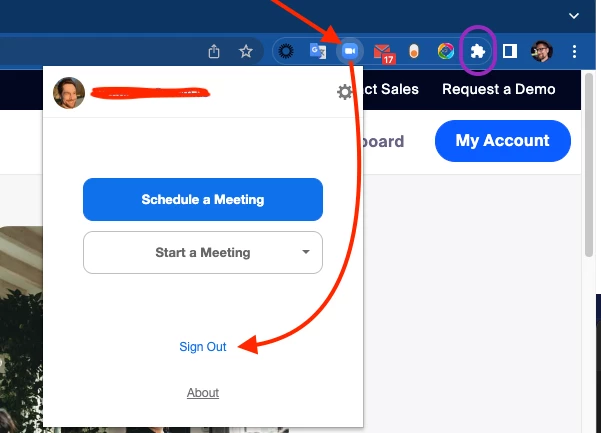
    Great, that means you're using the scheduler extension on Chrome or Firefox. Let's make sure you are signed in to the correct account on that, which should also sync your account with the scheduler and remove that message. 

    1. In the top-right corner of Chrome or Firefox, look for the Zoom icon.
      If you don't see it, click the puzzle piece to show other extensions you have installed.  
    2. When you find the Zoom extension, click it and then click Sign Out.\
    3. Once that's done, click it again and sign in with your account details. 

     With that done, your latest account info should be synced with the extension, and the 40-minute notice should be gone. 


    Hope that helps and let me know if you have any further questions. Otherwise, make sure to mark the solution as accepted if this information is what you needed.

    3 replies

    Bort
    Employee
    Employee
    December 12, 2022

    Hi @JessicaS 


    Just want to confirm one thing, so that I can provide you the correct steps. When you are adding the Zoom meeting in Google Calendar, do you click Make it a Zoom Meeting or click the Add video conferencing menu? 

    JessicaSAuthor
    Newcomer
    December 13, 2022

    Hi @Bort 

    When I add the Zoom meeting in Google Calendar, I click Make it a Zoom Meeting

    Bort
    Employee
    BortAnswer
    Employee
    December 13, 2022

    Hi @JessicaS 

    Great, that means you're using the scheduler extension on Chrome or Firefox. Let's make sure you are signed in to the correct account on that, which should also sync your account with the scheduler and remove that message. 

    1. In the top-right corner of Chrome or Firefox, look for the Zoom icon.
      If you don't see it, click the puzzle piece to show other extensions you have installed.  
    2. When you find the Zoom extension, click it and then click Sign Out.\
    3. Once that's done, click it again and sign in with your account details. 

     With that done, your latest account info should be synced with the extension, and the 40-minute notice should be gone. 


    Hope that helps and let me know if you have any further questions. Otherwise, make sure to mark the solution as accepted if this information is what you needed.

    Newcomer
    December 12, 2022

    I am having the same issue as well. In fact, although my account is charged each month, the Zoom system doesn't recognize me.


    Bort
    Employee
    Employee
    December 13, 2022

    Hi @MarvSmith 

    Can you answer the same question as above? When you are adding the Zoom meeting in Google Calendar, do you click Make it a Zoom Meeting or click the Add video conferencing menu?

    Newcomer
    December 13, 2022

    Also, how do I unhook my Zoom account from Google workspace?  Is there a way to do that?


    Newcomer
    December 13, 2022

    I have Zoom for Google Workspace installed.  My challenge is that I am being invoiced each month for my Zoom service, but my Google account thinks it's a free account.  How do I change that?  


    Bort
    Employee
    Employee
    December 13, 2022

    Hi @MarvSmith 


    First up, make sure the license is assigned to your user profile on the Users page: https://support.zoom.us/hc/en-us/articles/115004976063-Assigning-Zoom-licenses


    Once that is done, you try scheduling again, as the Zoom for Google Workspace add-on should sync every time you schedule a meeting.