Recurring meeting recordings and attendance on different days | Community
Skip to main content
Newcomer
August 21, 2023
Solved

Recurring meeting recordings and attendance on different days

  • August 21, 2023
  • 1 reply
  • 1 view

I created a recurring zoom meeting and would like to create individual recordings on the cloud and attendance reports of each instance that I use this meeting.


Is this possible?

Best answer by Frank_TB

Hello,


To get the report for any meeting log into the Zoom web portal https://zoom.us/signin  and navigate to (Reports > Usage Reports > Usage) for each meeting. 
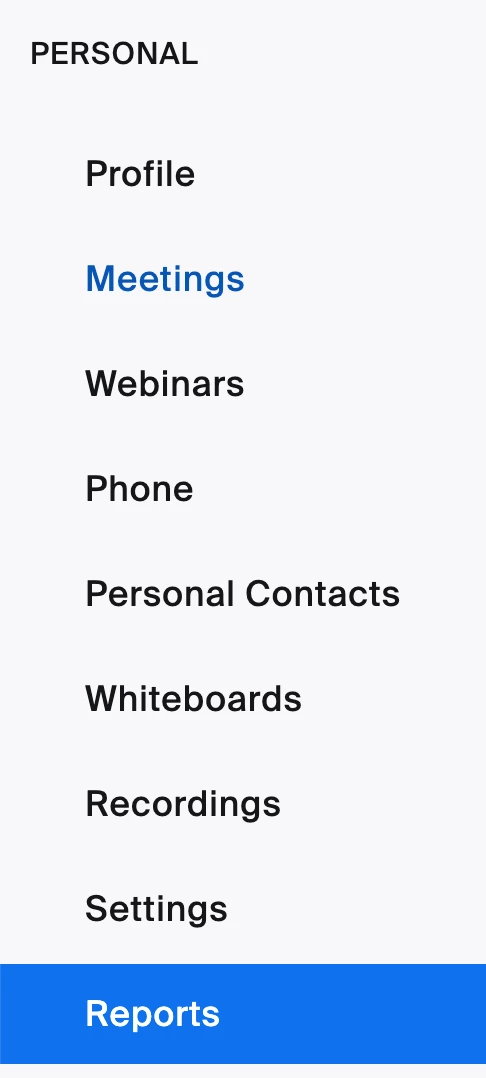
 

Click into the "Participants" column under the Usage section (Click on the participant number in the participant column to open the report).


Generating meeting reports

https://support.zoom.us/hc/en-us/articles/216378603-Generating-meeting-reports 


Enabling cloud recording

  1. Sign in to the Zoom web portal.
  2. In the navigation menu, click Settings.
  3. Click the Recording tab.
  4. Click the Cloud Recording toggle to enable or disable it.
  5. If a verification dialog appears, click Enable or Disable to verify the change.
    Note: If the option is grayed out, it has been locked and must be changed at either the group or account level. Contact your Zoom administrator for assistance.
  6. (Optional) Select any additional basic and advanced cloud recording settings as needed, such as save chat messages, display participants' names in the recording, or add a timestamp to the recording.

https://support.zoom.us/hc/en-us/articles/360060231472-Enabling-cloud-recording 


Regards

If my reply helped, don't forget to click the accept as solution button!

1 reply

Frank_TBAnswer
Community Champion | Customer
August 24, 2023

Hello,


To get the report for any meeting log into the Zoom web portal https://zoom.us/signin  and navigate to (Reports > Usage Reports > Usage) for each meeting. 

 

Click into the "Participants" column under the Usage section (Click on the participant number in the participant column to open the report).


Generating meeting reports

https://support.zoom.us/hc/en-us/articles/216378603-Generating-meeting-reports 


Enabling cloud recording

  1. Sign in to the Zoom web portal.
  2. In the navigation menu, click Settings.
  3. Click the Recording tab.
  4. Click the Cloud Recording toggle to enable or disable it.
  5. If a verification dialog appears, click Enable or Disable to verify the change.
    Note: If the option is grayed out, it has been locked and must be changed at either the group or account level. Contact your Zoom administrator for assistance.
  6. (Optional) Select any additional basic and advanced cloud recording settings as needed, such as save chat messages, display participants' names in the recording, or add a timestamp to the recording.

https://support.zoom.us/hc/en-us/articles/360060231472-Enabling-cloud-recording 


Regards

If my reply helped, don't forget to click the accept as solution button!

