How do I download a list of registrants for an event that hasn’t occurred yet? | Community
Skip to main content
Newcomer
January 18, 2022
Solved

How do I download a list of registrants for an event that hasn’t occurred yet?

  • January 18, 2022
  • 4 replies
  • 3 views

When looking at my meeting, I can click “view” under Manage Registrants see that I have 8 registrants. However, it only lists their Name, Email, and registration date. In the registration form, I have asked for more information. So, how do I generate Report that shows the 8 registrants, First name, Last name, Organization, Job title, and answers to the custom question I created?

I have already tried going through Account Management > Reports > Generate Report. Still, the CSV file only comes up with “First Name, Last Name, Email, Registration Time, Approval Status, City, Organization, Job Title,” but it doesn’t include the custom question I created. It doesn’t actually list the 8 people registered.

What am I doing wrong?

    Best answer by jeremyjustin

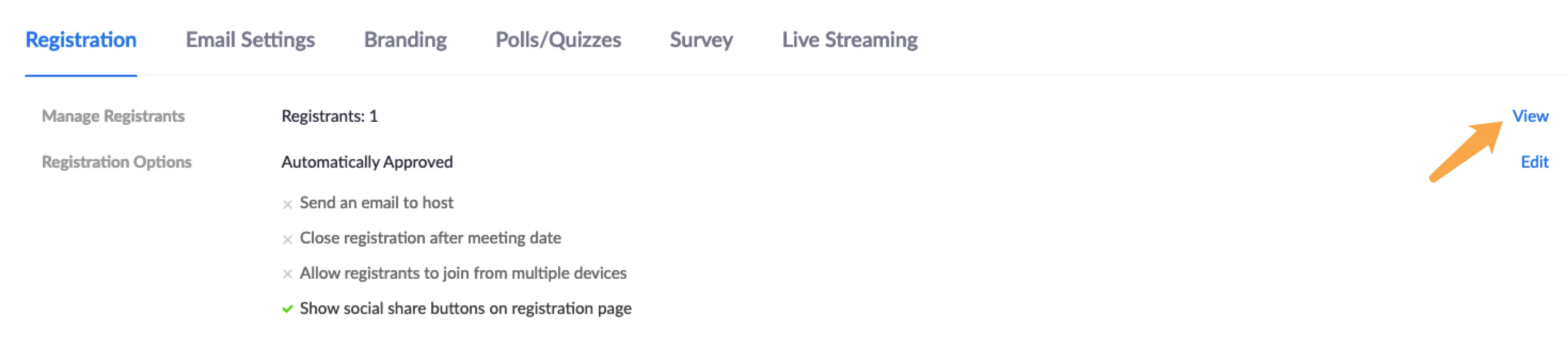
    Hi @ProspectSV ok thanks for getting back to me. Just as a test I created a meeting with registration, registered under a different account, then went into my meeting in the Zoom portal (clicked on the meeting, not the Edit button), scrolled to the bottom in the Registration section. When I click on "View" out to the right of Registrants I see how many people have registered


    The next screen shows me the "Registrants" along with their email and registration date. I can click on the name under the "Registrants" column and see all their answers. 


    To Generate a report

    - in the Zoom Portal, under "Account Management" select "Reports

    - Under the "Usage Reports" tab select "Meeting"

    - select "Registration Report" as the report type and edit the date so it includes the future date of your meeting

    - You should see your meeting and be able to click "Generate" to the right of it

    - Then you should be able to download the report and see all questions answered.

    This should work but please let us know if not?


    Also, please make sure the .csv file is open and all columns are showing. You are probably doing this already but just double checking!

    4 replies

    Newcomer
    January 18, 2022

    You can click on 'View event summary', there you can see the participants. I made the same mistake..


    Newcomer
    January 18, 2022

    Hey @jdvdborg1,

    Could you elaborate a little more? Sorry if this is an obvious answer but, where do I find 'View event summary'? I should note that I'm trying to generate a report before the event has occurred.

    Does that work for both Zoom Meetings and Zoom Webinars?

    jeremyjustin
    Community Champion | Employee
    Community Champion | Employee
    January 18, 2022

    Hi @ProspectSV thanks for your post on the Zoom Community! With registration options, you can select to have the questions show up for people and then also check the box to make the registration question required. Do you know if your custom question is required?


    To check, you can

    - sign into the Zoom Web portal and Click on Meetings, then click on your particular meeting to see the entire meeting. Don't click "Edit" as it will only allow viewing some of the options

    - scroll to the bottom and click "Edit" out to the right side for the Registration Options


    On the next screen validate you have marked on the left side the questions you want answered, and mark the check on the right side to make them Required. 


    Then click the "Custom Questions" tab at the top and make sure there is a check box for "Required" in your custom question

    With these checks in place people will not be able to complete registration without filling in all the Required questions. 


    If this has answered your question to your satisfaction, please click the "Accept as Solution" button below but if not please reply and we can continue the  discussion. Thank you!


    Newcomer
    January 18, 2022

    Hi Jeremy,

    If this has answered your question to your satisfaction, please click the "Accept as Solution" - It did not.


    I know how to create custom questions, and I made all the questions "required."


    The question I have: How do I generate a report to an event that has not occurred yet so that I can see all of my registrants answers the required questions?

    jeremyjustin
    Community Champion | Employee
    Community Champion | Employee
    January 18, 2022

    Hi @ProspectSV ok thanks for getting back to me. Just as a test I created a meeting with registration, registered under a different account, then went into my meeting in the Zoom portal (clicked on the meeting, not the Edit button), scrolled to the bottom in the Registration section. When I click on "View" out to the right of Registrants I see how many people have registered


    The next screen shows me the "Registrants" along with their email and registration date. I can click on the name under the "Registrants" column and see all their answers. 


    To Generate a report

    - in the Zoom Portal, under "Account Management" select "Reports

    - Under the "Usage Reports" tab select "Meeting"

    - select "Registration Report" as the report type and edit the date so it includes the future date of your meeting

    - You should see your meeting and be able to click "Generate" to the right of it

    - Then you should be able to download the report and see all questions answered.

    This should work but please let us know if not?


    Also, please make sure the .csv file is open and all columns are showing. You are probably doing this already but just double checking!

    Newcomer
    May 16, 2022

    Did you ever get a clear answer to your question? I too am trying to figure out if I can down load a registration report BEFORE my zoom meeting, and this is not clear.

    Newcomer
    September 15, 2022

    Hi, the answers suggested in this thread don´t work to me. I am trying to create a report for the registered participats to a meeting BEFORE the meeting. The option of viewing the registered participants is not ideal for me because the event is planned for +300 people.


    I am enabling this registration as a test because I need the Attendance reports with the email to properly track the attendance in our internal systems later. 


    I would appreciate any guidance in How to export these Registration reports and not just view the register names.


    Newcomer
    February 24, 2024

    It sounds like you are trying to get a complete picture of attendance both who has registered for your upcoming Zoom meeting and after the meeting has taken place combine registration and participation information to determine attendees and absentees with their emails. This can be done using Salepager, which emails Zoom reports to you for both upcoming meetings and recently completed meetings.